"How to Redact a PDF Properly: Why Black Boxes Often Fail"

In this guide
- Covering is not redacting
- What usually needs redacting
- How to redact a PDF with SmartPDFConvert
- The search trick: catch every mention
- Do not forget the hidden places
- How to check that redaction really worked
- Redaction vs password protection
- Redacting documents for job and visa applications
- Keep the original safe
- Worked example: sharing a bank statement with a landlord
- Redaction for different jobs
- Good practice for redacting at work
- A short history of redaction mistakes
- Frequently asked questions
- In short
Every few years, a news story appears about a government report or court filing where sensitive names were "blacked out", and someone simply copied the black area and pasted it into a text editor. The hidden words appeared in full. The black boxes had been drawn on top of the text, like a sticky note, while the text itself stayed in the file.
That mistake is easy to make. Many PDF editors let you draw a black rectangle, and it looks perfectly redacted on screen. This guide explains the difference between covering and redacting, shows you how to remove information for good, and gives you a simple way to check your work before you share a document.
Covering is not redacting
A PDF is made of layers of content: text, images and drawings, placed on top of each other. When you draw a black box with an ordinary annotation or shape tool, you add one more layer. The words underneath are still there. They are hidden from your eyes, but not from:
- Copy and paste. Select the area, copy, paste somewhere else.
- Search. Search for the hidden name and the PDF viewer jumps to it.
- Text extraction. Tools that read PDFs, including search engines and AI, read the text layer, not the picture.
- Editing. Anyone with a PDF editor can move or delete the box.
- Accessibility tools. Screen readers read the text aloud.
Real redaction means the hidden content is removed from the file, not just covered. After proper redaction, there is nothing under the black box to find.
What usually needs redacting
- Personal identifiers: ID card and passport numbers, social security or national insurance numbers, dates of birth.
- Financial details: bank account and card numbers, balances, salaries.
- Contact details: home addresses, phone numbers, personal email addresses.
- Names of people who are not the subject of the document, such as witnesses, other customers or children.
- Medical information.
- Signatures, when a document is being shared as an example.
- Business secrets: prices, client names, internal figures.
Typical situations: sharing a bank statement with a landlord who only needs to see your income, sending a sample contract to a friend, publishing a report that mentions individuals, or giving a document to a lawyer or journalist.
How to redact a PDF with SmartPDFConvert
Redact PDF runs in your browser, so the unredacted document never leaves your device.
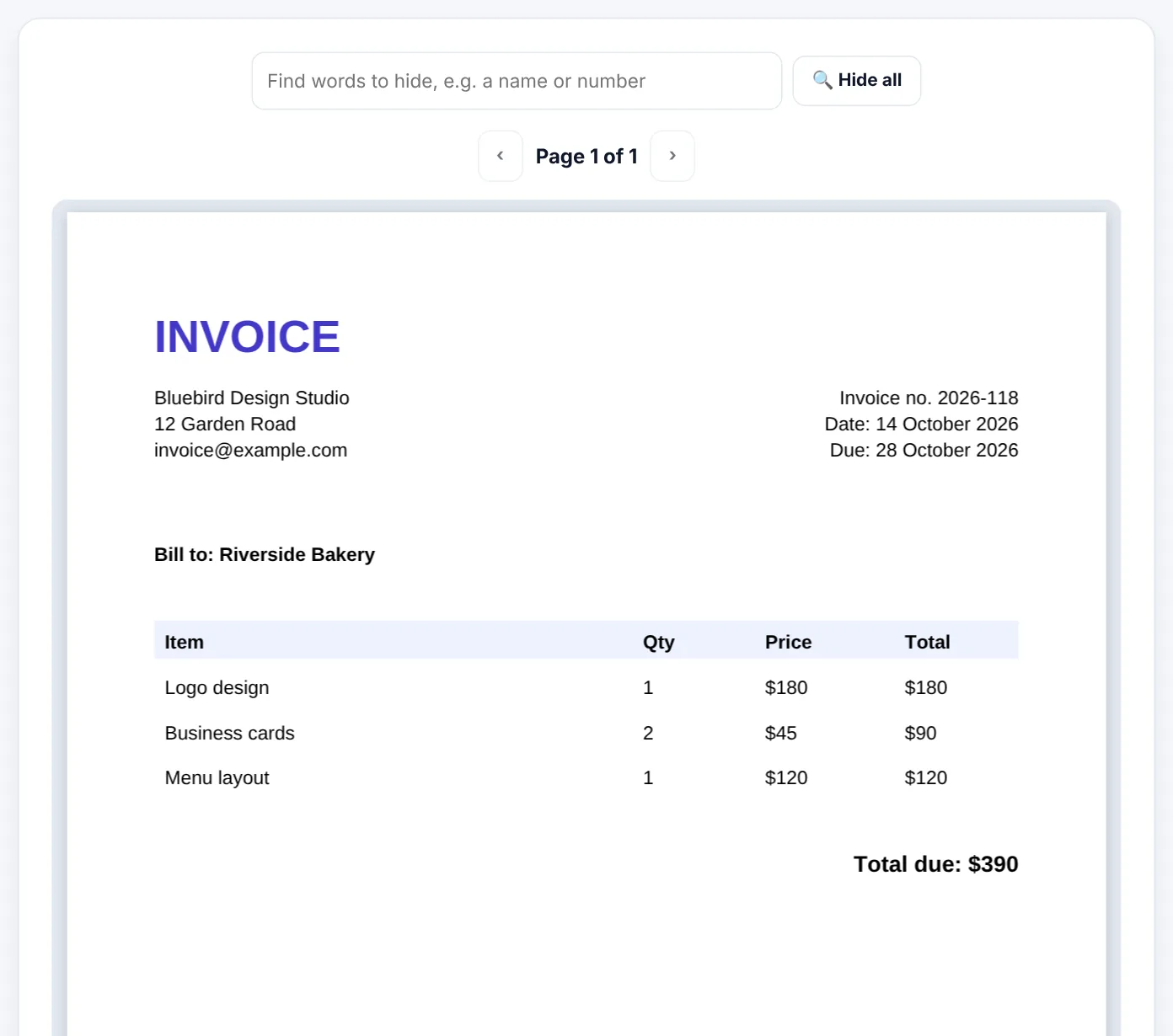
- Open Redact PDF and select your document. The first page appears.
- Find text automatically: type a word, name or number in the search box and press Hide all. Every match on every page is marked.
- Mark areas by hand: drag across anything on the page, including photos, signatures and stamps, to add a box.
- Use the page arrows to check every page. Tap ✕ on a box to remove it if you marked something by mistake.
- Choose the Box colour (black or another colour) and the Quality of the rebuilt pages.
- Press the redact button and download the redacted PDF.
What happens behind the scenes
Pages that contain redaction boxes are rebuilt as pictures, with the boxes burned into the image. The hidden words are gone for good: they cannot be copied, searched or recovered. To keep the rest of the document useful, all the other text on those pages stays searchable and copyable through an invisible text layer, while the redacted areas are left out of it. Pages without any boxes are kept exactly as they were.
That approach gives you the safety of a scanned, blacked-out page with the convenience of a normal digital document.
The search trick: catch every mention
The most common redaction failure, after the "box on top" problem, is simply missing one occurrence. A name appears 14 times in a 30-page document; you find 13.
Use search for anything that has a predictable form:
- The person's name, and also their first name alone and their surname alone.
- ID and account numbers, both with and without spaces or dashes, such as
4210112345671and42101-1234567-1. - Email addresses and phone numbers.
- Company or client names.
After using Hide all, still flip through every page. Search only finds text the PDF actually contains. Scanned pages are pictures, so you must mark those by hand, or make them searchable with OCR PDF first.
Tip: Redact a little wider than the word itself. A tightly cropped box can reveal the length of a name, and sometimes the tops of letters. A comfortable margin hides both.
Do not forget the hidden places
Visible text is only part of a PDF. Information can also hide in:
- Metadata: the document title, author, subject, keywords and software can include names or project codes. Clean it with Remove PDF Metadata.
- Comments and annotations: sticky notes and review comments may contain names. Open the comments panel in your PDF viewer and delete any that mention what you are hiding, or use Flatten PDF in its Everything mode, which turns each page into a picture.
- Form fields: filled-in form fields are separate from the page content. Use Flatten PDF to merge them into the page before redacting, so search can find them.
- Headers and footers: a name or reference number repeated at the top of every page is easy to miss. Search catches these.
- File names:
Ahmed-Khan-Medical-Report.pdfgives away exactly what you redacted. Rename the file. - Attachments and bookmarks: some PDFs contain attached files or bookmark titles with names. Most PDF viewers list these in a side panel. Check it, and remove anything that should not travel with the document.
Try Redact PDFFree, no sign-up, and your file never leaves your device.Open tool →

How to check that redaction really worked
Before you share a redacted document, test it the way someone curious would:
- Open the redacted file (not the original).
- Search for each hidden word or number. It should not be found.
- Select and copy the area around a black box, and paste into a note. The hidden text should not appear.
- Zoom in on the edges of each box to make sure no partial letters are visible.
- Check the document properties (File → Properties in most viewers) for names in the title or author.
- Look at every page, including the last one and any appendices.
It takes two minutes and it is the difference between redaction and decoration.
Redaction vs password protection
People sometimes protect a document with a password when they actually need to redact it, or the other way round.
| Goal | Right tool |
|---|---|
| Keep strangers out of the whole document | Protect PDF |
| Share the document but hide parts of it from the recipient | Redact PDF |
| Both | Redact first, then protect the redacted copy |
Redacting documents for job and visa applications
Sometimes you are asked for documents but do not need to share everything. For example, a landlord may ask for a bank statement to see that your salary arrives, but does not need to see every transaction. Redacting the transactions while leaving your name, the bank's name and the salary deposits visible is a reasonable compromise, as long as the organisation accepts redacted documents. Official processes, such as visa applications, often require complete, unaltered statements; do not redact those without checking.
Keep the original safe
Redaction is permanent in the new file. Always keep your unredacted original somewhere private, in case you need to redact a different set of details for someone else later. Never overwrite the original with the redacted version.
Worked example: sharing a bank statement with a landlord
A landlord asks for proof that your salary is paid into your account each month. Your bank statement shows every purchase, transfer and balance, which the landlord does not need.
- Extract the relevant pages with Extract PDF Pages, for example the last three months.
- Open Redact PDF with the extracted file.
- Search for the account number and press Hide all, then search again for the number written with spaces, in case it appears both ways.
- Drag boxes by hand over the transaction lines, leaving the bank's name, your name and the salary credits visible.
- Choose black boxes, so it is clear that information was deliberately withheld.
- Redact and download, then run the checks above: search for the account number, try copying a hidden line.
- Clean the metadata with Remove PDF Metadata and rename the file to something neutral.
The landlord gets the evidence they asked for, and nothing more.
Redaction for different jobs
| Situation | What to redact | Watch out for |
|---|---|---|
| Sharing a payslip for a rental | Tax and ID numbers, deductions, employee number | Your employer's address may be fine to keep |
| Publishing a report online | Names of individuals, emails, phone numbers | Names in charts, footnotes and image captions |
| Sending a sample contract | Party names, addresses, prices, signatures | The names in the header and the signature block |
| Sharing medical records with a new doctor | Usually nothing; they need it complete | Ask before redacting medical information |
| Responding to a records request at work | Third-party personal data | Follow your organisation's rules and keep a log |
Good practice for redacting at work
If you redact documents professionally, for example in HR, legal, healthcare or public administration, a few habits help:
- Work on a copy, never the original.
- Have a second person check important redactions before release.
- Keep a short log of what was redacted and why.
- Use consistent box colour (black is standard) across a set of documents.
- Release the redacted PDF, not a screenshot or print. A proper redacted file keeps the remaining text searchable for the recipient.
A short history of redaction mistakes
Redaction failures are not rare, and they have embarrassed governments, courts and large companies. The same three mistakes appear again and again:
- Boxes drawn on top of text, leaving the words in the file to be copied.
- Text coloured black on a black background, which looks hidden but is fully searchable.
- Hidden information left in metadata, comments or earlier versions saved inside the same file.
Every one of these happens because the document looked redacted on screen. The checks in this guide (searching, copying and inspecting properties) are exactly the tests that would have caught them.
Frequently asked questions
Can redacted text be recovered?
Not with Redact PDF. The pages with boxes are rebuilt so the hidden content no longer exists in the file.
Will the rest of my document still be searchable?
Yes. Other text on redacted pages stays searchable and copyable through a text layer, and pages without boxes are not changed at all.
Can I use a colour other than black?
Yes. Choose a box colour. White can be useful for hiding something discreetly, but black makes it obvious that information was intentionally removed, which is usually better practice.
Does redaction work on scanned documents?
Yes. Drag boxes by hand over the areas to hide. Search cannot find words in pictures unless you run OCR PDF first.
Why is my redacted file bigger?
Pages with boxes become images, which take more space than text. If needed, compress the result with Compress PDF.
Can I redact on my phone?
Yes. Redact PDF works with touch: drag across text with your finger to add a box, and use the search box to find words. A larger screen makes it easier to check every page carefully, so for long documents a computer or tablet is more comfortable.
Should I tell the recipient that I redacted the document?
It is good practice, and black boxes make it obvious anyway. A short note such as "account numbers removed for privacy" avoids confusion.
In short
A black box drawn on top of text hides nothing from a computer. Real redaction removes the content itself. Search for every form of the information, mark scans and images by hand, clean the metadata and file name, test the result by searching and copying, and keep the unredacted original safely to yourself.
Tools used in this guide
 Remove PDF Metadata
 Protect PDF
 Flatten PDF
Keep reading
 Privacy & SecurityHow to Remove Hidden Metadata From PDFs and Photos Before Sharing
PDFs and phone photos carry hidden details - author names, software, dates, comment names, even GPS location. See what they reveal and how to remove them before you share or upload.
9 min read PDF GuidesWhat Does "Flatten a PDF" Mean, and When Should You Do It?
Flattening turns form fields, comments, stamps and signatures into a fixed part of the page. Learn when to flatten, the two ways to do it, and the mistakes to avoid before sending a filled form.
9 min read PDF GuidesHow to Crop a PDF and Remove White Margins
Trim wide white margins, scanner borders and unwanted edges from PDF pages, crop all pages or just one, and understand what cropping really hides. Includes reading on phones and printing tips.
9 min read