How to Remove Hidden Metadata From PDFs and Photos Before Sharing
In this guide
- What is metadata?
- What a PDF can reveal
- How to see and remove hidden details in a PDF
- What a photo can reveal
- How to remove metadata from photos
- Other files that carry hidden details
- Metadata is not the same as hidden content
- When metadata matters most
- A five-step privacy check before sharing a document
- A worked example: a proposal and product photos for a client
- How to check a photo's hidden details yourself
- Metadata you might want to keep
- Frequently asked questions
- In short
You send a proposal to a client, and the PDF's properties still show the title your colleague gave the draft: "Proposal DRAFT v4 – internal pricing". You post a photo of your new home on social media, and the file quietly contains the exact GPS coordinates where it was taken. You upload a CV, and the document's author field shows the name of the person who wrote the template you copied.
None of this is visible on the page or in the picture. It is metadata: information about the file, stored inside the file. Most of the time it is harmless, even useful. But it can reveal more than you intend, and removing it before sharing takes less than a minute. This guide shows what hidden information PDFs and photos carry, when it matters, and how to clean it.
What is metadata?
Metadata is "data about data". Just as a printed letter has an envelope with a sender, a date and a postmark, a digital file carries details about itself:
- Who made it: the author name, often taken automatically from the computer or the Office account.
- When: the date and time it was created and last changed.
- How: the program, and sometimes the version, used to create it.
- What: a title, subject and keywords, which may be left over from an earlier version.
- Where (for photos): the GPS location, and the phone or camera model.
Programs add most of this automatically, without asking. That is why so many people are surprised when they first look.
What a PDF can reveal
A typical PDF made from Word, Google Docs or a scanner can contain:
| Detail | Example | Why it can matter |
|---|---|---|
| Author | Sana Malik | Reveals who wrote it, or the name of a template's original author |
| Title | Proposal DRAFT v4 – internal pricing | Old working titles can reveal drafts and internal notes |
| Subject and keywords | Client: Horizon Foods – confidential margin 38% | Notes typed into file properties travel with the file |
| Created with / Saved by | Microsoft Word for Microsoft 365 | Reveals software and sometimes version details |
| Created and changed dates | 3 September, 10:15 AM | Shows when work was really done |
| Comment authors | Names attached to sticky notes and highlights | Reveals who reviewed the document |
| XMP data | A second copy of the details, plus extra history | Some programs read this copy instead of the main one |
That example is not exaggerated: these are exactly the kinds of details found in real business documents every day.
How to see and remove hidden details in a PDF
Remove PDF Metadata shows you what is hidden in your file before removing it, in your browser. Your document is not uploaded.
- Open Remove PDF Metadata and select your PDF.
- Read the list under Hidden details found in this PDF: author, dates, software, title, subject, keywords and how many comments carry a name.
- Keep Remove names from comments ticked to clear the names attached to notes and highlights.
- Press Remove metadata and download the clean file.
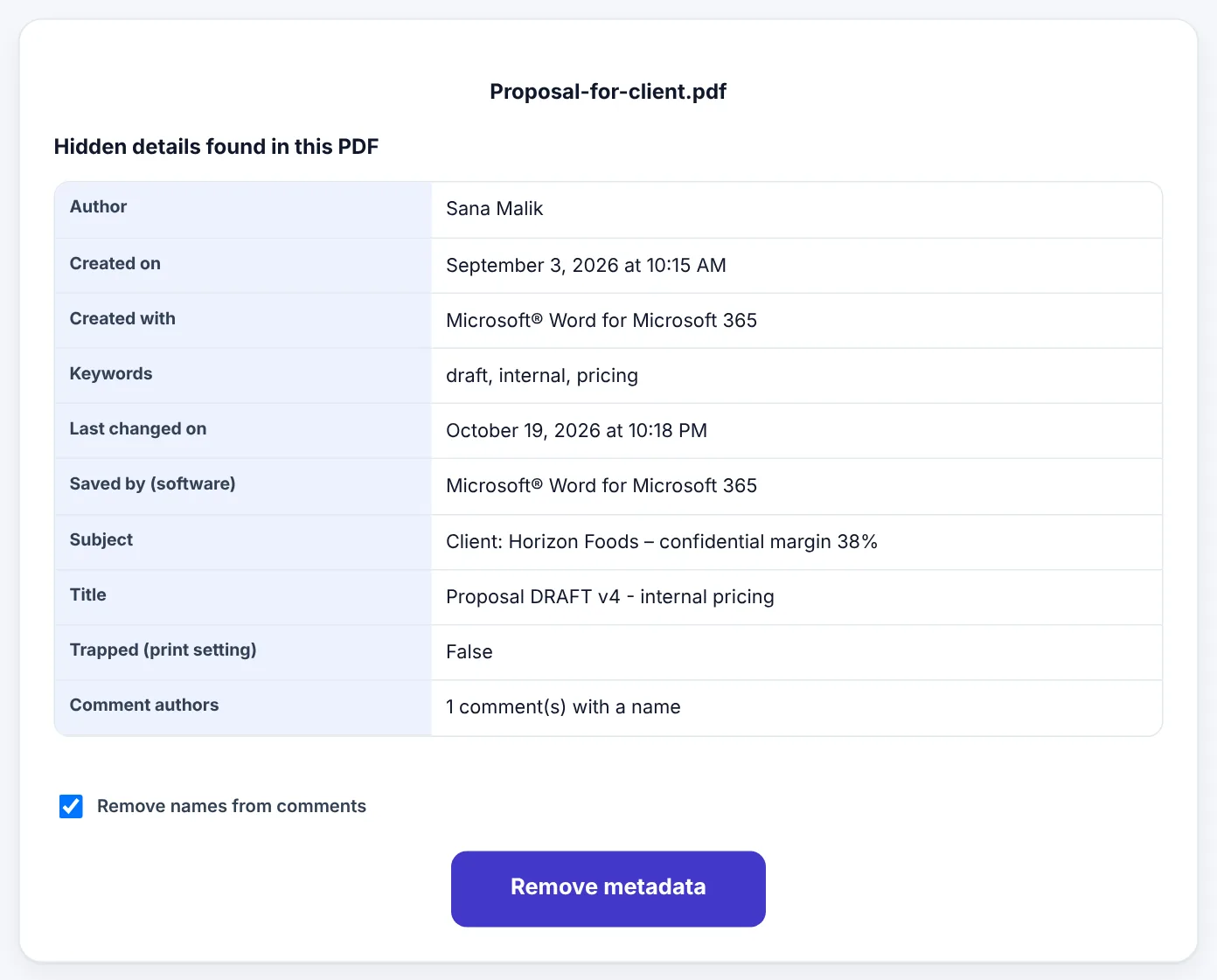
The author, title, software, dates, XMP data and app data are removed. The visible pages stay exactly the same.
Try Remove PDF MetadataFree, no sign-up, and your file never leaves your device.Open tool →

Or set your own, correct details
Sometimes you do not want empty details but correct ones. A proper title appears in the browser tab when someone opens your PDF, and a clear title and keywords help search engines and document systems find it. Edit PDF Metadata lets you set the title, author, subject, keywords, creator, producer and dates. It replaces "Microsoft Word – Document1" with "Annual Report 2026 – Peakfold Ltd", for example.
A good routine for public documents: remove everything, then add back only a clean title and the author name you want shown.
What a photo can reveal
Photos from phones and cameras carry EXIF data. Depending on your settings, it can include:
- GPS location: latitude and longitude precise enough to identify a house.
- Date and time the photo was taken, to the second.
- Phone or camera make and model, such as Samsung Galaxy A54 5G.
- Camera settings: exposure, focus, flash and lens.
- Software used to edit the photo.
Location is the one that matters most. A photo of your children at home, your car outside your house, or a product you are selling from home can reveal exactly where you live if it is shared as an original file.
Do social networks remove it?
Many large social networks and messaging apps remove location data from photos when they publish or compress them, but practices differ between services and change over time, and files sent as documents, email attachments, cloud links or uploads to websites are often sent as originals, with everything intact. Do not rely on the receiving service to clean your photos for you.
How to remove metadata from photos
Re-save the photo with Compress Image
Compress Image redraws your photo and saves a new file. The new file contains the picture only: the camera details, date and GPS location from the original are not carried over. As a bonus, the file is smaller, which makes it faster to send and upload.
- Open Compress Image and select one or more photos.
- Choose Recommended quality.
- Download the compressed copies and share those instead of the originals.
Your photos are processed in your browser and never uploaded. Keep your originals for yourself; they are your record of when and where a photo was taken.
Turn off location on your phone's camera
The best way to avoid sharing location is not to record it in the first place, or to strip it when sharing:
- iPhone: in Settings → Privacy & Security → Location Services → Camera, choose Never to stop saving location. When sharing a single photo, tap Options at the top of the share sheet and turn off Location.
- Android: open the Camera app's settings and turn off Location tags or Save location (the name varies by phone). Google Photos can also remove the location when you share.
Menus differ between phone models and software versions, so the exact names may vary.
Other files that carry hidden details
- Word, Excel and PowerPoint files store the author, the company, comments, tracked changes, hidden rows and sometimes speaker notes. In Microsoft Office, File → Info → Check for Issues → Inspect Document finds and removes them. Converting to PDF and then cleaning the PDF is often simpler for documents you only need to share.
- Screenshots contain very little metadata, but they can show notifications, battery and time, and open tabs. Crop them with Crop Image before sharing.
- Scanned PDFs often carry the scanner model and the scanning software's name.
Metadata is not the same as hidden content
Removing metadata does not remove anything from the pages themselves. These are different problems:
| Problem | Solution |
|---|---|
| Hidden author, title, dates, software | Remove PDF Metadata |
| Private text visible on the page | Redact PDF |
| Text hidden under a black box drawn on top | Redact PDF, which removes the text underneath |
| Content trimmed with Crop PDF | Still inside the file; use Redact PDF |
| Form answers that someone could edit | Flatten PDF |
A drawn black rectangle over a bank account number hides it from view, but the number is often still in the file and can be copied. Real redaction removes it.
When metadata matters most
You do not need to clean every file you send to a friend. It matters most when:
- Sending documents to clients or the public, especially proposals, quotes and reports made from earlier drafts or templates.
- Applying for jobs, so your CV does not show a template author's name or old titles.
- Publishing documents on a website, where anyone can download and inspect them.
- Selling items online from home, where photos might show your location.
- Sharing photos of children, of your home, or taken at places you visit regularly.
- Journalists, researchers and activists sharing sensitive material.
- Legal and HR documents, where review comments and names should not travel with the final version.
A five-step privacy check before sharing a document
- Look at the pages. Is there anything visible that should not be shared? Redact it.
- Check the comments. Delete review notes, or flatten approved ones.
- Remove the metadata. Clean the author, title, dates and software details.
- Set a clean title if the document will be public.
- Check the file name.
Final-proposal-for-Horizon-cheap-version.pdfcan say more than any metadata. Rename it.
A worked example: a proposal and product photos for a client
Imran runs a small catering company. He is sending a proposal PDF and some photos of past events to a new corporate client.
- He opens the proposal in Remove PDF Metadata. The list shows the author as his former employee, an old title mentioning a different client, keywords with internal pricing, and two comments with a colleague's name.
- He keeps Remove names from comments ticked and presses Remove metadata.
- He sets a clean title, "Event Catering Proposal – 2026", with Edit PDF Metadata, so the client sees a professional title in the browser tab.
- He re-saves the event photos with Compress Image, which removes the GPS locations of private homes where some events took place and makes the photos small enough to email.
- He renames the files clearly and sends them.
The client sees exactly what Imran intended, and nothing more.
How to check a photo's hidden details yourself
You can see a photo's metadata without special software:
- Windows: right-click the photo → Properties → Details. Look for GPS, Camera maker and Date taken.
- Mac: open the photo in Preview → Tools → Show Inspector, then the i tab. A GPS tab appears if location is stored.
- iPhone: open the photo in Photos and swipe up, or tap the i button, to see the location and camera details.
- Android: in Google Photos, open the photo and swipe up to see details.
Check a re-saved copy the same way: the camera details and location should be gone.
Metadata you might want to keep
Not all metadata is bad. Photographers use EXIF data to learn from their camera settings. A clear title, author and keywords help people find a published PDF. Creation dates can prove when a document was written. The aim is not to strip everything always, but to decide what travels with each file you share, and keep complete originals for yourself.
Frequently asked questions
What hidden information does a PDF contain?
Often the author's name, the company, the program used, creation and change dates, a title and subject that may be left over from drafts, and names attached to comments.
Does removing metadata change the pages?
No. Only hidden details are removed; the visible content stays the same.
Does Compress Image really remove the GPS location?
Yes. It saves a new copy of the picture without the original's camera details, date and location. Keep the original if you want to keep that information for yourself.
Does removing metadata remove hidden text under black boxes?
No. Metadata is separate from page content. To remove sensitive words from the pages, use Redact PDF.
Are my files uploaded?
No. Both Remove PDF Metadata and Compress Image work in your browser on your own device.
Does converting a Word file to PDF remove its metadata?
Not necessarily. Word usually copies the author and title into the PDF. Clean the PDF with Remove PDF Metadata after converting.
Do screenshots contain location?
Screenshots usually do not contain GPS location, but they can show private information on screen. Check and crop them before sharing.
In short
PDFs and photos carry hidden details: author names, old titles, software, dates, comment names and, for photos, precise GPS locations. Before sharing anything important, see what is hidden, remove it, set a clean title where useful, and share re-saved copies of photos rather than originals. Remember that metadata cleaning does not touch the page itself; for visible private information, redact.
Tools used in this guide
 Edit PDF Metadata
 Compress Image
 Redact PDF
Keep reading
 PDF GuidesHow to Crop a PDF and Remove White Margins
Trim wide white margins, scanner borders and unwanted edges from PDF pages, crop all pages or just one, and understand what cropping really hides. Includes reading on phones and printing tips.
9 min read Image GuidesHow to Make a GIF From a Video (Small, Sharp and Smooth)
Turn a phone video or screen recording into a looping GIF. How to pick the moment, choose frame rate and width, keep the file small enough to share, and when a short MP4 is better.
9 min read PDF GuidesHow to Compare Two PDF Files and Find Every Change
Spot what changed between two versions of a contract, report or quote. Learn the difference between visual and text comparison, how to read the results and when to double-check.
9 min read