How to Crop a PDF and Remove White Margins
In this guide
- Cropping, resizing and redacting: what is the difference?
- How to crop a PDF
- Removing white margins automatically
- Cropping all pages or just some
- Real situations and how to handle them
- The important part: cropping hides, it does not delete
- Cropping and quality
- Cropping on a phone
- A worked example: a recipe collection for the kitchen tablet
- Choosing how tightly to crop
- Crop PDF compared with cropping images
- Checking the cropped file
- Frequently asked questions
- In short
Some PDFs waste half their space on white. An academic paper with wide margins becomes tiny text on a phone screen. A scanned page arrives with a thick black border from the scanner lid. A slide exported to PDF has a strip of empty space at the bottom. A recipe card sits in the middle of an otherwise empty A4 page. A form you need to upload includes a page footer you would rather leave out.
Cropping fixes all of these. It trims each page to the area you actually want, so the content fills the screen, prints larger and looks cleaner. This guide explains how to crop PDF pages, how to remove white margins automatically, how to crop pages differently, and one important thing most people do not know about what cropping really does.
Cropping, resizing and redacting: what is the difference?
These three are often confused, and choosing the right one saves time:
| Tool | What it does | Use it when |
|---|---|---|
| Crop PDF | Trims the visible area of the page, like cutting a photo with scissors | You want to remove margins, borders or unwanted edges |
| Resize PDF | Changes the paper size and scales the content to fit | You need A4, Letter or another exact paper size |
| Redact PDF | Permanently removes content from the file | Something must be gone for good, such as private details |
A cropped page has a smaller page size than before, matching the area you kept. If you then need a standard paper size, crop first and resize afterwards.
How to crop a PDF
Crop PDF works in your browser. Your document is not uploaded.
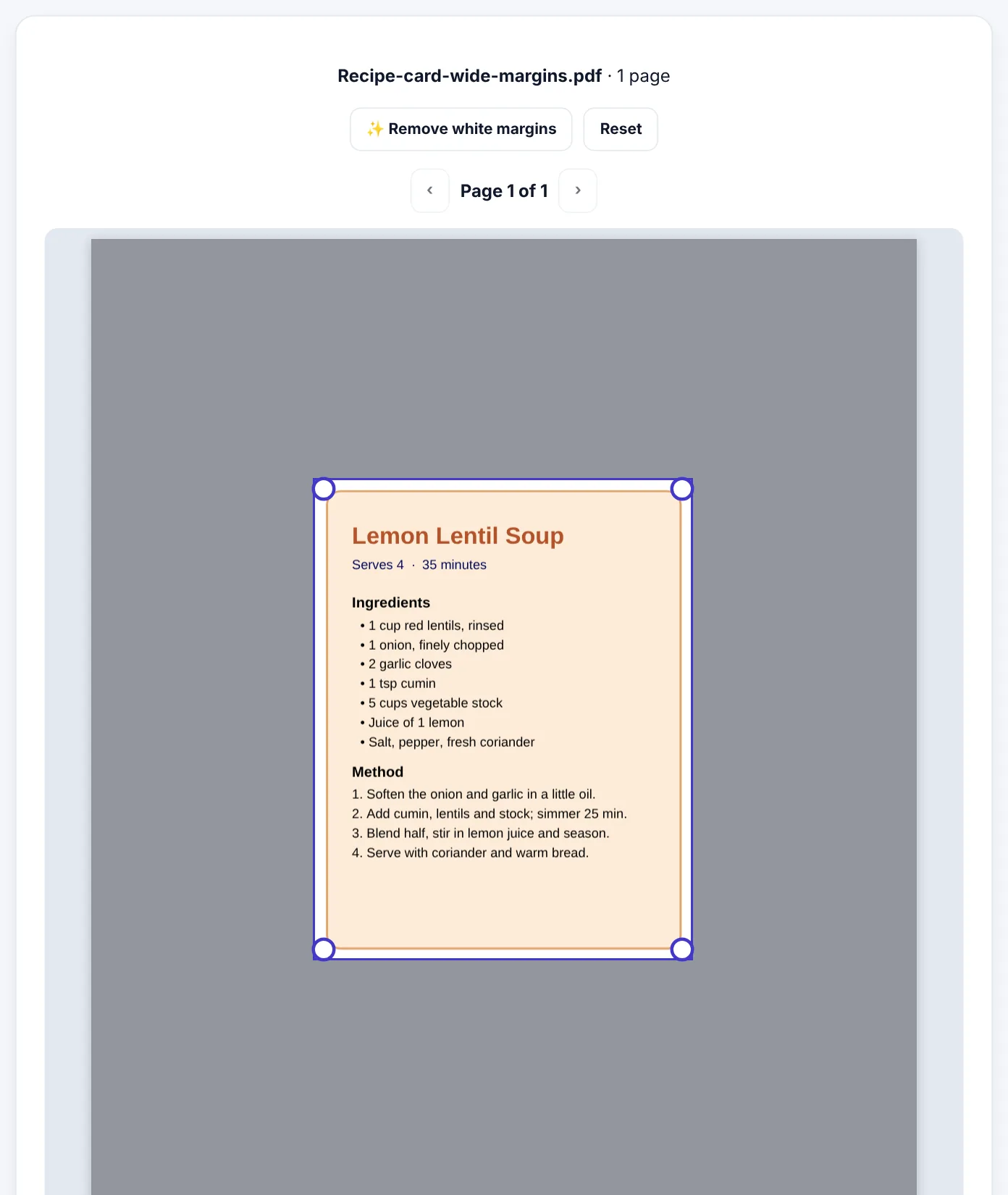
- Open Crop PDF and select your file. The first page appears with a crop frame.
- Drag the edges and corners of the frame to the area you want to keep. Everything outside it is shaded.
- Or press Remove white margins to let the tool find the printed area of the page and trim the rest automatically.
- Use the ‹ and › buttons to look at other pages, and Reset to start again.
- Choose Crop which pages?: All pages, Only the page shown, or Pages I choose (for example
1-3, 7). - Press Crop PDF and download.
Removing white margins automatically
Remove white margins looks at the page, finds where the printed content starts and ends, and places the crop frame tightly around it. It is the fastest way to:
- Make academic papers and e-books readable on phones and tablets. Removing wide margins can make the text noticeably larger when the page is fitted to the screen.
- Tidy exported slides and charts that have empty space around them.
- Prepare a small design, such as a label, ticket or recipe card, that sits in the middle of a large blank page.
After using it, check the frame. Anything on the page counts as content, including a small page number or a faint footer near the edge, so the frame may stretch to include it. Drag the frame edge in if you do not want those parts.
Tip: if you plan to print the result, leave a little breathing space around the content rather than cropping right up to the text. Pages cropped too tightly look cramped, and printers cannot print to the very edge of the paper.
Cropping all pages or just some
Most documents have the same layout on every page, so All pages with one crop frame is usually right. But not always:
- A scan with one crooked page may need that page cropped differently.
- A report with a landscape table in the middle may need a different crop on that page.
- A document with a cover page may need the cover left untouched.
For these, choose Only the page shown or Pages I choose. To crop different pages in different ways, crop one page (or group of pages), save, then open the new file and crop the next ones. Each round keeps the crops you already made.
Try Crop PDFFree, no sign-up, and your file never leaves your device.Open tool →

Real situations and how to handle them
Reading papers and e-books on a phone
PDFs designed for print often have margins of 2.5 cm or more on every side. On a phone, that space is wasted and the text is small. Crop all pages with Remove white margins, check that page numbers and headers you want are inside the frame, and download. When you open the cropped file and fit the page to the screen width, the text is larger and easier to read.
For long books read mostly on a phone, also consider converting to a reflowable e-book; see EPUB vs PDF.
Removing scanner borders and black edges
Scanners and phone scans often leave a dark border where the lid or table shows around the paper. Drag the crop frame just inside the paper edge and apply it to all pages. If the pages were scanned at slightly different positions, check a few pages and crop the odd ones separately.
If you are scanning with a phone, Scan to PDF can find the page edges and straighten the page when it creates the PDF, which avoids most borders in the first place.
Printing a small design larger
A label, a ticket or a small card centred on a large page can be cropped to just the design. Then use Resize PDF to place it on the paper size you need, scaled up to fill the page.
Cutting a chart or diagram out of a page
If you need a chart as a picture for a presentation, cropping the PDF is one option, but often it is easier to convert the page to an image with PDF to PNG and cut out the chart with Crop Image.
Preparing pages for a portal or print shop
Some portals and printers reject pages with large black borders or uneven sizes. Crop off borders first, then resize all pages to the required paper size so the document is consistent.
The important part: cropping hides, it does not delete
This is the detail many people miss. In the PDF format, cropping sets the visible area of the page. The content outside that area is hidden from view and from printing, but it is still inside the file. Anyone with a suitable PDF editor can reset the crop and see it again. This is how standard PDF cropping works in every program, not a limitation of one tool.
That matters when the part you are cropping off contains something private:
- A bank account number at the bottom of a statement.
- A home address in a letter header.
- Internal notes in a margin.
- Another person's details on a shared form.
If the part you remove must be gone for good, use Redact PDF, which permanently deletes the content under the areas you mark. You can crop afterwards for a tidy page.
Rule: crop for appearance; redact for privacy.
Cropping and quality
Cropping does not reduce quality. Nothing is converted into images, and text stays sharp, selectable and searchable. Only the visible area of each page changes.
The file size usually stays about the same, because the hidden content is still there. If you need a smaller file, use Compress PDF afterwards.
Cropping on a phone
Crop PDF works in mobile browsers. Drag the frame corners with your finger; it can help to turn the phone sideways for a larger preview. Remove white margins is especially handy on a phone, because it saves you from precise dragging on a small screen. The cropped PDF is saved to your Downloads or Files app.
A worked example: a recipe collection for the kitchen tablet
Saima has a folder of recipes saved as PDFs from different websites and old documents. Each recipe sits in a small area of an A4 page, surrounded by white space, and the text is hard to read on the tablet she keeps in the kitchen.
- She merges the recipes into one file with Merge PDF.
- She opens the merged file in Crop PDF and presses Remove white margins.
- Because the recipes come from different sources, the layouts differ. She uses Only the page shown, crops the first page, then moves through the pages, cropping each in turn and saving as she goes.
- She checks the final file on the tablet: each recipe now fills the screen, and the text is large enough to read from across the counter.
Choosing how tightly to crop
There is no single right amount to crop. It depends on where the document is going:
| Destination | How much margin to keep |
|---|---|
| Reading on a phone | Very little; trim close to the text for the largest possible letters |
| Reading on a tablet or laptop | A small, even margin of a few millimetres looks tidy |
| Printing at home or in an office | At least 5–10 mm, because printers cannot print right to the edge |
| Professional printing | Follow the print shop's instructions for margins and bleed |
| Uploading to a portal | Keep the full document visible, including stamps, signatures and page numbers |
| Using a chart in a presentation | A small even border around the chart, so it does not look cut off |
When cropping official documents such as certificates and statements, crop only the scanner border or blank space. Never crop away logos, stamps, reference numbers, signatures or page numbers; reviewers may treat a document with missing parts as incomplete or altered.
Crop PDF compared with cropping images
PDF pages and pictures are cropped in different ways. Cropping a PDF keeps text real and searchable, and keeps vector graphics sharp at any size. Cropping a picture with Crop Image cuts the pixels themselves, so the removed part is really gone, but text inside the picture is still only a picture. If you have a scan that you will only ever use as an image, cropping the image is fine; for documents with real text, crop the PDF.
Checking the cropped file
Before sending a cropped PDF, open it in a normal PDF viewer and check:
- Every page you meant to crop is cropped, and none you meant to keep is cut.
- Nothing important sits right on the edge, such as the first letter of each line.
- Page numbers and headers are kept if they matter.
- The page order has not changed.
- The file prints as expected, if it will be printed.
Frequently asked questions
Is Crop PDF free?
Yes, with no sign-up and no watermark.
Is the cut-off part deleted?
No. It is hidden from view and from printing, as with all standard PDF cropping, but it is still inside the file. Use Redact PDF to remove private information for good.
Can I crop each page differently?
Yes. Crop the page shown, save, then open the new file and crop the next page in a different way.
Will the text stay sharp?
Yes. Cropping only changes the visible area; nothing is turned into images.
Why did Remove white margins leave some white space?
Something faint near the edge, such as a page number, a thin line or a small footer, counts as content. Drag the frame edge inwards to exclude it.
Is my PDF uploaded?
No. Cropping happens in your browser on your own device.
Can I crop a scanned PDF?
Yes. Scanned pages are cropped the same way. Remove white margins works best when the scan background is white; for dark scanner borders, drag the frame inside the paper edge.
Does cropping change the page size?
Yes. The page becomes the size of the area you keep. Use Resize PDF afterwards if you need A4 or Letter.
In short
Crop to remove wide margins, scanner borders and unwanted edges, and use Remove white margins for a fast, tight crop. Apply one crop to all pages or crop pages one at a time when layouts differ. Resize afterwards if you need a standard paper size. And remember that cropping hides content rather than deleting it: for anything private, redact.
Tools used in this guide
 Resize PDF
 Redact PDF
 Crop Image
Keep reading
 PDF GuidesHow to Change the Background Color of a PDF (Free, Online)
Change a white PDF to cream, mint, light blue or any colour in under a minute – on your phone or computer, without Adobe Acrobat and without uploading the file.
4 min read Image GuidesHow to Make a Favicon (ICO) From a PNG or Logo
Create a sharp favicon.ico for your website from a PNG, JPG or SVG logo - which sizes to include, how to design a logo that works at 16 pixels, and how to add it to WordPress or any site.
9 min read Privacy & SecurityHow to Remove Hidden Metadata From PDFs and Photos Before Sharing
PDFs and phone photos carry hidden details - author names, software, dates, comment names, even GPS location. See what they reveal and how to remove them before you share or upload.
9 min read