How to Sign a PDF Electronically (Without Printing It)

In this guide
- What "signing a PDF" usually means
- How to sign a PDF with SmartPDFConvert
- Three ways to create your signature
- Placing your signature like a professional
- Locking the signed document
- Are electronic signatures legally valid?
- Electronic signature vs digital signature
- Signing on a phone: a quick walkthrough
- Keeping your signature safe
- Example: signing a tenancy agreement as two parties
- Initials: a small detail that matters
- Common mistakes to avoid
- Signing scanned documents and photos of paper
- What to do after signing
- Frequently asked questions
- In a nutshell
"Please sign and return." For years, those three words meant printing the document, signing it with a pen, scanning or photographing it, and emailing it back, often from a phone in a hurry with a crooked photo of a page on the kitchen table.
You can skip all of that. Signing a PDF electronically takes less than a minute, produces a cleaner document than any scan, and works on a phone as well as a computer. This guide shows you how, explains the different ways to create your signature, and covers what is legally accepted and what is not.
What "signing a PDF" usually means
When people say "sign this PDF", they almost always mean an electronic signature: an image of your signature, or your typed name in a signature style, placed on the document where it needs to be signed. For everyday documents such as offer letters, tenancy agreements, school forms, invoices and consent forms, this is what is expected.
There is also a more technical kind called a digital signature, which uses a certificate issued to you to cryptographically seal the document. Some government and banking processes require that kind. We cover the difference near the end of this guide.
How to sign a PDF with SmartPDFConvert
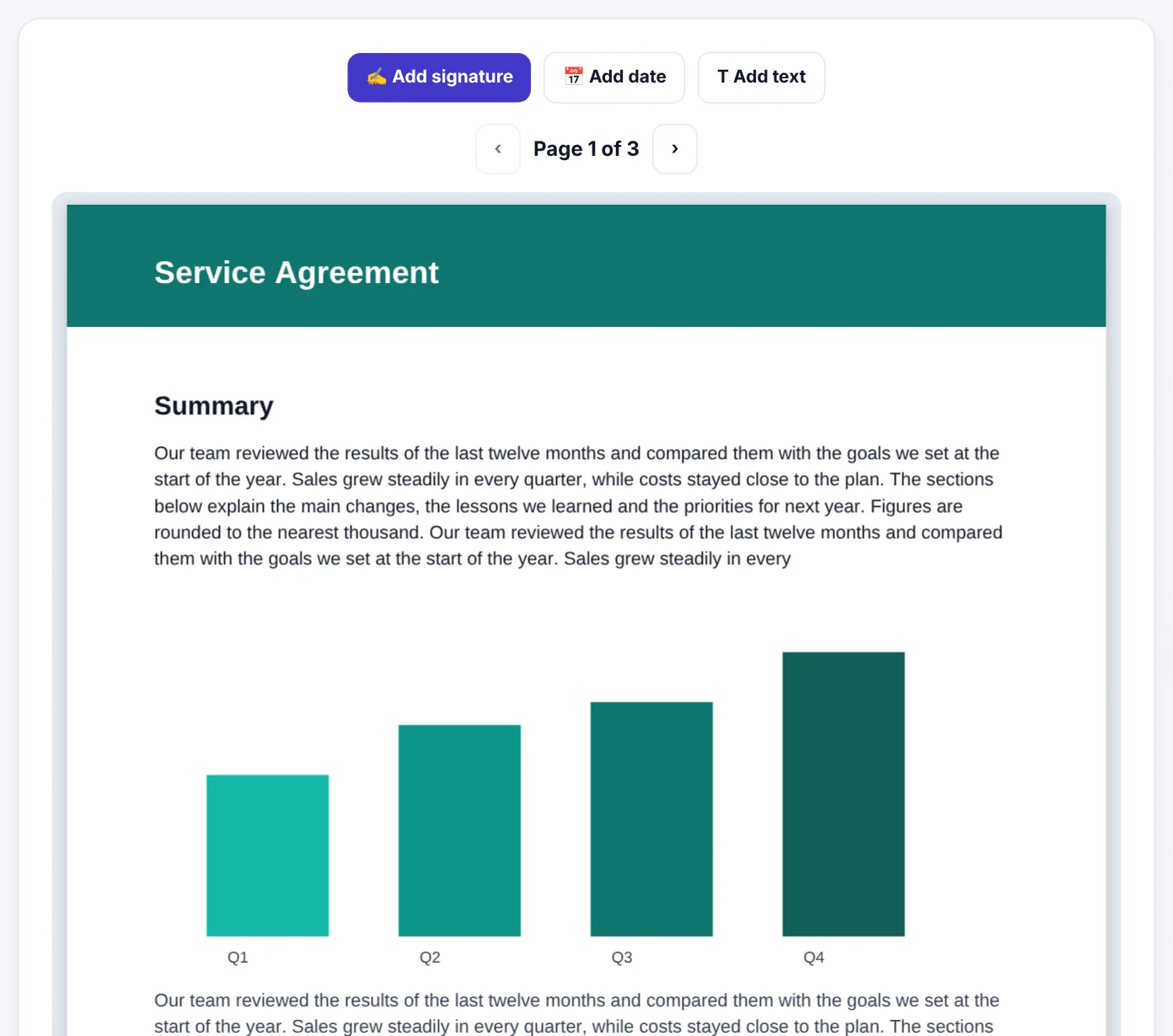
Sign PDF works in your browser on any device. The document is signed on your own phone or computer and is not uploaded.
- Open Sign PDF and select the document.
- Press Add signature and create your signature (see the three ways below).
- Your signature appears on the page. Drag it to the right place and pull the blue dot to resize it.
- Use Add date to place today's date, and Add text for your name, a title or initials.
- Use the page arrows to move to other pages if you need to sign or initial more than one.
- Press the button to save, and download the signed PDF.
Three ways to create your signature
When you press Add signature, you can choose how to make it.
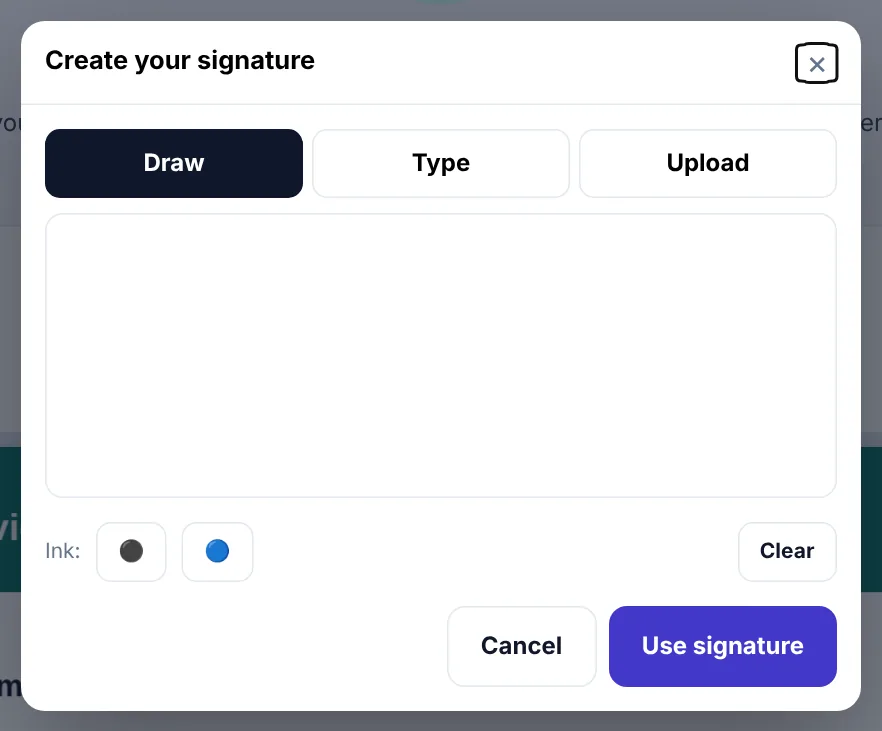
Draw
Sign with your finger on a phone or tablet, or with your mouse or trackpad on a computer. On a phone, turn it sideways for more space. Sign a little larger than you would on paper; it will be scaled down on the page and look neater.
Type
Type your name and choose one of the handwriting-style fonts. This gives a clean, consistent result and is perfectly acceptable for most informal documents. Some organisations prefer a drawn or real signature, so check if in doubt.
Upload
Upload a photo of your real ink signature. This gives the most authentic look:
- Sign on clean white paper with a dark pen.
- Photograph it in good daylight, holding the phone flat.
- Upload it; the white paper is made transparent so only the ink appears on the document.
Tip: Make your signature once with Signature Maker and download it as a transparent PNG. Keep it in a private folder and upload it whenever you need to sign, so it looks the same every time.
Placing your signature like a professional
A few small details make an e-signed document look as good as a hand-signed one:
- Sit the signature on the line, not floating above it or crossing through text.
- Keep it a natural size. On an A4 page, a signature is usually about 4–6 cm wide.
- Add the date next to or under the signature if there is a date field.
- Initial every page if the document asks for it. Some contracts require initials at the bottom of each page to show nothing was swapped.
- Fill in everything else first. If the document is a form, complete the fields with Fill PDF Form before signing.
- Check the last page. Signature blocks are often on the final page, sometimes for both parties.
Locking the signed document
A signature added with Sign PDF is drawn onto the page, so it stays where you put it. If the document also contains fillable form fields, consider running the signed file through Flatten PDF before you send it. Flattening prints the form answers onto the page, so nobody can change them afterwards, and the document looks the same in every PDF viewer.
For extra protection, add a password with Protect PDF, and allow only printing.
Try Sign PDFFree, no sign-up, and your file never leaves your device.Open tool →

Are electronic signatures legally valid?
In most countries, yes, for most everyday documents. Many legal systems recognise electronic signatures, for example:
- In the United States, the ESIGN Act and the UETA give electronic signatures the same standing as handwritten ones for most transactions.
- In the European Union, the eIDAS regulation recognises electronic signatures and defines stronger "advanced" and "qualified" types.
- In the United Kingdom, electronic signatures are generally accepted for contracts.
- In Pakistan, the Electronic Transactions Ordinance 2002 recognises electronic signatures and documents.
- India, the UAE and many other countries have similar laws.
There are exceptions, and they vary by country. Wills, property transfers, some court documents, notarised papers and certain government forms often still require a wet ink signature or a certified digital signature. If a document is legally significant, check what the other party or the authority requires. When in doubt, ask them; a quick question avoids a rejected document.
This is general information, not legal advice.
Electronic signature vs digital signature
These terms are often mixed up, so here is the difference in plain words:
| Electronic signature | Digital signature | |
|---|---|---|
| What it is | Your signature image or typed name placed on the document | A cryptographic seal using a certificate tied to your identity |
| How it looks | Like a handwritten signature | May show a signature, a stamp or just a padlock icon |
| Proves who signed | Through context (your email, your device, the agreement) | Through the certificate issued to you |
| Detects later changes | No, on its own | Yes, the seal breaks if the document changes |
| Typical uses | Offer letters, forms, invoices, everyday contracts | Some government filings, high-value contracts, regulated industries |
Sign PDF creates electronic signatures, which is what the vast majority of "please sign and return" requests need.
Signing on a phone: a quick walkthrough
- Save the PDF from your email or WhatsApp to your phone.
- Open Sign PDF in Chrome or Safari and select the file.
- Tap Add signature, choose Draw and sign with your finger, in landscape for more room.
- Drag the signature onto the line and resize it with the blue dot.
- Tap Add date.
- Save and download.
- Attach the downloaded file to your reply.
The whole thing takes about a minute, and the result looks much better than a photo of a printed page.
Keeping your signature safe
Your signature image is personal. A few sensible precautions:
- Do not post your signature publicly, for example in a screenshot on social media.
- Store the image privately, not in a shared folder.
- Send signed documents only to the people who need them.
- Use tools that do not upload your files. Sign PDF creates the signature and the signed document on your device; nothing is sent to us.
Example: signing a tenancy agreement as two parties
A landlord and a tenant need to sign a six-page tenancy agreement, with initials on each page and full signatures on the last page. Neither has a printer nearby.
- The landlord opens the agreement in Sign PDF, adds initials (typed or drawn) at the bottom of each of the six pages, signs the last page above "Landlord" and adds the date.
- The landlord saves the file and emails it to the tenant, without flattening, in case the tenant spots a mistake that needs correcting.
- The tenant opens the landlord-signed file in Sign PDF, adds their own initials beside the landlord's on each page, signs above "Tenant" and adds the date.
- The tenant runs the final file through Flatten PDF and sends it back. Both keep a copy of the final version.
Each person signs on their own device, at their own time, and the result is a single document carrying both signatures.
Initials: a small detail that matters
Longer agreements often ask for initials on every page. Initials show that each page was seen and agreed, and make it harder for anyone to swap a page later. In Sign PDF, you can create a separate small "signature" with just your initials and place it on each page, or use Add text to type them.
Keep initials in the same place on every page, usually the bottom right corner, so the document looks consistent.
Common mistakes to avoid
- Signing the wrong version. Check the date or version number before signing. Once signed and sent, it is awkward to say "I signed the old draft".
- Covering text with your signature. Keep the signature on the line, not over printed words or the other party's name.
- A giant signature. It looks careless. Scale it to the space provided.
- Forgetting other pages. Contracts sometimes have signature blocks on an annex or schedule at the end. Scroll to the last page before saving.
- Sending a screenshot. Always send the PDF itself, not a screenshot of it. Screenshots lose quality and look unprofessional.
- Not keeping a copy. Save the signed file somewhere you will find it again, and name it clearly, for example
Tenancy-Agreement-Signed-2026-10-21.pdf.
Signing scanned documents and photos of paper
If someone sends you a photo of a paper document to sign, first turn it into a clean PDF with Scan to PDF using the Document look. That gives you a white, readable page. Then sign it in Sign PDF. The result looks far better than signing a dark, shadowy photo, and the recipient can print it clearly if needed.
What to do after signing
Signing is usually not the last step. A quick routine:
- Open the signed file and check every signature, initial and date is where it should be.
- Flatten it if it contains form fields, so the answers cannot shift or be edited.
- Rename it clearly, including the word "signed" and the date.
- Send it as a PDF attachment, not a link to an editable copy.
- Keep a copy in a folder you back up, together with the email you sent it with. That email is useful evidence of when and how you signed.
Frequently asked questions
Can I sign a PDF without an account or app?
Yes. Sign PDF runs in your browser. No account, no installation and no watermark.
Can I sign multiple pages?
Yes. Use the page arrows to move to each page and add your signature, initials or date wherever needed.
Can two people sign the same PDF?
Yes. The first person signs and sends the file to the second, who opens the signed file in Sign PDF and adds their signature.
My signature looks pixelated. How do I fix it?
Draw it larger, or upload a sharper photo taken in good light. Then make it a little smaller on the page; shrinking keeps it crisp.
Can I remove a signature after saving?
The signature is part of the saved page. Keep your unsigned original so you can sign again if you made a mistake.
Does it work with scanned documents?
Yes. Scanned pages work like any other page; drag your signature to the right place.
Do I need to sign in a particular colour?
Some organisations prefer blue ink because it makes the original easy to tell apart from a black-and-white photocopy. For electronic signatures it matters less, but blue or black both look professional. When drawing, choose a dark colour so the signature prints clearly.
In a nutshell
Choose how to make your signature (draw, type or upload), place it neatly on the line, add the date and any initials, and lock the result if the document has form fields. For everyday documents that is all a "please sign and return" needs, and you never have to find a printer again.
Tools used in this guide
 Signature Maker
 Fill PDF Form
 Flatten PDF
Keep reading
 PDF GuidesWhat Does "Flatten a PDF" Mean, and When Should You Do It?
Flattening turns form fields, comments, stamps and signatures into a fixed part of the page. Learn when to flatten, the two ways to do it, and the mistakes to avoid before sending a filled form.
9 min read Careers & DocumentsHow to Create a Handwritten Signature Image Online
Make a clean digital signature by drawing, typing or uploading a photo, and download it as a transparent PNG for documents, PDFs, forms and email. Tips for a natural look.
10 min read Careers & Documents"How to Write a Cover Letter: Structure, Examples and Tips"
A short, specific cover letter can be the reason you get an interview. Learn the simple four-part structure, see a full example, avoid common mistakes and create one for free.
9 min read