"Markdown to PDF: Write in Plain Text, Get a Beautiful Document"
In this guide
- What is Markdown?
- Markdown in five minutes
- How to convert Markdown to PDF
- Good uses for Markdown to PDF
- Writing tips for a professional result
- Plain text instead of Markdown?
- Going the other way: PDF to Markdown
- Markdown, Word or Google Docs?
- A complete example: from note to handbook
- Markdown extras worth knowing
- Common Markdown mistakes
- Privacy for notes and internal documents
- Who uses Markdown, and why
- Choosing fonts, sizes and margins
- From AI answer to shareable document
- A quick Markdown cheat sheet to keep nearby
- Frequently asked questions
- In short
Word processors are powerful, but they also distract: fonts, spacing, styles and menus everywhere. Many writers, students, developers and note-takers prefer to write in Markdown, a simple way of formatting text using ordinary characters. You type # for a heading, * for a list, ** for bold, and focus on the words.
The question is what to do when you need to share the result with someone who does not use Markdown. The answer is a PDF. This guide teaches you enough Markdown to be productive in five minutes, and shows how to turn it into a clean, professional PDF.
What is Markdown?
Markdown is a plain-text formatting language created in 2004 by John Gruber. A Markdown file is just text, readable even without any special app, with a few symbols that mean "make this a heading" or "make this bold". When converted, those symbols become real formatting.
It is used everywhere:
- Note-taking apps such as Obsidian, Notion, Bear, Joplin and many others.
- Developers' documentation: README files on GitHub, wikis and technical docs.
- Chat and forums: many messaging apps and forums support Markdown-style formatting.
- Writing tools for blogs, books and course material.
- AI assistants, which often reply in Markdown.
Markdown in five minutes
| You type | You get |
|---|---|
# Title |
A large heading |
## Section |
A smaller heading |
**bold** |
bold |
*italic* |
italic |
- item |
A bullet point |
1. item |
A numbered list |
> quote |
A quotation or note box |
[text](https://example.com) |
A link |
`code` |
inline code |
--- |
A horizontal line |
Tables are written with pipes and dashes:
| Task | Time |
|---|---|
| Shelve books | 30 min |
| Story time | 45 min |
Code blocks use three backticks before and after the code.
That is genuinely most of what you need. Blank lines separate paragraphs.
How to convert Markdown to PDF
Markdown to PDF turns Markdown into a formatted PDF in your browser; your text is not uploaded.
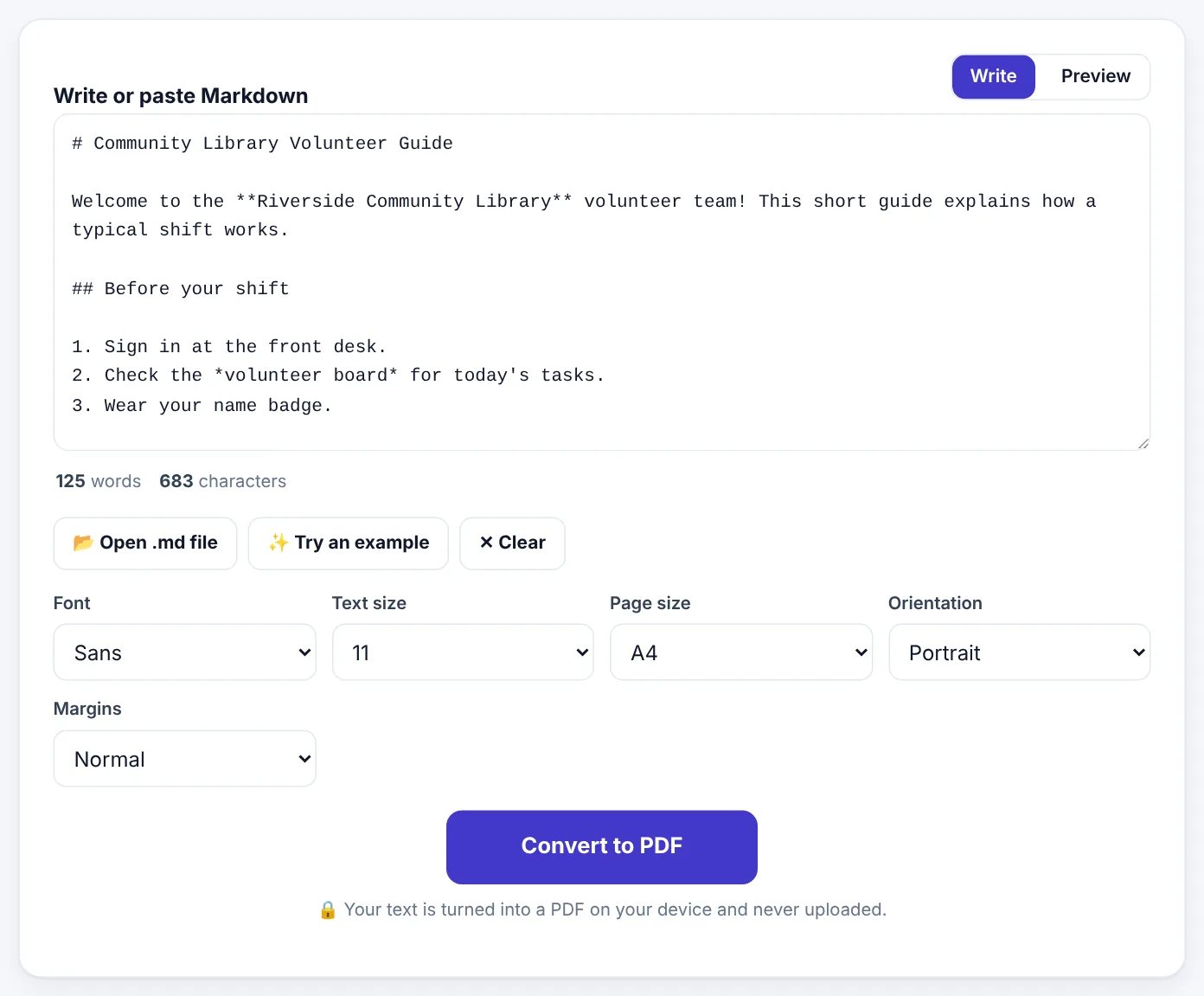
- Open Markdown to PDF.
- Write or paste your Markdown in the box, press Open .md file to load a file, or Try an example to see how it works.
- Switch to Preview to see the formatted result.
- Choose the Font (for example Sans or Serif), Text size, Page size (A4 or Letter), Orientation and Margins.
- Press Convert to PDF and download.
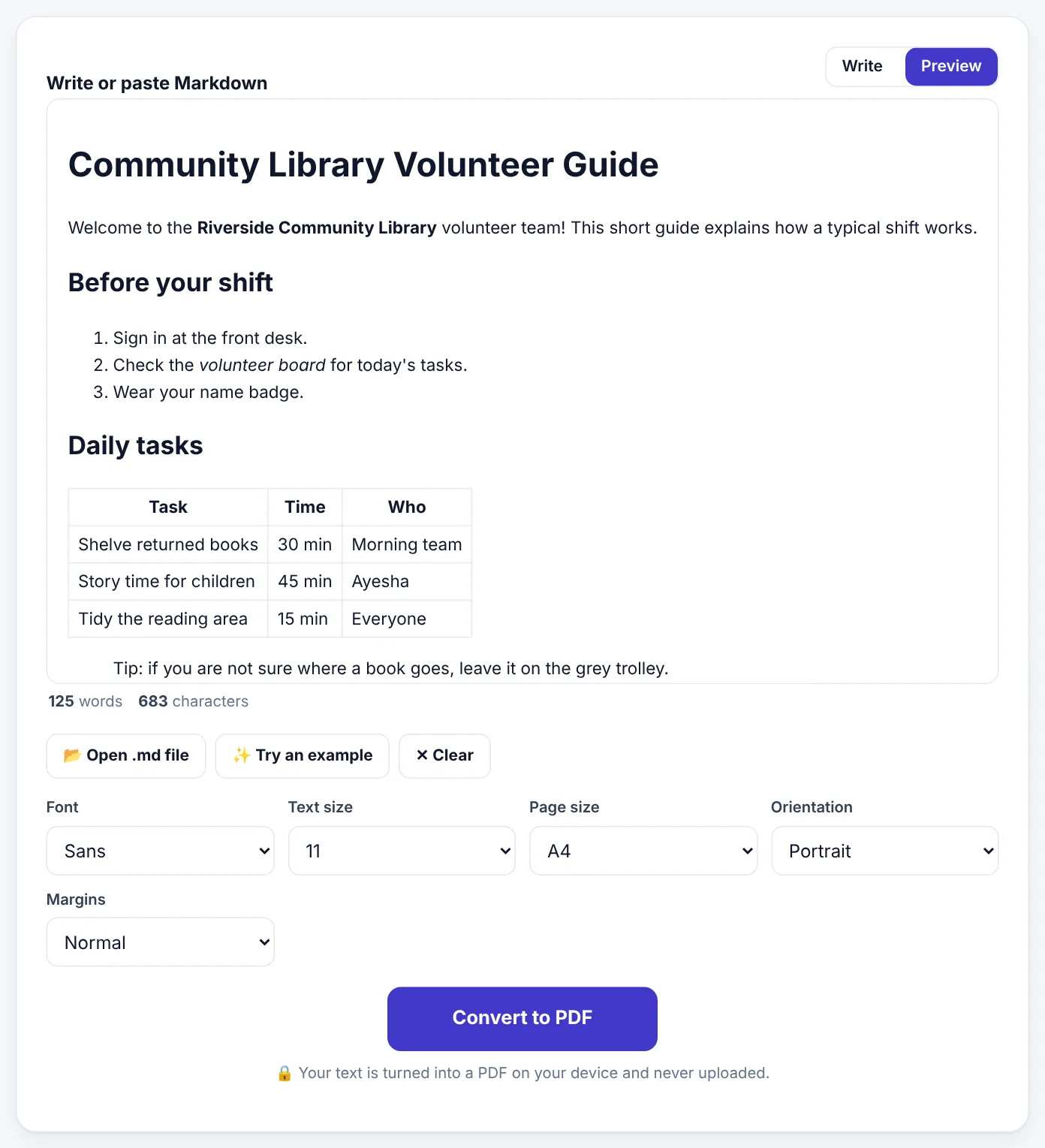
The PDF keeps headings, bold and italic text, bullet and numbered lists, tables, quotes and code blocks, laid out with proper spacing and page breaks. Text in the PDF is real text, so it can be searched and copied.
Good uses for Markdown to PDF
- Study notes written in a note app, printed or shared with classmates.
- Guides and instructions, such as a volunteer handbook, a how-to for staff, or setup instructions for clients.
- Developer documentation: README files and technical guides turned into PDFs for clients or offline reading.
- Meeting notes and minutes written quickly in Markdown during the meeting.
- Drafts of articles and chapters, shared for review without a word processor.
- Answers from AI assistants, which are often in Markdown, turned into a tidy document.
Writing tips for a professional result
- One
#heading at the top for the title,##for main sections,###for subsections. - Short paragraphs separated by blank lines.
- Lists for steps and options, numbered when order matters.
- Tables for comparisons, kept to a few columns so they fit the page.
- Quotes (
>) for tips and notes, which stand out in the PDF. - Check the preview before converting, especially tables and long lines.
Try Markdown to PDFFree, no sign-up, and your file never leaves your device.Open tool →

Plain text instead of Markdown?
If your text has no formatting at all, such as a log file, a chat export, a list or a story in a .txt file, use Text to PDF. It lays plain text out on proper pages with margins and line wrapping. Markdown to PDF is the better choice whenever you want headings, lists and emphasis.
Going the other way: PDF to Markdown
If you have a PDF and want to bring its content into a Markdown note app, PDF to Markdown extracts the text with headings and lists as Markdown. It is a quick way to turn reports and handouts into editable notes.
Markdown, Word or Google Docs?
| Markdown | Word / Google Docs | |
|---|---|---|
| Learning curve | A few minutes | Familiar to most people |
| Focus on writing | Excellent | Good, with distractions |
| Complex layouts (columns, text boxes) | Not designed for it | Strong |
| Works in any text editor, forever | Yes | Needs the program |
| Version control (for developers) | Excellent | Limited |
| Sharing with non-technical people | Convert to PDF | Share directly |
Many people use both: Markdown for writing and notes, Word or Google Docs for documents that need complex layout or collaborative editing.
A complete example: from note to handbook
Here is how a volunteer coordinator might turn quick notes into a printed handbook in fifteen minutes.
1. Write the notes in Markdown. She writes in her phone's notes app during a meeting:
# Community Library Volunteer Guide

Welcome to the **Riverside Community Library** volunteer team!

## Before your shift
1. Sign in at the front desk.
2. Check the *volunteer board* for today's tasks.
3. Wear your name badge.

## Daily tasks
| Task | Time | Who |
|---|---|---|
| Shelve returned books | 30 min | Morning team |
| Story time | 45 min | Ayesha |

> Tip: if you are not sure where a book goes, leave it on the grey trolley.
2. Paste it into Markdown to PDF and switch to Preview. The title, numbered steps, table and tip box are all formatted.
3. Choose the look. Sans font, size 11, A4, normal margins.
4. Convert and print. The handbook is ready for the noticeboard and as a PDF for new volunteers.
Because the source is plain text, updating it next month takes seconds: change a line, convert again.
Markdown extras worth knowing
Once the basics feel natural, a few extras make documents even better:
- Nested lists: indent a list item with two or four spaces to create a sub-point.
- Line breaks inside a paragraph: end a line with two spaces, or leave a blank line for a new paragraph.
- Escaping symbols: put a backslash before a symbol you want to show literally, for example
\*not italic\*. - Horizontal rules: three dashes on their own line (
---) draw a line, useful between major sections. - Headings depth: use
###and####for deeper levels, but avoid going deeper than three levels in short documents.
Common Markdown mistakes
| Mistake | Fix |
|---|---|
| No blank line between paragraphs, so they merge | Leave an empty line between paragraphs |
#Heading without a space |
Write # Heading with a space after the # |
| A list that does not appear as a list | Leave a blank line before the first item |
| Table columns that do not line up in the output | Make sure each row has the same number of | separators |
Bold that does not work: ** bold ** |
Remove the spaces: **bold** |
| A code block that swallows the rest of the document | Close it with three backticks on their own line |
The Preview tab is the fastest way to spot these: if something looks wrong in the preview, it will look wrong in the PDF.
Privacy for notes and internal documents
Meeting notes, internal procedures and personal journals are often private. Markdown to PDF formats your text inside your browser; nothing you paste is sent to a server or stored. That makes it safe for internal handbooks, client notes and personal writing.
Who uses Markdown, and why
Students like Markdown for lecture notes because typing ## for a new topic and - for points is faster than reaching for formatting buttons, and the notes stay readable as plain text in any app.
Developers write documentation in Markdown because it lives next to their code, works with version control, and is shown nicely on GitHub and similar platforms.
Writers and bloggers draft in Markdown to keep their attention on words, then publish to blogs that accept Markdown or convert to other formats.
Teams keep internal wikis, checklists and procedures in Markdown so that anyone can edit them with any text editor.
Anyone using AI assistants already sees Markdown every day: headings, bold text and bullet lists in chatbot answers are usually Markdown underneath. Pasting such an answer into Markdown to PDF gives you a neat document in seconds.
Choosing fonts, sizes and margins
The settings you pick change how the PDF feels:
- Sans fonts look modern and are easy to read on screens; good for guides, notes and technical documents.
- Serif fonts look classic and are comfortable for long reading on paper; good for essays, stories and reports.
- Text size 10–11 suits dense documents and handouts; 12 is more comfortable for long reading and for older readers.
- Normal margins suit most documents; narrow margins fit more on each page for handouts; wide margins leave room for handwritten notes.
- Landscape orientation helps when your document has wide tables.
From AI answer to shareable document
AI assistants are now a common source of first drafts: an outline for a training session, a checklist for an event, a summary of a long article. Their answers usually arrive as Markdown, with headings, bold labels and bullet lists. To turn one into a document you can share:
- Copy the answer using the assistant's copy button, which usually copies the Markdown rather than plain text.
- Paste it into Markdown to PDF and open Preview.
- Edit it. Check facts, remove anything generic, add your own examples and adjust the tone. A document is only as good as the review behind it.
- Add a title and date at the top so readers know what it is and when it was written.
- Convert and share.
Treat AI text as a draft that you are responsible for, especially for anything factual, legal, medical or financial.
A quick Markdown cheat sheet to keep nearby
| You type | You get |
|---|---|
# Title |
A large heading |
## Section |
A section heading |
**bold** |
bold text |
*italic* |
italic text |
- item |
A bullet point |
1. item |
A numbered item |
[text](https://example.com) |
A link |
> quote |
A quoted block |
`code` |
Inline code |
--- |
A horizontal line |
Print it once or keep it open in a tab while you write. After a week of use, most people no longer need it.
Frequently asked questions
Is Markdown to PDF free?
Yes. No sign-up, no watermark and no limits.
Does it support tables and code?
Yes. Tables, inline code and code blocks are formatted in the PDF.
Can I use Urdu or Arabic in Markdown?
You can write in any language; the text appears in the PDF with the right letters.
Will links work in the PDF?
Link text appears in the PDF. To make sure readers can always find the address, include important web addresses in full.
Can I include images?
Markdown image links pointing to files on the internet depend on those files being reachable. For documents with important pictures, a word processor or Create PDF is often easier.
How long can my document be?
As long as you like; long documents simply produce more pages.
Can I convert a README from GitHub?
Yes. Open the README on GitHub, click Raw, copy the text, and paste it into Markdown to PDF. Or download the .md file and use Open .md file.
Does it support checklists?
Simple task lists such as - [ ] item appear as list items with the brackets shown, which still reads clearly in a printed checklist.
Can I change heading colours?
The PDF uses a clean, consistent style designed for readability. For custom colours and branding, convert to Word first with a word processor, or design the document in Create PDF.
Is Markdown the same everywhere?
The basics (headings, bold, italic, lists, links, quotes and code) work the same in almost every app. Some apps add extras, such as footnotes or diagrams, which may not convert everywhere.
Can I print the PDF as a booklet?
Yes. Choose A5 page size for a small booklet look, or print the A4 PDF using your printer's booklet option.
In short
Markdown lets you write formatted documents using plain characters: # for headings, - for lists, ** for bold, pipes for tables. Write or paste it, preview it, pick a font and page size, and convert to a clean, searchable PDF anyone can open. Use Text to PDF for plain text and PDF to Markdown to bring PDFs back into your notes.
Tools used in this guide
 Text to PDF
 PDF to Markdown
 Word Counter
Keep reading
 Ebooks & WritingHow to Use Mind Maps for Studying (With Examples)
Why mind maps help you understand and remember, how to build a good one from a chapter or lecture, and how to revise with them. Includes subject examples and a step-by-step study routine.
9 min read Ebooks & WritingHow Long Should a Blog Post, Essay or Caption Be? A Word Count Guide
Sensible word counts for blog posts, essays, cover letters, captions and speeches, how reading and speaking time are worked out, and how to hit a limit without padding or cutting meaning.
9 min read Ebooks & WritingHow to Format an E-book and Paperback for Amazon KDP
A practical guide for first-time self-publishers - manuscript files, trim sizes, margins, page numbers, covers and the checks that stop Amazon KDP rejecting your book.
10 min read