How to Compare Two PDF Files and Find Every Change
In this guide
- Two ways to compare PDFs
- How to compare two PDFs
- Reading the results well
- Real examples
- Getting accurate comparisons
- Comparing Word documents
- Sharing the comparison
- Why comparing by eye fails
- What to check in a contract comparison
- Keeping track of versions
- Comparing on a phone
- Who compares documents, and how often?
- A simple review routine for changed documents
- What comparison cannot tell you
- Naming files so comparisons stay simple
- Frequently asked questions
- In short
The other party sends back "the final version" of a contract with "a few small edits". A supplier sends an updated quote. Your printer returns a proof of your brochure. A colleague revises a report you already approved. The question every time is the same: what exactly changed?
Reading two long documents side by side, line by line, is slow and unreliable. Small changes, such as a different number, a removed "not" or a changed date, are exactly the kind the eye skips. A comparison tool finds them in seconds. This guide explains how PDF comparison works, how to read the results and where to be careful.
Two ways to compare PDFs
There are two fundamentally different ways to compare documents, and good comparison uses both.
Text comparison
The words of both documents are extracted and compared, word by word. The result shows:
- Removed words (only in the old version), usually red and crossed out.
- Added words (only in the new version), usually green.
Text comparison is perfect for contracts, policies, reports and any document where the wording matters. It ignores small layout differences, such as a paragraph moving to the next page because a sentence above it got longer.
Visual comparison
Each page is rendered as an image and the two versions are overlaid. Pixels that differ are highlighted. Visual comparison catches changes that are not in the text at all:
- A logo or photo swapped.
- A colour, font or line changed.
- A signature or stamp added or removed.
- A chart that was redrawn.
It is perfect for brochures, designs, drawings and print proofs. When text reflows, many pixels move, so visual comparison of text-heavy pages can look busy; use text comparison for those.
How to compare two PDFs
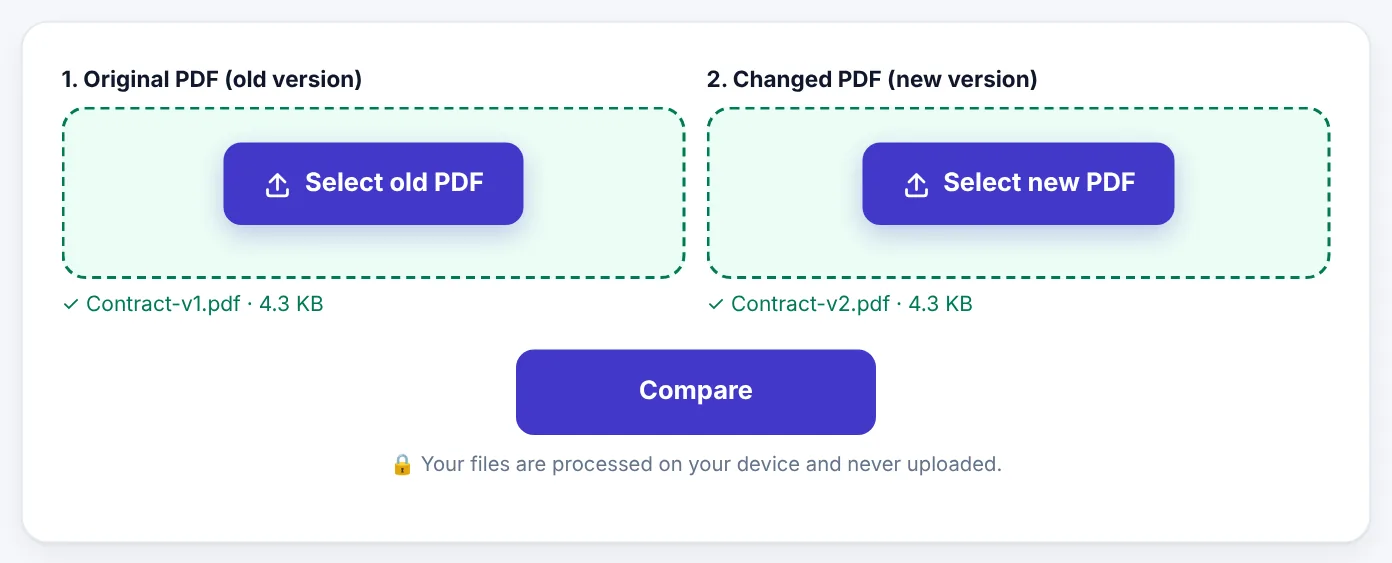
Compare PDFs does both, in your browser. Your documents are not uploaded, which matters for contracts and confidential reports.
- Open Compare PDFs.
- Select the Original PDF (old version) on the left.
- Select the Changed PDF (new version) on the right.
- Press Compare.
- Read the summary: how many pages look different, how many words were added and how many removed.
- Switch between Visual and Text views, and use Next change to jump from one difference to the next.
- Optional: Download report (PDF) to keep or share the comparison.
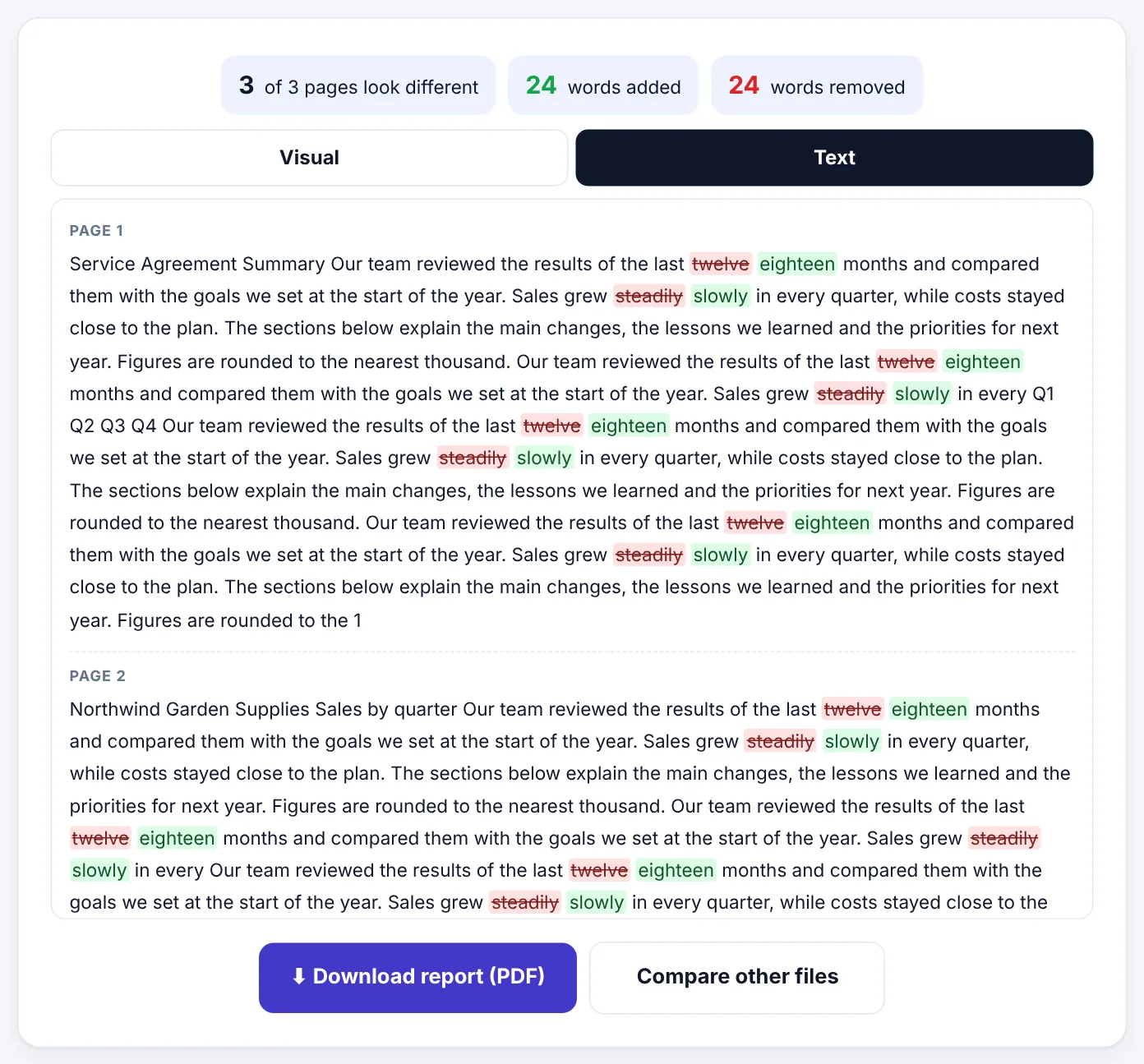
In the example above, a three-page service agreement was edited in only two places, but those two phrases appear several times, so the summary shows 24 words added and 24 removed, and every occurrence is highlighted.
Reading the results well
- Start with the summary. "0 words added, 0 removed" and "0 pages look different" means the documents match. Anything else needs a look.
- Use Text view for wording, especially in contracts: dates, amounts, names, obligations, deadlines, and small words like not, may, shall and within.
- Use Visual view for design and layout, especially for proofs and brochures: images, logos, colours and alignment.
- Use Next change to step through differences without missing any.
- Check numbers carefully. "30 days" becoming "15 days" or "$5,000" becoming "$50,000" is a one-character change with large consequences.
Important: For legal documents, use comparison to find changes, then read every changed sentence in context. A tool tells you what changed; you still need to understand what it means.
Try Compare PDFsFree, no sign-up, and your file never leaves your device.Open tool →

Real examples
A contract round. You send version 1 of an agreement; the client returns version 2 saying "we only fixed the address". Compare shows the address change, and also that the payment term changed from 30 to 45 days. You catch it before signing.
A print proof. A printer sends a proof of your flyer. Visual comparison against your design file shows that a photo was replaced with a lower-resolution copy. You ask for the original before printing 5,000 copies.
A policy update. HR updates the leave policy. Text comparison produces a clear list of new and removed sentences that you can circulate to staff as "what changed".
A thesis revision. A student compares the submitted thesis with the revised version to prepare a list of corrections for the examiner.
Getting accurate comparisons
- Compare digital PDFs with real text. Scanned documents are pictures; text comparison needs text. Run scans through OCR PDF first, and expect OCR to introduce a few false differences.
- Compare like with like. Comparing a Word-exported PDF with a printed-and-scanned copy of the same document will show many visual differences that are not real changes.
- Watch for reflow. If text was added early in a document, everything after it may move down. Text comparison handles this; visual comparison will show the moved content as changed.
- Different page counts are fine. If the new version has an extra page, the comparison still matches up the text.
Comparing Word documents
If your documents are Word files, Word has a built-in Compare feature (Review → Compare). If you only have PDFs, or the versions came from different programs, convert the documents to PDF and compare them here. If you need to edit the newer version afterwards, use PDF to Word.
Sharing the comparison
The downloadable report shows the differences, so you can:
- Send it to a colleague or lawyer for review.
- Attach it to an email listing requested corrections.
- Keep it on file as a record of what changed between versions.
If the documents contain private information that the recipient of the report should not see, redact it with Redact PDF before sharing.
Why comparing by eye fails
Proofreading two versions side by side feels thorough, but research on proofreading and everyday experience both show how easily we miss changes:
- We read what we expect. After reading a contract once, the brain fills in familiar sentences instead of reading them again word by word.
- Small changes hide in long text. A single number, a date or a short word like "not" is easy to overlook among thousands of words.
- Layout shifts disguise changes. When one paragraph gets longer, everything after it moves, and it becomes hard to line up the two versions.
- Fatigue sets in. Accuracy drops after the first few pages.
A comparison tool does not get tired and does not expect anything. It is the right first step, with your careful reading as the second.
What to check in a contract comparison
When comparing versions of an agreement, give extra attention to changes in:
| Area | Examples of risky changes |
|---|---|
| Money | Prices, fees, penalties, currency, payment schedule |
| Time | Deadlines, notice periods, contract length, renewal dates |
| Parties | Names, addresses, company registration numbers |
| Obligations | "shall" vs "may", added or removed duties |
| Limits | Liability caps, exclusions, warranties |
| Ending the contract | Termination rights and conditions |
| Law and disputes | Governing law, courts, arbitration |
| Definitions | Changed meaning of key terms used throughout |
A one-word change in a definition can change the meaning of every clause that uses that term, so pay attention when the comparison highlights the definitions section.
Keeping track of versions
Comparison works best when you know which file is which. Good version habits:
- Name versions clearly:
Agreement-v1-2026-10-14.pdf,Agreement-v2-2026-10-20.pdf, rather thanfinal.pdfandfinal-FINAL.pdf. - Keep every version you send or receive in one folder.
- Compare against the version you last agreed, not the very first draft, so you see only the newest changes.
- Ask for a tracked-changes copy when negotiating, and still compare the clean PDFs to make sure nothing was changed without tracking.
Comparing on a phone
Compare PDFs works on phones too. Select the two files from your Downloads or Files app, and use the Text view, which is easier to read on a small screen than the visual overlay. For long contracts, a laptop or tablet makes careful review more comfortable.
Who compares documents, and how often?
- Lawyers and paralegals compare contract drafts at every negotiation round.
- Procurement teams compare supplier quotes and revised terms.
- Designers and printers compare proofs with approved artwork.
- Students and supervisors compare thesis drafts before and after corrections.
- HR and compliance teams compare policy versions to communicate changes.
- Anyone renting, buying or signing compares a "final" document with what was agreed.
If you sign documents regularly, making comparison a habit before every signature is one of the simplest ways to avoid unpleasant surprises.
A simple review routine for changed documents
Comparison tools show you every change, but you still need to judge them. A clear routine keeps the review focused:
- Start with the summary. Note how many changes there are. A "final version" with dozens of changes deserves a careful read; one with two changes can be checked in minutes.
- Go through the changes in order, using Next change, and decide for each one: expected, acceptable or needs a question.
- Pay most attention to small words. "May" becoming "shall", "and" becoming "or", or a missing "not" can change the meaning of a whole clause.
- Check every number twice. Amounts, dates, percentages, deadlines and quantities are the most important changes in most documents.
- Write your questions down with the page number, so you can raise them in one message instead of several.
- Compare again after fixes. When the other side sends a corrected version, compare it with the version you reviewed, not the original, to see only what changed this time.
What comparison cannot tell you
A comparison shows what changed, not whether it matters or why. It cannot:
- Tell you whether a changed clause is fair or legally sound.
- Notice that something important is missing from both versions.
- Confirm that the document you are comparing is the one that will actually be signed.
For important legal or financial documents, comparison is a powerful first step, and the judgement still belongs to you or a qualified adviser.
Naming files so comparisons stay simple
Comparison is easiest when you always know which file is which. Use names that include a version and date, such as Lease-v3-2026-10-14.pdf, and never call anything "final" until it is signed. When a file arrives named Final-FINAL-2.pdf, rename it immediately with the sender and date, so a month later you can still tell which version you compared and which one you signed.
Frequently asked questions
Is my document uploaded for comparison?
No. Both PDFs are compared in your browser, on your own device.
Can it compare scanned documents?
Visual comparison works on scans, though small differences in scanning position can show as changes. For text comparison, run OCR on both scans first.
Does it detect formatting changes, like bold or font size?
Visual comparison shows them as changed areas. Text comparison focuses on the words themselves.
Can I compare documents in Urdu or Arabic?
Text comparison works with the text the PDFs contain, including other scripts, as long as the PDFs have real text rather than images.
How long can the documents be?
There is no fixed limit; very long documents take a little longer to compare.
What does "pages look different" mean?
It counts pages where the visual overlay found differences, including small ones such as moved lines. Use Next change to see each one.
Why does the comparison show changes I did not make?
Usually the text reflowed: an earlier change pushed lines onto different pages. Text view focuses on the words that actually changed.
Can I compare more than two versions?
Compare two at a time, for example version 1 with version 2, then version 2 with version 3. That gives a clear history of changes.
Can I print the comparison?
Yes. Use your browser's print option on the results, or save the changed pages as images with a screenshot for a quick record of what you found.
In short
Use text comparison to find every changed word in contracts and reports, and visual comparison to catch changed images, colours and layout in designs and proofs. Step through each change, read changed sentences in context, compare digital PDFs whenever possible, and keep the comparison report as a record.
Tools used in this guide
 PDF to Word
 Redact PDF
Keep reading
 PDF GuidesHow to Change the Background Color of a PDF (Free, Online)
Change a white PDF to cream, mint, light blue or any colour in under a minute – on your phone or computer, without Adobe Acrobat and without uploading the file.
4 min read Privacy & SecurityHow to Remove Hidden Metadata From PDFs and Photos Before Sharing
PDFs and phone photos carry hidden details - author names, software, dates, comment names, even GPS location. See what they reveal and how to remove them before you share or upload.
9 min read PDF GuidesWhat Does "Flatten a PDF" Mean, and When Should You Do It?
Flattening turns form fields, comments, stamps and signatures into a fixed part of the page. Learn when to flatten, the two ways to do it, and the mistakes to avoid before sending a filled form.
9 min read