How to Change the Background Color of a PDF (Free, Online)
In this guide
Bright white pages are hard on the eyes when you read for a long time, and they look plain when you share a menu, a worksheet or a price list. Changing the background colour of a PDF fixes both problems – and you do not need Adobe Acrobat or any paid app to do it.
This guide shows how to change the background colour of any PDF for free, which colours work best for different documents, and how to make a "dark mode" PDF with a dark background and light text.
Quick answer: Open Change PDF Background Color, select your PDF, click a colour (or Any colour) and press Change background colour. Download the new PDF. Your file is changed in your browser and never uploaded.
Step by step: change the background colour
- Open Change PDF Background Color on your phone or computer.
- Press Select PDF file and choose your document.
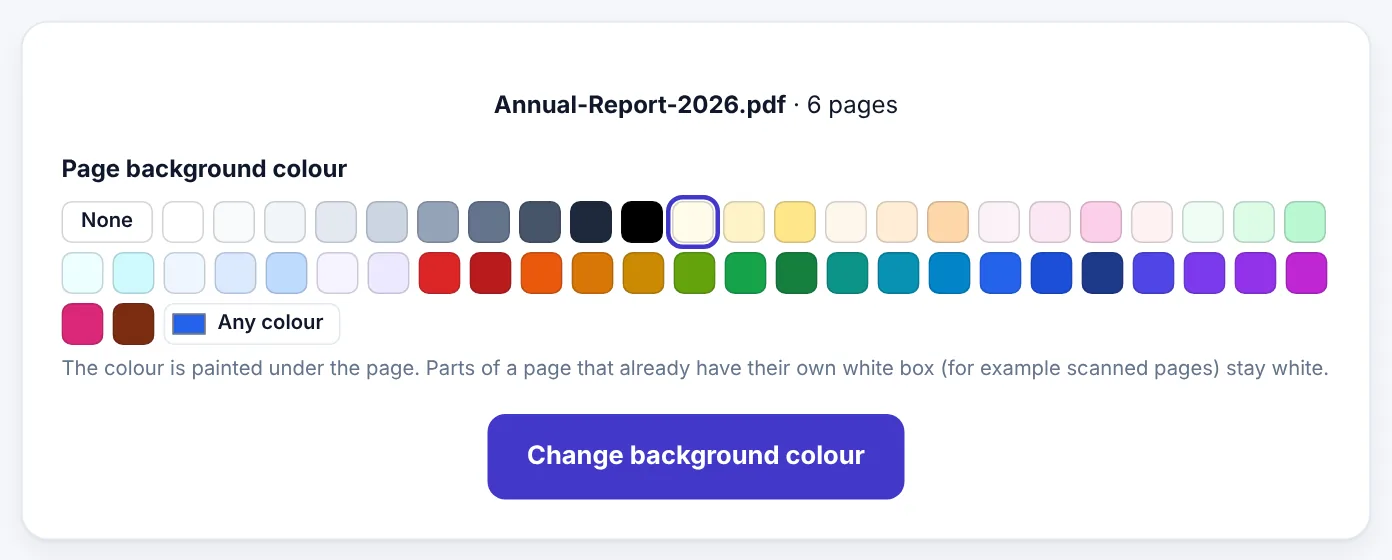
- Click one of the 50 ready colours – cream, butter, peach, mint, ice blue, lavender and more – or press Any colour to pick your own shade, for example your brand colour.
- Press Change background colour.
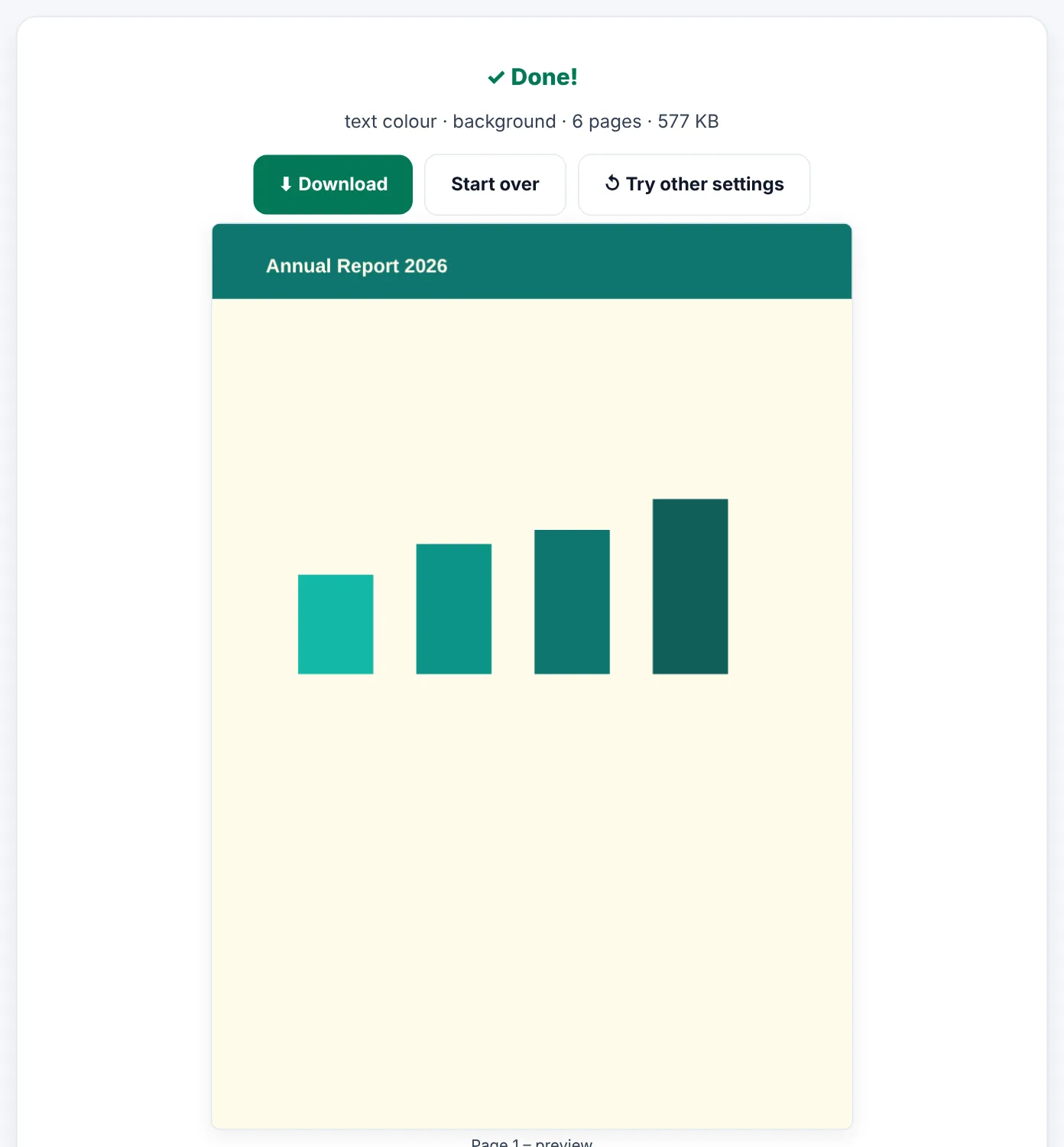
- Check the preview of the first pages, then press Download.
The text, pictures, tables and links stay exactly where they were. The colour is painted underneath them, so nothing on the page moves and the text stays selectable and searchable.
Try PDF Background ColorFree, no sign-up, and your file never leaves your device.Open tool →

Which background colour should you choose?
| Document | Good colours | Why |
|---|---|---|
| Books, notes, long reports | Cream, butter, light sand | Softer than white, less glare when reading on a screen for a long time |
| Study notes and worksheets | Mint, ice blue, light green | Calm, fresh colours that still print clearly |
| Invitations and certificates | Peach, blush pink, lavender | Warm and festive without hiding the text |
| Menus, price lists, flyers | Your brand colour | Makes the document match your shop, café or business |
| Reading at night | Dark grey or navy (with light text) | A "dark mode" PDF that is easier on the eyes in the dark |
Tip: Light colours keep black text easy to read. If you choose a strong or dark colour, change the text colour as well – see the next section.
How to make a dark mode PDF
A dark background with white or light grey text is much more comfortable to read at night. You can do it in two quick steps:
- Use Change PDF Background Color and pick a dark colour such as charcoal, navy or dark green.
- Open the result in Change PDF Text Color and choose white or light grey.
Want to do both at once – and maybe change the font too? Change PDF Font has the background colour, text colour, font and text size together in one tool.
Change the PDF colour on your phone
The tool works in Chrome, Safari, Samsung Internet and other browsers on Android and iPhone. There is no app to install:
- Open the page in your phone's browser.
- Tap Select PDF file and choose the PDF from Files, Downloads or WhatsApp documents.
- Tap a colour and then Change background colour.
- Tap Download – the new PDF is saved to your phone, ready to share.
Things to know before you start
- Scanned PDFs: a scanned page is a white photo of paper. The new colour is painted under the photo, so a scanned page stays white. For scans, run OCR PDF first if you need real text.
- Pages with their own white boxes: some PDFs made in design apps have a white rectangle behind the text. That box will stay white while the area around it changes.
- Printing: the background colour is part of the page, so it prints. A full-page colour uses a lot of ink – choose a very light shade if you plan to print many copies.
- File size: a plain background adds almost nothing to the file size. If your PDF is large for other reasons, Compress PDF can make it smaller afterwards.
- Keep the original: the tool makes a new file and does not change your original, so you can always go back to white.
Why not use Adobe Acrobat?
Adobe Acrobat can add a background colour, but only in the paid Acrobat Pro, and the option is tucked away in its editing menus. Many free online sites need you to upload your document to their server first. With SmartPDFConvert the colour is added inside your own browser, so private documents – contracts, bank statements, exam papers – never leave your device.
Frequently asked questions
Can I change the background colour of only some pages?
The tool colours every page. If you need a colour on only some pages, split the PDF with Split PDF, colour the part you want, and join the files again with Merge PDF.
Will the background colour show in every PDF viewer?
Yes. The colour is part of the page itself, so it shows the same in Chrome, Adobe Reader, phone viewers and when printed.
Can I remove a background colour from a PDF?
If you still have the original file, use that – it has no background. If a PDF came to you with a colour already built into its pages, this tool cannot take it away, because the new colour is always painted underneath the page content.
Is it free?
Yes. Changing the background colour is completely free, with no sign-up and no watermark on your PDF.
Tools used in this guide
 Change PDF Text Color
 Change PDF Font
 Compress PDF
Keep reading
 Online FormsHow to Compress a PDF to 50 KB, 100 KB, 200 KB or 500 KB
Online forms say "maximum 100 KB" or "PDF under 500 KB". Here is how to get your PDF under any limit – from 50 KB to 1 MB – while keeping it readable, on a phone or computer.
4 min read Online Forms"Online Application Document Checklist: Photos, Scans, Signatures and File Sizes"
A practical checklist for job, university, exam, visa and government portals - preparing photos, signatures and scanned documents in the right format and size, naming files, and avoiding last-minute upload errors.
9 min read PDF GuidesWhat Does "Flatten a PDF" Mean, and When Should You Do It?
Flattening turns form fields, comments, stamps and signatures into a fixed part of the page. Learn when to flatten, the two ways to do it, and the mistakes to avoid before sending a filled form.
9 min read