How to Extract Images From a PDF (at Full Quality)
In this guide
- Two different jobs: extracting images vs saving pages as images
- How to extract images from a PDF
- Saving whole pages as images
- Getting a chart or diagram out of a PDF
- Real-life uses
- Why some extracted images look strange
- Scanned PDFs
- Copyright and permission
- A worked example: building a shop from a supplier catalogue
- Understanding image resolution in PDFs
- Choosing between PNG and JPG for extracted images
- Organising and naming extracted images
- Preparing extracted images for different uses
- Extracting images on a phone
- Frequently asked questions
- In short
A supplier's catalogue has the product photos you need for your shop. A report contains a chart you want to put in a presentation. Your old brochure, saved only as a PDF, has the logo and team photos you no longer have anywhere else. An e-book has illustrations you want to look at full size.
The quick instinct is to take a screenshot. But screenshots capture only what is on your screen, at screen resolution, often with bits of the page around the picture. A 2400-pixel photo inside a PDF becomes a 600-pixel screenshot. Extracting the images properly gets you the original pictures, at the full quality they were stored in. This guide shows you how, and when to use a different approach.
Two different jobs: extracting images vs saving pages as images
It helps to know exactly what you want:
| You want… | Use | You get |
|---|---|---|
| The photos, logos and pictures inside the PDF | Extract Images from PDF | Each embedded picture as its own file, at its original resolution |
| A picture of a whole page, including text and layout | PDF to JPG or PDF to PNG | One image per page |
| Part of a page, such as a chart made of lines and text | PDF to PNG, then Crop Image | A sharp image of exactly that area |
The difference matters because not everything that looks like a picture in a PDF is a picture. Charts, diagrams and logos are often drawn with lines and shapes (vectors), not stored as images. Extracting images will not find those; saving the page as an image will.
How to extract images from a PDF
Extract Images from PDF runs in your browser. Your PDF is not uploaded.
- Open Extract Images from PDF and select your file.
- The tool scans every page and shows previews of the pictures it found, with the page number and the size in pixels.
- Choose Save as: - PNG (best quality) keeps every pixel, and transparency where the image has it. - JPG (smaller files) is ideal for photos when file size matters.
- Choose Skip tiny pictures to ignore decorative bits: Smaller than 40 px (icons, lines), Smaller than 100 px, or Keep everything.
- Press Download to get all pictures in a ZIP file.
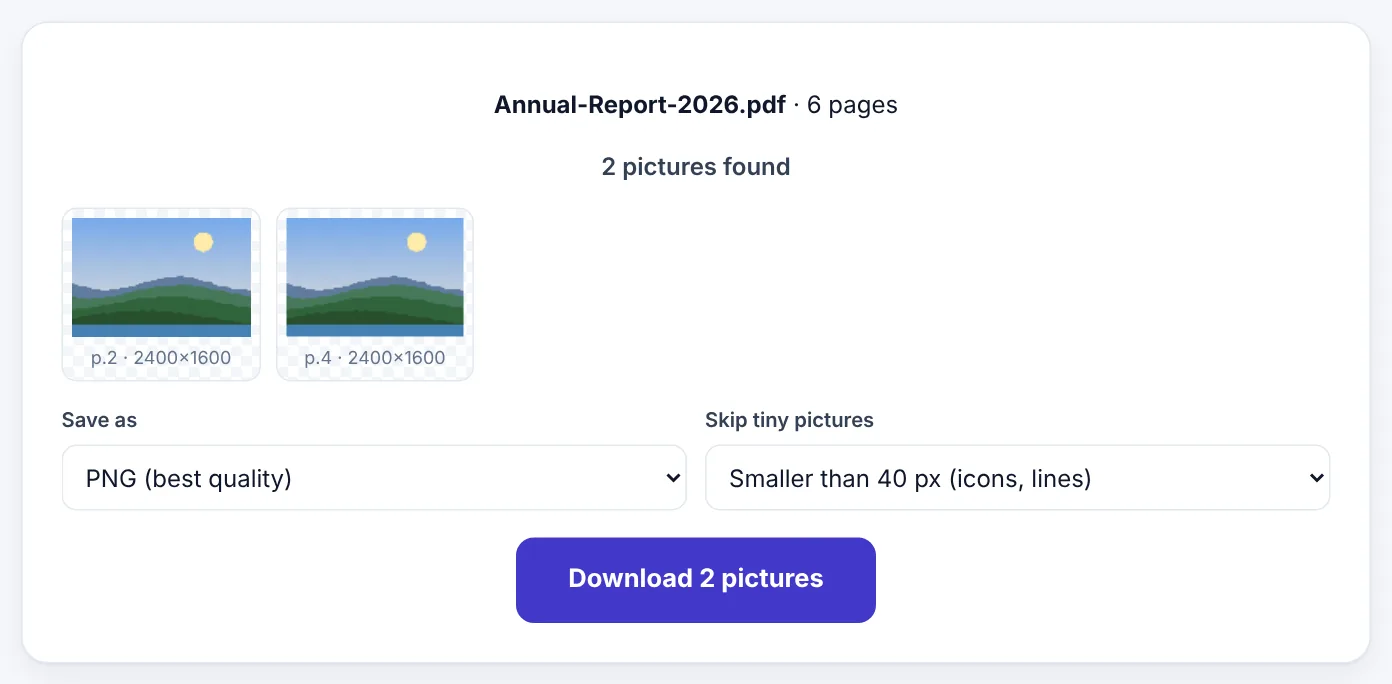
Each image is saved at the resolution it has inside the PDF, which is often much larger than it appears on the page. The preview shows the actual pixel size, such as 2400 × 1600, so you know what you are getting before downloading.
Saving whole pages as images
Sometimes you want the page itself: a flyer to post on social media, a certificate to send as a picture, a slide for a messaging app, or a page from a book to quote. PDF to JPG turns each page into an image:
- Choose the quality, up to 300 DPI for print-quality sharpness.
- Choose JPG for small files or PNG for perfect sharpness of text and lines.
- Convert all pages or only the ones you need.
300 DPI produces large, sharp images (an A4 page becomes about 2480 × 3508 pixels). For sharing on screen, a lower setting is plenty and gives smaller files.
Getting a chart or diagram out of a PDF
Charts in reports are often vectors: lines, bars and text drawn by the program that created the PDF. They do not exist as separate images, so Extract Images will skip them. To get a sharp copy:
- Convert the page to PNG at high quality with PDF to PNG.
- Open the page image in Crop Image and crop to the chart.
- Use the result in your presentation or document.
Because PNG is lossless and the page was rendered at high resolution, the chart's text and lines stay crisp.
Try Extract Images from PDFFree, no sign-up, and your file never leaves your device.Open tool →

Real-life uses
Online sellers. Suppliers often send product catalogues as PDFs. Extract the product photos at full resolution instead of screenshotting them, then prepare them for your shop with Remove Background and Compress Image. Always check that you have permission to use a supplier's photos.
Recovering your own pictures. If the only copy of your company logo or event photos is inside an old PDF brochure, extracting them is often the best way to get them back. Logos stored as images can then be turned into sharp vectors with Image to SVG.
Students and researchers. Extract figures and photos from papers for presentations, with proper credit to the source.
Designers. Pull images out of a client's old PDF to rebuild a layout in a design tool.
Archiving. Save the photos from scanned photo albums or digitised documents as individual files.
Why some extracted images look strange
PDFs store pictures in many ways, and a few of them look odd when separated from the page:
- Images split into strips or tiles. Some programs store one photo as several pieces. You will see several images instead of one. Saving the page as an image and cropping is easier in this case.
- Black or white backgrounds. A picture with transparency may be stored as an image plus a separate mask. Choose PNG to keep transparency where possible.
- Unexpected colours. Some print-oriented PDFs store images in CMYK colour for printing presses. Colours can shift slightly when converted for screens.
- Upside down or mirrored. The PDF may rotate or flip an image when drawing it on the page. Rotate the extracted file with Rotate Image.
- Duplicates. A logo that appears on every page may be extracted more than once.
- Low resolution. If the original PDF contained a small or compressed image, the extracted file will be small too. Extraction cannot add detail that was never there.
Scanned PDFs
In a scanned PDF, each whole page is one image. Extracting images will give you one picture per page, the scan itself. That is a quick way to get scan images out at their original resolution. If you need text from those pages, use OCR PDF or Image to Text instead.
Copyright and permission
Being able to extract an image does not mean you can reuse it freely. Photos in catalogues, magazines, e-books and reports belong to their photographers, publishers or companies. Extracting images from your own documents, documents you have rights to, or for personal reference is fine; republishing them on your website or social media usually requires permission or a licence. When in doubt, ask the owner.
A worked example: building a shop from a supplier catalogue
Ali starts selling kitchenware online. His supplier sends a 36-page PDF catalogue and confirms in writing that resellers may use the product photos. He needs a photo for each of 40 products.
- He opens the catalogue in Extract Images from PDF. It finds 58 pictures, including the supplier's logo on every page and some small icons.
- He sets Skip tiny pictures to "Smaller than 100 px", which removes icons and decorative bits. The list drops to 44 pictures.
- He chooses PNG to keep the best quality, and downloads the ZIP.
- He renames the product photos with product names, deleting the repeated logo files.
- He prepares the photos for the shop: white backgrounds with Remove Background, square crops with Crop Image, and compression with Compress Image.
His product pages have sharp, consistent photos in an afternoon, without asking the supplier to send dozens of separate files.
Understanding image resolution in PDFs
An image placed in a PDF has two sizes:
- Its pixel size, the actual number of pixels stored, such as 2400 × 1600.
- Its display size, how large it appears on the page, such as 8 × 5 cm.
These are independent. A large photo can be shown small on the page, and a small image can be stretched large (looking blurry). Extracting gives you the stored pixels, which is why extracted images are often much sharper than the page suggests, and why a blurry-looking picture in a PDF cannot become sharper by extracting it.
You can estimate the effective print quality: pixel width ÷ display width in inches. A 2400-pixel image shown 8 inches wide is printed at 300 pixels per inch, which is excellent quality.
Choosing between PNG and JPG for extracted images
| Situation | Choose |
|---|---|
| Photos for a website or social media | JPG (smaller) |
| Photos you will edit further | PNG (no extra quality loss) |
| Logos, icons, graphics with flat colours | PNG |
| Images with transparent backgrounds | PNG |
| Scanned pages for archiving | PNG for text clarity, or JPG to save space |
When in doubt, choose PNG. You can always make a smaller JPG copy later, but you cannot recover quality once it is lost.
Organising and naming extracted images
A ZIP full of files called page3-image2.png is hard to use a month later. A few minutes of organising pays off:
- Delete what you do not need straight away: repeated logos, background textures, decorative lines and tiny icons.
- Rename with meaning. Use names that describe the content, such as
blue-ceramic-mug.pngorteam-photo-2024.jpg. Descriptive file names are also better for websites, because search engines read them. - Use lowercase and hyphens. Avoid spaces and special characters, which cause trouble on some websites and servers.
- Keep the source. Put the original PDF in the same folder, or note its name in a text file, so you remember where the images came from and who owns them.
- Make web copies separately. Keep the full-quality originals and create smaller copies for the web with Compress Image or Resize Image, so you never overwrite your best version.
Preparing extracted images for different uses
| Where the image is going | What to do after extracting |
|---|---|
| An online shop | Square crop, clean background, compress to around 100–300 KB |
| A presentation | Keep it large and sharp; PNG for charts and logos |
| Social media | Crop to the platform's shape, such as square or 4:5 portrait |
| A printed document | Keep full resolution; check it is at least 300 pixels per inch at the printed size |
| A website banner | Resize to the banner width and compress; convert to WebP for faster loading |
| An email | Resize to around 1200 pixels wide and compress, so the email is not too heavy |
The extracted original is your master copy. Every other version can be made from it, but it cannot be made from a smaller copy.
Extracting images on a phone
On a phone the steps are exactly the same: open Extract Images from PDF in your browser, pick the PDF from your Files app or downloads, and download the ZIP. On iPhone, tap the ZIP in the Files app to unpack it into a folder; on Android, most file managers can extract ZIP files with one tap. To add the images to your photo gallery, open each one and choose Save Image or Share → Save.
Frequently asked questions
Will the images be the same quality as in the PDF?
Yes. Images are saved at the resolution stored in the PDF. PNG keeps every pixel; JPG uses high-quality compression for smaller files.
Why are fewer images found than I can see?
Some things that look like pictures are drawn as vector shapes or text, not stored as images. Save the page as an image with PDF to PNG and crop instead.
Can I extract images from a password-protected PDF?
Open it first with Unlock PDF using the password you know.
Does it work on a phone?
Yes. The ZIP file opens in the Files app on iPhone or most file managers on Android.
Is my PDF uploaded?
No. Everything happens in your browser.
In short
Use Extract Images to get the real pictures inside a PDF at full resolution, PDF to JPG or PNG to capture whole pages, and PDF to PNG plus cropping for charts and diagrams drawn as vectors. Choose PNG for quality and transparency, JPG for small photo files, and respect the rights of whoever made the images.
Tools used in this guide
 PDF to JPG
 PDF to PNG
 Crop Image
Keep reading
 PDF GuidesHow to Change the Background Color of a PDF (Free, Online)
Change a white PDF to cream, mint, light blue or any colour in under a minute – on your phone or computer, without Adobe Acrobat and without uploading the file.
4 min read Image GuidesHow to Make a Favicon (ICO) From a PNG or Logo
Create a sharp favicon.ico for your website from a PNG, JPG or SVG logo - which sizes to include, how to design a logo that works at 16 pixels, and how to add it to WordPress or any site.
9 min read PDF GuidesWhat Does "Flatten a PDF" Mean, and When Should You Do It?
Flattening turns form fields, comments, stamps and signatures into a fixed part of the page. Learn when to flatten, the two ways to do it, and the mistakes to avoid before sending a filled form.
9 min read