How to Make a Favicon (ICO) From a PNG or Logo
In this guide
- What is an ICO file?
- How to make a favicon from a PNG
- Designing a favicon that works at 16 pixels
- Preparing your logo first
- Adding the favicon to your website
- Favicons in search results
- Why is my new favicon not showing?
- A worked example: a small bakery's website
- Favicon sizes at a glance
- Testing your favicon
- Common favicon mistakes
- Favicons for other projects
- Frequently asked questions
- In short
Look at the browser tabs open on your screen right now. Each one has a tiny picture next to the title: a coloured letter, a logo, a symbol. That picture is the favicon, short for "favourite icon". It is one of the smallest images on any website, and one of the most often seen. It appears in tabs, bookmarks, browsing history, home-screen shortcuts and, increasingly, beside your site's name in search results.
A website without a favicon shows a generic blank page or globe icon, which quietly signals "unfinished". A blurry or unreadable favicon is not much better. This guide shows you how to turn your logo into a sharp favicon file, which sizes you need, how to design something that still works at 16 pixels, and how to add it to your site.
What is an ICO file?
The traditional favicon format is ICO, a Windows icon format that has one special feature: a single ICO file can contain several sizes of the same picture. A browser or operating system picks the size that fits best:
- 16 × 16 pixels for browser tabs and bookmarks on standard screens.
- 32 × 32 pixels for tabs on high-resolution screens and for the taskbar.
- 48 × 48 pixels for Windows shortcuts and site icons.
- 256 × 256 pixels for large icons on high-resolution displays.
Modern browsers also accept PNG and SVG favicons, but a favicon.ico file in the root of your website remains the most widely supported option. Many browsers and tools look for /favicon.ico automatically, even if your pages never mention it.
How to make a favicon from a PNG
PNG to ICO converts a picture into an ICO file in your browser. Your logo is not uploaded.
- Open PNG to ICO and select your logo. PNG, JPG, SVG and WebP all work; a square PNG with a transparent background gives the cleanest result.
- Under Icon sizes inside the file, choose the sizes to include. The default, 16, 32, 48 and 256, covers browsers, Windows and high-resolution screens.
- Press Convert to ICO and download.
- Rename the file to
favicon.icoif it has a different name.
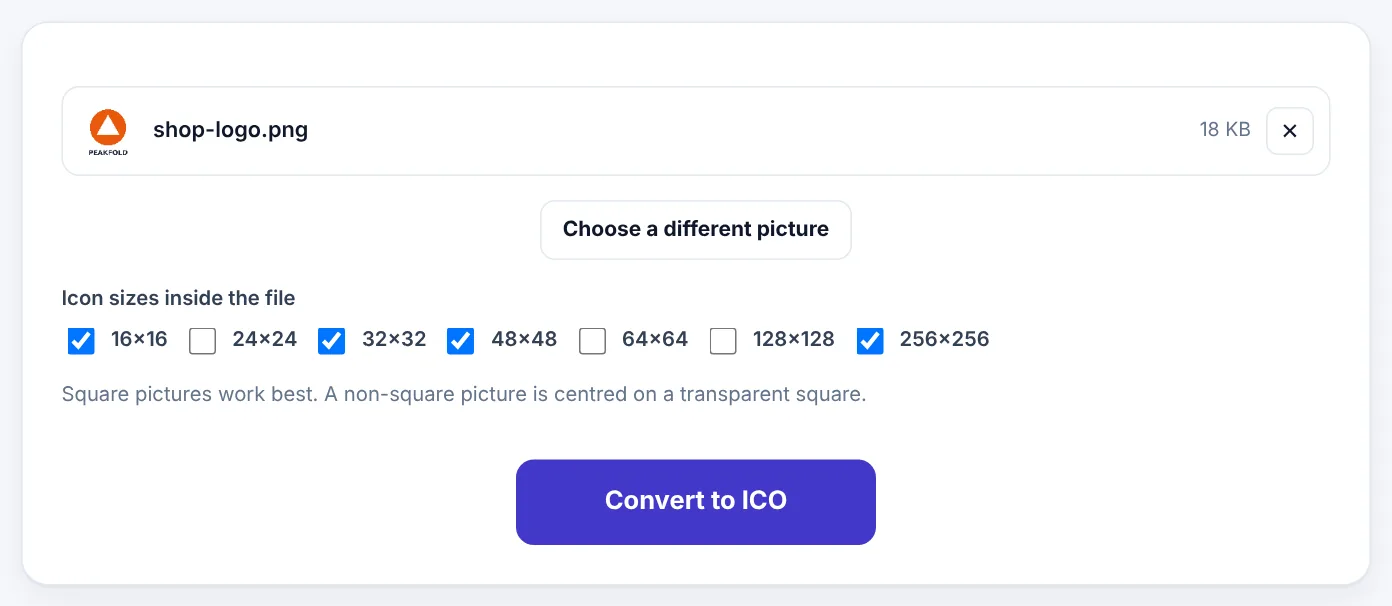
Transparent backgrounds stay transparent, so a round or irregular logo sits neatly on light and dark browser tabs. If your picture is not square, it is centred on a transparent square instead of being stretched.
Try PNG to ICOFree, no sign-up, and your file never leaves your device.Open tool →

Designing a favicon that works at 16 pixels
The biggest favicon mistake is shrinking a full logo, with its name, tagline and fine details, down to 16 pixels. At that size, a 16 × 16 icon has only 256 pixels in total. Text becomes a grey smudge and thin lines disappear.
Good favicons are simplified versions of a brand:
- Use a symbol, not the full logo. If your logo has an icon and a name, use only the icon.
- Or use one or two letters. Many well-known sites use a single bold letter in their brand colour.
- Use bold shapes and thick lines. Fine strokes vanish at small sizes.
- Use strong contrast. A dark shape on a light background, or the reverse, stays readable.
- Fill the square. Leave only a small margin; excess empty space makes the icon look tiny next to others.
- Test on light and dark tabs. Many people use dark browser themes. A black logo with a transparent background can disappear on a dark tab; adding a light outline or a coloured background shape fixes it.
- Keep it consistent with your brand colours so people recognise it instantly among a dozen tabs.
A quick test: zoom out until your icon is the size of a fingernail on screen. If you can still tell what it is, it will work as a favicon.
Preparing your logo first
A little preparation gives a much sharper result:
- Start large. Begin with a logo at least 256 × 256 pixels, ideally 512 × 512 or larger. Shrinking a large image gives a cleaner small icon than enlarging a small one.
- Make it square. Use Crop Image to crop the logo's symbol to a square with a small, even margin.
- Remove the background. If your logo is on a white box, Remove Background can give it a transparent background so it sits naturally on any tab colour.
- Sharpen blurry logos. If you only have a small or blurry logo, Image to SVG can trace it into a sharp vector, which you can then convert to PNG at any size with SVG to PNG.
Adding the favicon to your website
Any website
- Upload
favicon.icoto the root folder of your website, so it is available athttps://yourdomain.com/favicon.ico. - Add this line inside the
<head>section of your pages:
<link rel="icon" href="/favicon.ico" sizes="any">
- Optionally, add an icon for Apple devices, which use a 180 × 180 pixel PNG when someone adds your site to their home screen:
<link rel="apple-touch-icon" href="/apple-touch-icon.png">
You can make the 180 × 180 PNG from your logo with Resize Image.
WordPress
WordPress has a built-in Site Icon setting, usually under Appearance → Customize → Site Identity (or in the Site Editor for block themes). It asks for a square image, at least 512 × 512 pixels, and creates the different sizes for you. Upload your square PNG there. If you also want a classic favicon.ico in the root folder, upload it with your host's file manager.
Website builders and shops
Wix, Squarespace, Shopify and other builders have a favicon option in their site settings. Most accept a PNG and handle the rest; check their help pages for the exact size they prefer.
Favicons in search results
Google and other search engines may show your favicon next to your site name in mobile search results. To be eligible, the favicon should be crawlable, square and represent your brand; Google's guidelines ask for a size that is a multiple of 48 pixels, such as 48 × 48 or 96 × 96. Including 48 pixels in your ICO file, or providing a 48-multiple PNG, covers this. An inappropriate or missing favicon is replaced by a generic icon.
Why is my new favicon not showing?
Browsers cache favicons aggressively. After changing yours:
- Open the favicon URL directly (
yourdomain.com/favicon.ico) and refresh it. - Clear the browser cache, or try a private window or a different browser.
- Wait. Some browsers keep an old favicon for hours or days.
- Check the file path in your
<link>tag and that the file was uploaded to the right folder. - Search results update slowly; it can take weeks for a new favicon to appear there.
A worked example: a small bakery's website
Rabia runs a home bakery and has a logo with a cupcake drawing and the words Rabia's Bakes in script lettering.
- She crops just the cupcake to a square with Crop Image.
- She removes the white background with Remove Background.
- At 16 pixels the thin outline of the cupcake disappears, so she asks her designer for a simplified, bolder cupcake shape in her brand pink.
- She converts the PNG with PNG to ICO, keeping the default 16, 32, 48 and 256 sizes.
- She uploads the PNG as her WordPress Site Icon and puts
favicon.icoin her site's root folder.
Her site now has a recognisable pink cupcake in every browser tab and bookmark list.
Favicon sizes at a glance
| File | Size | Used for |
|---|---|---|
favicon.ico |
16, 32, 48 (and 256) inside one file | Browser tabs, bookmarks, Windows, search results |
apple-touch-icon.png |
180 × 180 px | iPhone and iPad home-screen shortcuts |
| WordPress Site Icon | At least 512 × 512 px PNG | WordPress creates all other sizes |
| Web app icons | 192 × 192 and 512 × 512 px PNG | Android home screen and installable web apps |
favicon.svg (optional) |
Any, it is a vector | Modern browsers, sharp at every size |
You do not need every one of these. A favicon.ico plus an Apple touch icon covers almost every visitor; WordPress users can simply upload a 512-pixel Site Icon.
Testing your favicon
Once your favicon is live, test it where visitors will see it:
- Open your site in Chrome, Edge, Firefox and Safari if you can, and look at the tab.
- Switch your browser to a dark theme and check that the icon is still visible.
- Bookmark the site and look at the bookmark bar.
- On a phone, add the site to the home screen and check the icon there.
- Open
yourdomain.com/favicon.icodirectly to confirm the file loads.
If the icon looks blurry at small sizes, the problem is almost always the design rather than the file: simplify the shape and make lines thicker, then convert again.
Common favicon mistakes
- Using the full logo with text, which becomes unreadable at 16 pixels.
- A white logo on a transparent background, which disappears on white tabs.
- A black logo on a transparent background, which disappears on dark tabs.
- Starting from a tiny image, such as a 64-pixel logo, which looks blurry when converted.
- Uploading the file to the wrong folder, so
/favicon.icoreturns an error. - Forgetting to update the favicon after a rebrand, leaving an old logo in every tab.
- Using a photo: detailed photographs are unreadable as icons. Use a symbol or letter instead.
Favicons for other projects
The same approach works beyond websites. ICO files are also used for Windows shortcut and folder icons, desktop app icons and some internal tools. A square, simple design with several sizes in one ICO file looks sharp everywhere Windows shows it.
Frequently asked questions
Which sizes should my favicon.ico include?
16 and 32 pixels for browser tabs, 48 for Windows and search results, and 256 for high-resolution screens. The default selection covers all of them.
Can I use a JPG?
Yes, any picture works. A PNG with a transparent background gives the cleanest icon, because JPG cannot be transparent.
Do I still need an ICO file, or can I use PNG?
Modern browsers accept PNG and SVG favicons, but favicon.ico in the site root remains the most widely supported choice. Many sites provide both.
Will my transparent background be kept?
Yes. Logos with transparent backgrounds stay see-through in the ICO file.
Is PNG to ICO free?
Yes, with no sign-up, no watermark and no daily limit.
Is my logo uploaded?
No. The conversion happens in your browser on your own device.
Can I make a favicon from a single letter?
Yes. Many well-known sites use one bold letter. Create a square image with your letter in a strong brand colour, filling most of the square, save it as PNG and convert it. Simple letters are often more readable at 16 pixels than any logo.
Should my favicon have a background colour?
A transparent background looks natural on most tabs, but a solid rounded square in your brand colour behind a white symbol stays visible on both light and dark tabs. Test both and choose the one that is easiest to spot.
How big is a favicon.ico file?
Usually only a few kilobytes to a few dozen kilobytes, depending on the sizes inside. Including 256 pixels makes the file larger; it is still small enough not to slow down your site.
Will a favicon help my SEO?
It does not directly improve rankings, but a clear, recognisable favicon in search results and tabs can help people notice and return to your site.
In short
A favicon is your brand at its smallest. Start with a large, square, transparent PNG of a simplified symbol or letter, check it is readable at fingernail size and on dark tabs, convert it to an ICO containing 16, 32, 48 and 256 pixel sizes, upload it as favicon.ico to your site root, and add an Apple touch icon and WordPress Site Icon where needed.
Tools used in this guide
 Resize Image
 Remove Background
 Crop Image
Keep reading
 PDF GuidesHow to Crop a PDF and Remove White Margins
Trim wide white margins, scanner borders and unwanted edges from PDF pages, crop all pages or just one, and understand what cropping really hides. Includes reading on phones and printing tips.
9 min read Image GuidesHow to Make a GIF From a Video (Small, Sharp and Smooth)
Turn a phone video or screen recording into a looping GIF. How to pick the moment, choose frame rate and width, keep the file small enough to share, and when a short MP4 is better.
9 min read PDF GuidesHow to Extract Images From a PDF (at Full Quality)
Save the photos, logos and charts inside a PDF as separate JPG or PNG files at their original resolution, or turn whole pages into images. Tips for catalogues, reports and e-books.
9 min read