How to Password Protect a PDF (and Choose a Password That Works)
In this guide
- Two kinds of PDF passwords
- How strong is PDF encryption?
- How to add a password to a PDF
- Choosing a password that actually protects
- Sending the password safely
- Restrictions: what they can and cannot do
- Protection is not the same as redaction
- When to protect a PDF, and when not to
- Removing the password later
- Privacy: why "in your browser" matters here
- Step-by-step example: sending salary slips to staff
- Password strength at a glance
- Protecting PDFs on a phone
- Where to keep protected files and their passwords
- Frequently asked questions
- The short version
Some documents should only be opened by the person they are meant for: a salary slip sent to an employee, a medical report emailed to a family member, a signed contract, tax papers sent to an accountant. Email can be forwarded, laptops get lost and shared folders end up shared with more people than intended.
Adding a password to the PDF itself means the document stays locked wherever it travels. Anyone without the password sees a prompt instead of the content. This guide explains how PDF passwords actually work, how to add one in a minute, and the small mistakes that quietly undo the protection.
Two kinds of PDF passwords
PDFs support two different passwords, and they do very different jobs.
The open password (also called the user password or document open password) is the one people usually mean. Without it, the PDF cannot be opened at all. The content is encrypted: it is scrambled inside the file and is unreadable without the password.
The permissions password (also called the owner password) controls what people can do after the document is open: whether they can print it, copy text, edit pages or fill in forms. It does not stop anyone from reading the document.
| Open password | Permissions password | |
|---|---|---|
| Stops people from reading the file | Yes | No |
| Content encrypted | Yes | Yes, but anyone can open it |
| Controls printing, copying, editing | No (on its own) | Yes |
| Real protection against a determined person | Strong, with a good password | Weak; many apps can ignore it |
If your goal is privacy, you need an open password. Permissions are a polite request to well-behaved software, not a lock.
How strong is PDF encryption?
Modern PDFs use AES-256, the same encryption standard used by banks, governments and secure messaging apps. With AES-256 and a good password, nobody can open the file by attacking the encryption itself.
The weak point is never AES. It is the password. Attackers who get hold of a protected PDF do not try to break the encryption; they try millions of likely passwords, very quickly, on their own computers. A short or common password like 123456, password or a date of birth can be guessed in seconds. A long, unusual password cannot be guessed in a lifetime.
Older PDFs sometimes used weaker encryption (40-bit RC4 or 128-bit RC4) that is no longer considered safe. Protect PDF always uses AES-256, the strongest standard the PDF format offers.
How to add a password to a PDF
Protect PDF works in your browser. The document is encrypted on your own device, so the unprotected version is never uploaded anywhere, which is exactly what you want for a sensitive file.
- Open Protect PDF and select your file.
- Type a password in Password to open the PDF. The strength bar shows how hard it would be to guess.
- Type it again in Type it again to make sure there is no typo.
- Optional: open Extra restrictions to choose what people can do after opening it: print, copy text and images, edit pages and add comments, or fill in forms.
- Optional: set an Owner password to change restrictions, so only you can change those permissions later.
- Press Protect PDF and download the locked file.
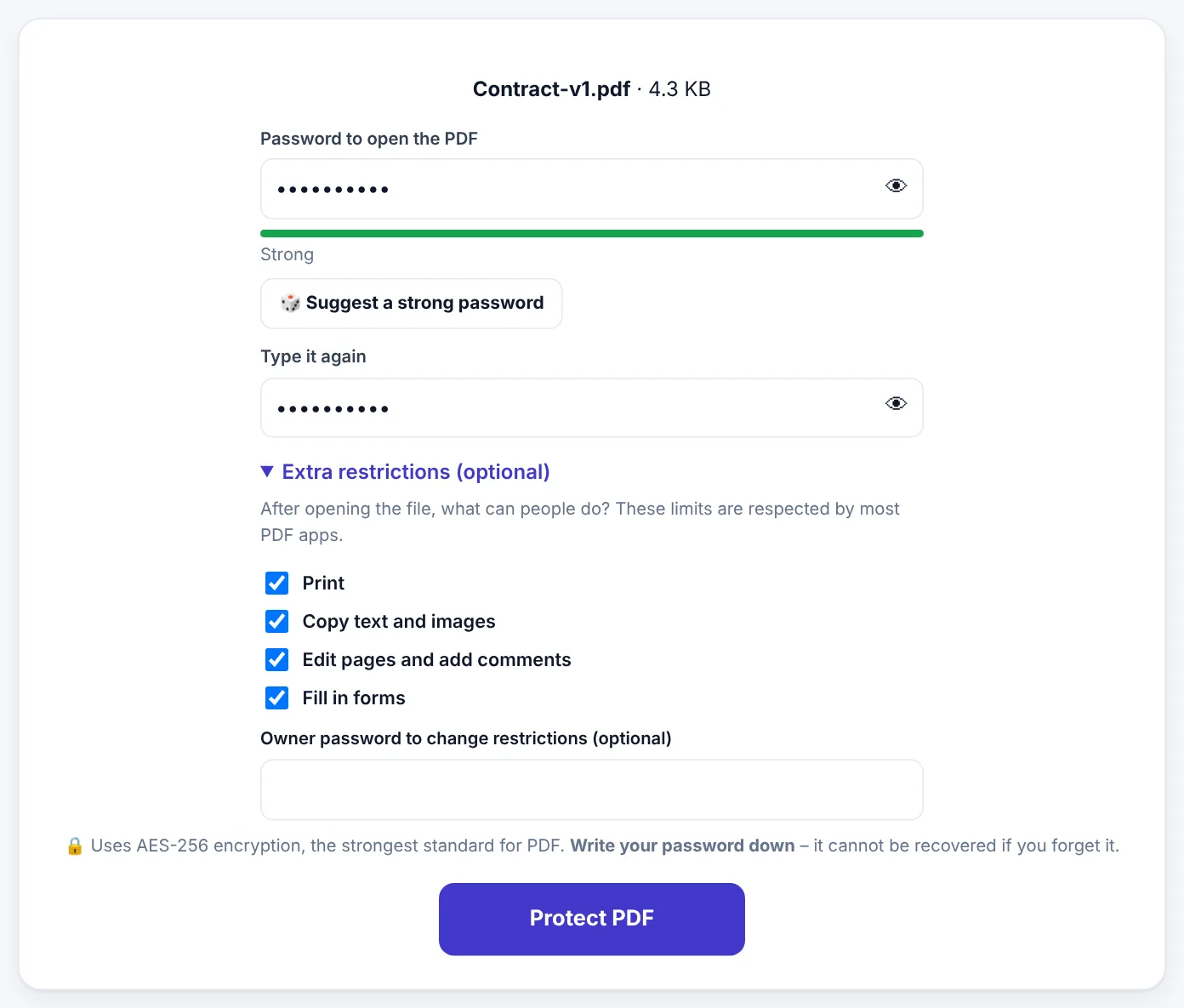
Before you send it, open the downloaded file once. Your PDF viewer should ask for the password. Type it and check that the document opens correctly.
Important: Write the password down somewhere safe. With AES-256 there is no "forgot password" button. If you lose it, nobody can recover the document, including us.
Choosing a password that actually protects
Good PDF passwords are long more than they are complicated. Length beats cleverness.
Strong examples of the style to use (do not use these exact ones):
river-lantern-violet-oak-42Mango!Bicycle!Window!7my cat sleeps on the blue chair(spaces are allowed)
Weak passwords to avoid:
- Names, birthdays, phone numbers and CNIC or ID numbers, because these are easy to find or guess.
- Single dictionary words, even with a number added:
Karachi2026. - Keyboard patterns:
qwerty,asdf1234. - The same password you use for email or banking.
A string of four or five random words, with a number or symbol, gives you a password that is both strong and easy to type on a phone.
What about organisations that use ID numbers as passwords?
Banks and employers sometimes protect statements and salary slips with a password made from your ID number or date of birth. That is convenient, but it is not strong, because those details are known to many people. For documents you protect, choose your own password.
Sending the password safely
This is where most protection falls apart. If you email the PDF and put the password in the same email, anyone who gets the email gets both.
Better habits:
- Use a different channel. Email the PDF, then send the password by SMS, a phone call or a messaging app.
- Agree on a password in advance with people you send documents to regularly, such as an accountant.
- Never put the password in the file name or the email subject line.
- Do not reuse the same password for every document you send to everyone.
Restrictions: what they can and cannot do
The Extra restrictions section lets you untick things like printing or copying. This is useful for discouraging casual misuse: a reader who just wants to copy a paragraph will find the option greyed out in most PDF apps.
But be realistic. Permissions are enforced by the reader's software. Some apps and tools ignore them, and anyone can take a screenshot or photo of the screen. Use restrictions to signal intent ("please don't print this") and an open password for real protection.
Restrictions are also handy in a positive way. Allowing Fill in forms but not Edit pages, for example, lets people complete a form without changing its wording.
Try Protect PDFFree, no sign-up, and your file never leaves your device.Open tool →

Protection is not the same as redaction
Password protection keeps everyone without the password out. But once someone has the password, they see everything in the document.
If you need to share a document with someone while hiding parts of it, such as an account number in a bank statement or the names of other people in a report, password protection is the wrong tool. Use Redact PDF to permanently remove those details first, then protect the redacted copy if needed.
Similarly, PDFs can carry hidden information such as the author's name, the software used and editing dates. Remove PDF Metadata cleans that out before you share.
When to protect a PDF, and when not to
Good reasons to add an open password:
- Financial documents: salary slips, bank statements, tax returns.
- Medical reports and prescriptions.
- Identity documents: scans of passports, ID cards, licences.
- Signed contracts and legal letters.
- HR documents: offer letters, appraisals, disciplinary records.
- Anything sent by email or stored in a shared folder that should not be read by everyone.
When a password causes more trouble than it solves:
- Documents for online portals, which usually cannot open protected PDFs and will reject them.
- Public documents, such as brochures, menus and price lists.
- Documents for printing at a shop, unless you share the password with the shop.
- Long-term archives where nobody will remember the password in ten years. For archiving, see our guide to PDF/A.
Removing the password later
If you need to remove the password from a document you own, for example to upload it to a portal, use Unlock PDF with the password you know. It creates an unlocked copy. Your protected original is not changed.
Unlock PDF needs the correct password; it is not a password-cracking tool. That is by design: if you protect a document, it should stay protected.
Privacy: why "in your browser" matters here
It would be a bit strange to protect a confidential document by uploading the unprotected version to a stranger's server first. Yet that is how most online PDF tools work.
Protect PDF encrypts the file inside your browser. The original document, the password and the encrypted result all stay on your device. You can even switch to airplane mode after the page loads, and it still works.
Step-by-step example: sending salary slips to staff
A small business owner sends monthly salary slips to eight employees by email. Here is a simple, safe routine:
- Agree on passwords once. Each employee chooses a passphrase, or the owner gives each person a random one in person or by phone. It is written down in a private notebook, not in an email.
- Export each slip as PDF from the payroll spreadsheet or accounting software.
- Protect each slip with that employee's password in Protect PDF. Untick Edit pages and add comments in the restrictions so the figures are not casually altered.
- Name files neutrally, such as
Payslip-2026-10-EMP04.pdf, rather than including salary amounts or names in the file name. - Email each slip to the right employee. The password is never in the email.
- Keep the unprotected originals in a private folder on the business computer, protected by the computer's own login.
The same pattern works for an accountant sending tax returns to clients, a clinic sending reports to patients, or a school sending report cards to parents.
Password strength at a glance
How long would it take someone to guess a password by trying combinations very quickly on a modern computer? Exact numbers depend on the attacker's hardware, but the pattern is always the same: every extra character multiplies the effort.
| Password | Rough strength |
|---|---|
1234 or password |
Guessed instantly; on every list of common passwords |
ayesha1995 |
Very weak; a name and a year are among the first things tried |
K7#p2 (5 random characters) |
Weak; short passwords fall quickly no matter how random |
Tr0ub4dor&3 (a word with substitutions) |
Moderate; substitutions are predictable to guessing software |
orange-camel-window-river (4 random words) |
Strong; long and unpredictable |
orange-camel-window-river-58! |
Very strong |
The lesson: length and randomness matter far more than swapping letters for symbols. Four or five unrelated words are easier to remember and much harder to guess than a short jumble.
Protecting PDFs on a phone
Everything works the same on a phone, but a few details help:
- Use the eye icon to show the password while typing, so you can spot mistakes. Phone keyboards often capitalise the first letter automatically.
- Avoid symbols that are hard to type on the recipient's keyboard. Dashes and numbers are easy everywhere; some symbols are not.
- Save the password in a password manager app rather than a note in your gallery.
- Find the file after downloading in Downloads (Android) or the Files app (iPhone), then share it from there.
Where to keep protected files and their passwords
A protected PDF is only as safe as the place its password lives. Good options:
- A password manager (many phones have one built in) that is locked with your fingerprint or face.
- A paper notebook kept at home, for passwords you rarely need.
Poor options:
- A note in the same folder as the PDF.
- A screenshot in your photo gallery, which may be backed up to the cloud.
- An email to yourself with the subject "PDF password".
Frequently asked questions
Can I protect a PDF on my phone?
Yes. Protect PDF works in Chrome, Safari and other mobile browsers. The protected file goes to your Downloads folder or the Files app.
Which apps can open a protected PDF?
All standard PDF readers: Adobe Acrobat Reader, browser PDF viewers in Chrome, Edge, Firefox and Safari, phone PDF apps and the preview apps built into Windows, macOS, Android and iOS. They will ask for the password.
Does the password protect the file name?
No. The file name, size and date are visible to anyone who sees the file. Choose a neutral file name if the name itself is revealing.
I forgot the password. Can you help?
Unfortunately no. Strong encryption has no back door. If you still have the original unprotected file, protect it again with a new password, and keep that one written down.
Can I protect several PDFs with one password?
Protect them one at a time, or merge them first with Merge PDF and protect the combined file.
Will protecting a PDF make it bigger?
Barely. Encryption adds a tiny amount of data. If the file is large, compress it with Compress PDF before protecting it.
The short version
An open password with AES-256 is real protection, as long as the password is long and not guessable. Permissions are only a polite request. Send the password by a different channel than the file, write it down somewhere safe, and redact anything the recipient should not see before you lock the document.
Tools used in this guide
 Unlock PDF
 Redact PDF
 Remove PDF Metadata
Keep reading
 Privacy & SecurityHow to Remove Hidden Metadata From PDFs and Photos Before Sharing
PDFs and phone photos carry hidden details - author names, software, dates, comment names, even GPS location. See what they reveal and how to remove them before you share or upload.
9 min read PDF GuidesWhat Does "Flatten a PDF" Mean, and When Should You Do It?
Flattening turns form fields, comments, stamps and signatures into a fixed part of the page. Learn when to flatten, the two ways to do it, and the mistakes to avoid before sending a filled form.
9 min read PDF GuidesHow to Crop a PDF and Remove White Margins
Trim wide white margins, scanner borders and unwanted edges from PDF pages, crop all pages or just one, and understand what cropping really hides. Includes reading on phones and printing tips.
9 min read