How to Fill in a PDF Form on Your Phone or Computer

In this guide
- Fillable vs non-fillable forms
- How to fill a fillable PDF form
- Locking your answers: why flattening matters
- Filling forms that have no fields
- Adding your signature and photo
- A complete phone workflow: job application form
- Common problems
- Privacy
- Understanding the different field types
- Forms with confusing field names
- Accessibility and readability tips
- When the form must be printed after all
- Frequently asked questions
- Wrapping up
Admission forms, job applications, visa forms, tax declarations, medical questionnaires, school permission slips: so much paperwork now arrives as a PDF. The old routine was to print it, fill it in by hand, scan it and send it back. On a phone, that routine is even worse.
You do not need a printer. Most PDF forms can be filled in on screen in a few minutes, and even forms that were never designed to be filled digitally can be completed neatly. This guide shows you how to do both, and how to make sure your answers stay exactly as you typed them.
Fillable vs non-fillable forms
There are two kinds of PDF forms, and the first step is knowing which one you have.
Fillable forms (also called interactive forms or AcroForms) have real fields built in: text boxes, checkboxes, drop-down lists and radio buttons. When you open them in a PDF viewer, you can click into a box and type. They are usually created by organisations that expect people to fill them in digitally.
Non-fillable forms are just pictures of a form: lines and boxes printed on the page, often from a scanned paper form or a Word document saved as PDF. Clicking on them does nothing.
To check, open the PDF and click or tap on an empty box. If you get a typing cursor or a highlighted field, it is fillable. Fill PDF Form also tells you straight away how many fields it found.
How to fill a fillable PDF form
- Open Fill PDF Form and select the form. It opens in your browser; your answers stay on your device.
- The tool lists every field it found with its label: text boxes, checkboxes and so on.
- Type your answers and tick the boxes that apply.
- Optional: tick Lock the form after filling (flatten) so the answers can no longer be changed (see below).
- Press Save filled PDF and download.
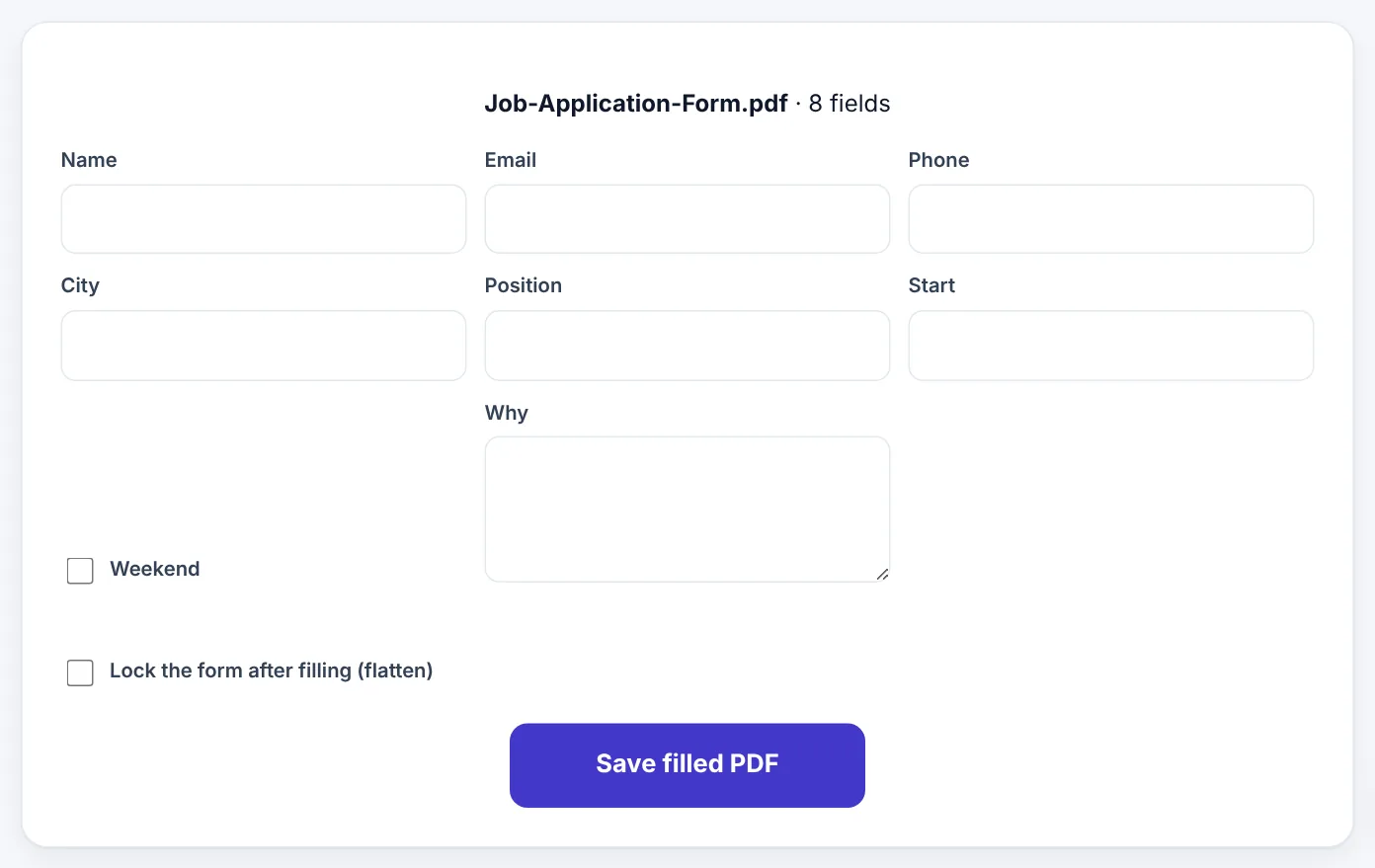
The list layout is especially useful on phones. Instead of zooming in and out of a tiny A4 page to find each box, you fill in a clean list of fields and the tool places your answers in the right spots on the form.
Tips for filling forms well
- Match the expected format. If a date field shows
DD/MM/YYYY, type it that way. Some forms check formats. - Use capitals where asked. Many official forms ask for names in BLOCK CAPITALS.
- Do not leave required fields empty. Write "N/A" or "None" if a question does not apply, unless the form says to leave it blank.
- Keep long answers short. Text boxes on forms are a fixed size. Very long answers may be cut off or shrunk.
- Check names and numbers twice. Spelling mistakes in names, ID numbers and dates of birth cause the most rejections.
Locking your answers: why flattening matters
A filled form still contains live fields. That means:
- Anyone who opens it can change your answers.
- Some viewers display fields differently, or not at all, especially on phones and in some web portals.
- When the form is merged with other PDFs, fields can behave unpredictably.
Flattening solves all three. It "prints" your answers onto the page as normal content, so they look the same everywhere and cannot be edited. Tick Lock the form after filling (flatten) in Fill PDF Form, or use Flatten PDF afterwards.
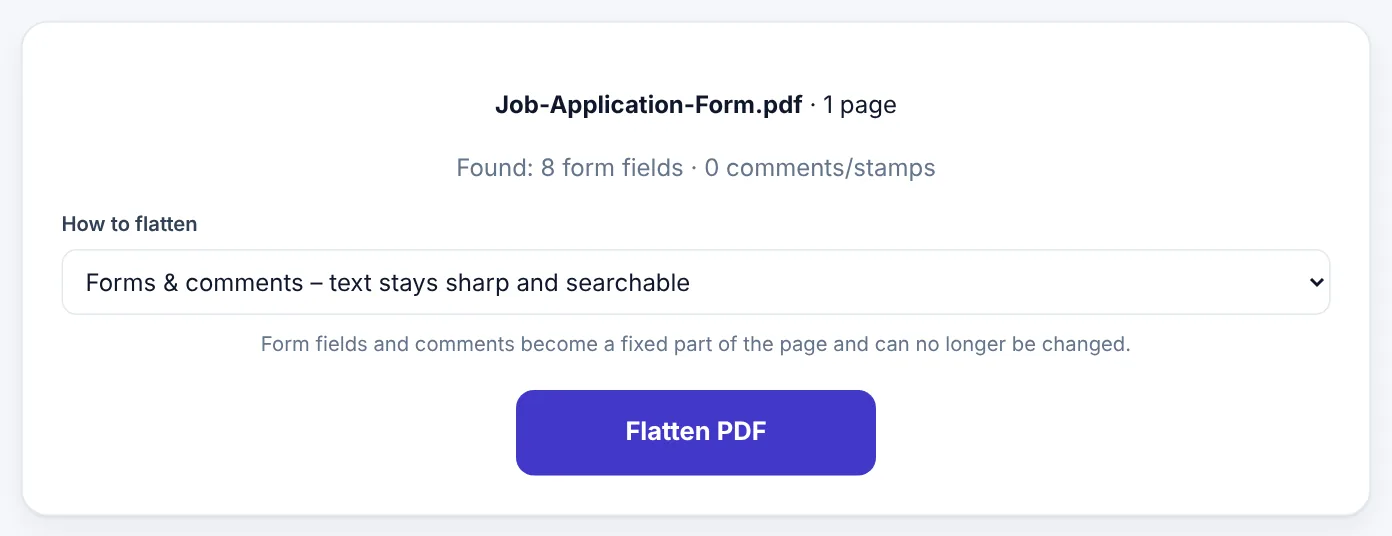
Flatten PDF offers two approaches:
- Forms & comments: the fields and comments become part of the page while text stays sharp and searchable. This is the right choice almost every time.
- Everything: every page becomes a picture, at a quality you choose. Use this only when a document must look absolutely identical everywhere, or to make content harder to edit.
Tip: Keep an unflattened copy for yourself. If you need to correct something later, it is much easier to change the fillable version and flatten again.
Filling forms that have no fields
Many forms are not fillable: a scanned government form, a Word document saved as PDF, a form downloaded from an old website. You can still fill them neatly on screen:
- Open Edit PDF (or Add Text to PDF) and select the form.
- Choose the Text tool and tap where the first answer should go.
- Type the answer, then adjust its size and position so it sits on the line or inside the box.
- For checkboxes, add an
Xor✓as text, or draw a tick with the Draw tool. - Repeat for every field, page by page.
- Save and download.
It takes a little longer than a fillable form, but the result is far neater and easier to read than handwriting on a printed copy that was then photographed.
Tip: Set one text size that fits the boxes, usually 9–11 points, and keep it the same for every answer. Consistent text looks professional.
Adding your signature and photo
Many forms need a signature and some need a passport-style photo.
- Signature: fill in the form first, then add your signature with Sign PDF. You can draw it, type it or upload a photo of your real signature.
- Photo: if the form has a photo box, prepare your photo with Passport Photo Maker, then place it in the box with the Image tool in Edit PDF.
- Date: Sign PDF's Add date button places today's date.
Then flatten the finished form so the signature, photo and answers are locked together on the page.
Try Fill PDF FormFree, no sign-up, and your file never leaves your device.Open tool →

A complete phone workflow: job application form
- Save the form from your email or the company's website to your phone.
- Open Fill PDF Form and select it. It shows the fields it found: Name, Email, Phone, City, Position, Start date, Why do you want this job, Weekend availability.
- Fill in each field in the list. Long answers go in the multi-line box.
- Save the filled PDF (without flattening yet).
- Open Sign PDF, select the filled form, add your signature on the signature line and add the date.
- Open Flatten PDF and flatten with Forms & comments.
- Check the result: open the final file and scroll through. Every answer should be visible and the signature in place.
- Name it clearly, for example
Sara-Ahmed-Job-Application.pdf, and send it.
Common problems
My answers disappear when I open the file in another app. Some apps do not display form fields properly. Flatten the form and the answers become part of the page, visible everywhere.
The text is too small or too big in a field. Fillable fields often have an automatic font size. Shorter answers display larger. For non-fillable forms, adjust the text size yourself in Edit PDF.
Urdu or Arabic answers look wrong. Fill PDF Form supports Urdu and other right-to-left scripts. If a particular form displays them oddly in a viewer, flattening usually fixes it.
The form is password protected. If you know the password, open it with Unlock PDF first. If the form only restricts editing, that restriction may also stop you from filling it.
The portal says the PDF is invalid after filling. Try flattening. Some portals cannot read forms with live fields. Also check the file size limit.
Privacy
Forms collect exactly the information you would least like to leak: ID numbers, addresses, phone numbers, medical history, income. Fill PDF Form, Sign PDF and Flatten PDF all work inside your browser. Your answers are not sent to us or stored anywhere; they go straight into the PDF on your device.
Understanding the different field types
Fillable forms can contain several kinds of fields. Knowing what each one does helps you fill them correctly:
| Field type | What it looks like | How to fill it |
|---|---|---|
| Text box | A blank rectangle or line | Type your answer |
| Multi-line text | A large box | Type a longer answer; press Enter for new lines |
| Checkbox | A small square | Tick it for "yes", leave empty for "no" |
| Radio buttons | A group of small circles | Choose exactly one option |
| Drop-down list | A box with an arrow | Choose one value from the list |
| Signature field | A box labelled "signature" | Use Sign PDF to place your signature there |
Some forms also contain calculated fields (totals that fill in automatically) or fields that check the format of what you type. These depend on the form's own scripts, which not every app runs. If a total does not calculate, type it yourself and double-check the arithmetic.
Forms with confusing field names
Fill PDF Form shows each field with the name the form's creator gave it. Usually these are clear ("Name", "Email", "Date of birth"). Sometimes they are cryptic, like "Text1", "Field_23" or "chk_a". When that happens:
- Open the PDF in your phone's or computer's PDF viewer side by side, or on another device.
- Click into a field there to see where it is on the page.
- Match it to the field in the list, and fill in the answer.
For forms with many cryptic fields, it can be quicker to fill them directly in a PDF viewer that supports forms, then use Flatten PDF to lock the answers.
Accessibility and readability tips
Forms are read by busy people, often quickly. Make yours easy to process:
- Write clearly and consistently: the same date format everywhere, names spelled exactly as on your ID.
- Use full words rather than abbreviations the reader may not know.
- Answer the question asked. If a box asks for "City", write the city only, not your full address.
- Keep long answers focused. Two or three sentences in a "Why do you want this job?" box is better than text that overflows and gets cut off.
- Proofread the flattened PDF, not just the list. Look at how your answers actually appear on the form.
When the form must be printed after all
Occasionally an office insists on a printed, hand-signed form. You can still fill it in on screen first:
- Fill in all fields with Fill PDF Form and save.
- Print the filled form.
- Sign it with a pen.
- Scan or photograph it, and turn it into a clean PDF with Scan to PDF if you need to send it back digitally.
Your answers are typed and legible, and the signature is genuine ink, which satisfies even the strictest offices.
Frequently asked questions
Can I fill PDF forms on an iPhone or Android?
Yes. Fill PDF Form works in Safari, Chrome and other mobile browsers, and its list layout is designed to be comfortable on small screens.
Will the form still be fillable after I save it?
Yes, unless you tick the lock option or flatten it. Then the answers become part of the page.
Can I save my progress and finish later?
Save the filled PDF without flattening. Later, open that file in Fill PDF Form again; your answers are kept in the fields.
Can I add extra text outside the fields?
Yes. Use Edit PDF to add text anywhere on the page.
Is it okay to fill official forms digitally?
Most organisations that send PDF forms expect them to be filled digitally. If an official process requires a handwritten form or a wet signature, the instructions usually say so.
What if the form has more pages than fields?
That is normal. Many forms have instruction pages without fields. Read them anyway; they often explain which documents to attach and how to send the form.
Can I attach documents to a PDF form?
Send supporting documents as separate PDFs, or combine them after the form with Merge PDF if the organisation wants a single file.
Wrapping up
Check whether the form is fillable, use Fill PDF Form for real fields and Edit PDF's Text tool for forms without them, add your signature and photo, then flatten so everything is locked in place. You will have a neat, legible form that looks the same on every screen, without touching a printer.
Tools used in this guide
 Flatten PDF
 Edit PDF
 Sign PDF
Keep reading
 PDF GuidesWhat Does "Flatten a PDF" Mean, and When Should You Do It?
Flattening turns form fields, comments, stamps and signatures into a fixed part of the page. Learn when to flatten, the two ways to do it, and the mistakes to avoid before sending a filled form.
9 min read Careers & DocumentsHow to Create a Handwritten Signature Image Online
Make a clean digital signature by drawing, typing or uploading a photo, and download it as a transparent PNG for documents, PDFs, forms and email. Tips for a natural look.
10 min read Careers & Documents"How to Write a Cover Letter: Structure, Examples and Tips"
A short, specific cover letter can be the reason you get an interview. Learn the simple four-part structure, see a full example, avoid common mistakes and create one for free.
9 min read