How to Split a PDF Into Separate Files or Pages

In this guide
- Splitting vs extracting vs deleting
- The three ways to split a PDF
- Step by step
- Understanding page ranges
- When extracting is the better choice
- Smart uses for splitting
- Splitting on a phone
- Common questions about quality and privacy
- Troubleshooting
- Worked examples
- A quick guide to naming split files
- Splitting by bookmarks and chapters
- Frequently asked questions
- The takeaway
Big PDFs are convenient until you need only part of one. The bank sends a 40-page statement and you need to submit three months. Your scanner put twenty certificates into one file and the portal wants each one separately. A textbook chapter needs to go to a study group, not the whole book.
Splitting a PDF solves all of these, and it is one of the few document jobs that is almost impossible to get wrong once you understand page ranges. This guide shows you the different ways to split, when to use each, and a few tricks that save a lot of time.
Splitting vs extracting vs deleting
These three tools all take pages out of a PDF, so people mix them up. The difference is what you get at the end.
| You want… | Use | You get |
|---|---|---|
| The whole document cut into several files | Split PDF | Many PDFs (in a ZIP) that together contain every page |
| A few chosen pages as a new file | Extract PDF Pages | One new PDF with just those pages |
| The same document minus a few pages | Delete PDF Pages | One PDF without the pages you removed |
If you are not sure: splitting is for dividing everything, extracting is for picking some, deleting is for removing a few.
The three ways to split a PDF
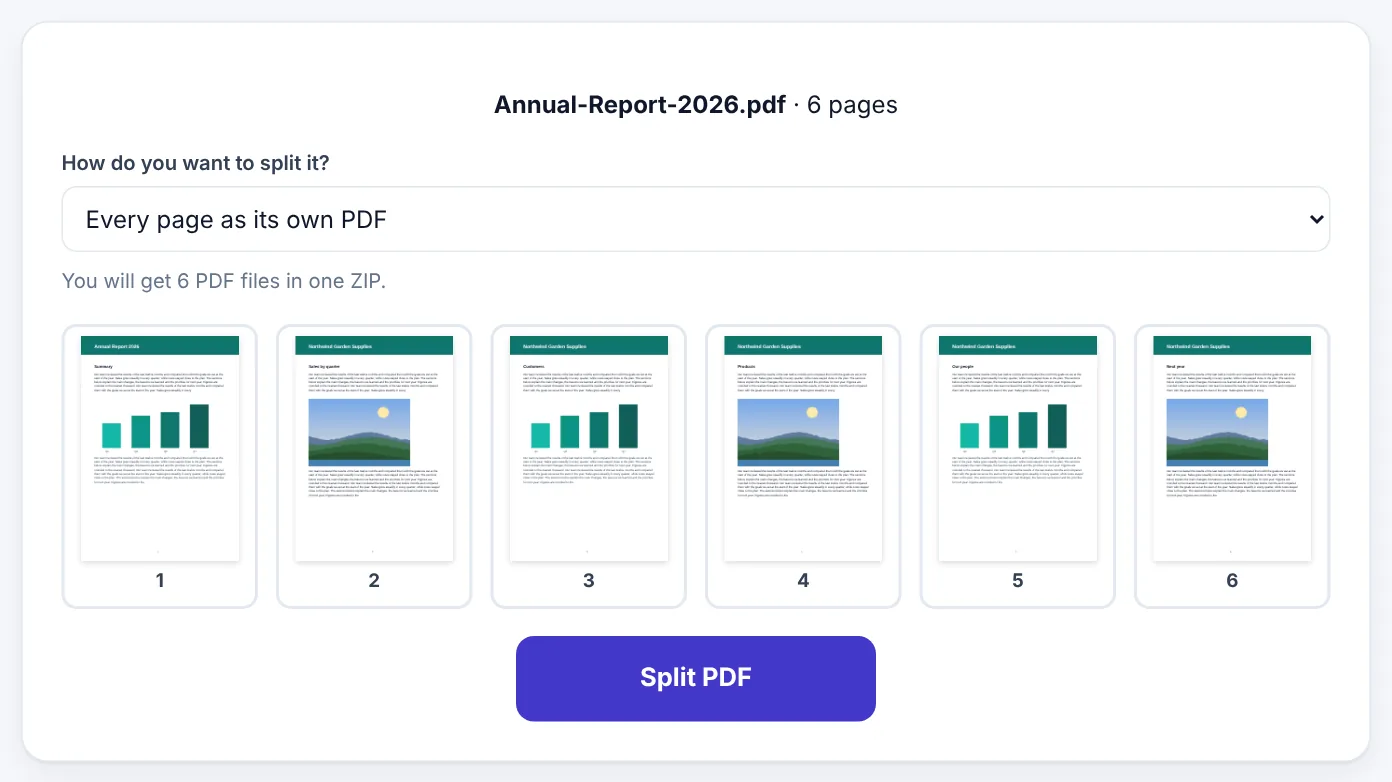
Split PDF asks one question: How do you want to split it? The answer depends on what is inside your file.
1. Every page as its own PDF
Each page becomes a separate file. A 6-page PDF gives you 6 files, delivered together in one ZIP file.
This is the right choice when each page is a different document, which happens a lot with scanning. You scanned all your certificates in one go, or a client sent twenty signed one-page forms in one file. One click and every page is its own PDF.
2. By page ranges
You type the ranges you want, and each range becomes its own file. For example:
1-3, 4-6, 7-end
gives you three files: pages 1 to 3, pages 4 to 6, and page 7 to the last page.
Use this when the document has natural sections of different lengths: chapters of a book, sections of a report, or several multi-page documents scanned together (a 2-page ID, a 4-page degree transcript, a 1-page letter).
3. Every few pages
You choose a number, and the PDF is cut into equal-sized parts. With 2, a 10-page file becomes five files: pages 1–2, 3–4, 5–6, 7–8 and 9–10.
This is perfect for double-sided ID cards scanned front and back (2 pages each), for forms that are always 3 pages long, or for breaking a huge scan into parts small enough to email.
Step by step
- Open Split PDF and select your file. It opens in your browser and is not uploaded anywhere.
- Look at the page previews to check you have the right file.
- Choose how to split it: every page, by page ranges, or every few pages.
- If you chose ranges or every few pages, fill in the box.
- Press Split PDF and download the ZIP file.
- Open the ZIP. On most phones and computers you can just tap or double-click it.
The files inside are named after the original, with the page numbers added, so you can tell them apart at a glance.
Understanding page ranges
Page ranges look technical but the rules are simple:
- A single page:
5 - A run of pages:
3-8 - To the end:
7-end(you do not need to know how many pages there are) - Several ranges: separate them with commas:
1-2, 3-5, 6-end
In Split PDF, each range becomes its own file. In Extract PDF Pages, all the ranges go into one file together. That is the key difference between the two.
Example: A scanned bundle has a 2-page ID card, a 3-page transcript and a 1-page experience letter. Split by page ranges with
1-2, 3-5, 6and you get three files, one for each document.
When extracting is the better choice
Sometimes you do not want the whole document in pieces. You only want a few pages, and you want them together.
Say your bank statement covers January to December, and a visa application wants the last three months. Those are pages 31 to 40. With Extract PDF Pages, you type 31-40 (or tap the pages), choose One PDF with all chosen pages, and you get one tidy statement for October to December.
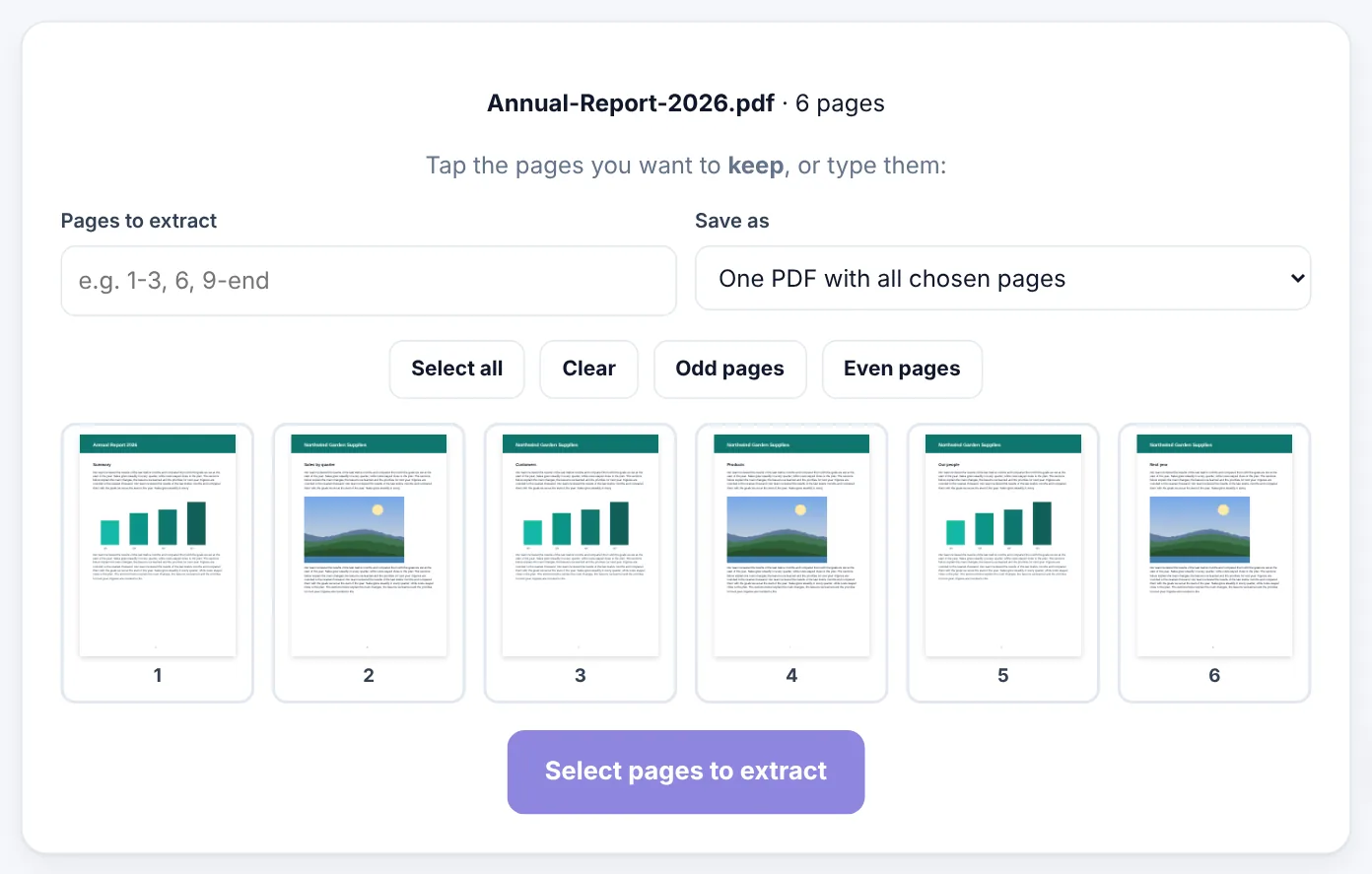
Extract PDF Pages also has handy buttons for Odd pages and Even pages. If you scanned a double-sided document and the backs are blank, choosing odd pages removes all the empty backs in one click.
Smart uses for splitting
Getting under an upload limit
A portal accepts files up to 5 MB and your scan is 14 MB. You can compress it, but if it is many separate documents anyway, splitting is often the cleaner answer: each document gets its own upload slot and stays at full quality. Combine with Compress PDF if individual parts are still too large.
Sharing just the relevant part
Sending someone a 200-page manual when they need one chapter is a small way of wasting their time. Split the chapter out and send that. It is also more private: a contract's last page with signatures does not need to travel with the rest when you only need to prove it was signed.
Preparing pages for printing
If you want to print part of a document at a print shop, a separate file with just those pages avoids mistakes at the counter.
Organising scans
Scanners and scanning apps often put everything into one file. Splitting every page into its own PDF, then renaming each file, turns a messy scan into a clean folder of documents.
Try Split PDFFree, no sign-up, and your file never leaves your device.Open tool →

Splitting on a phone
Split PDF works the same on Android and iPhone. Two practical notes:
- The result is a ZIP file. Android's Files by Google and most file managers open ZIPs with a tap. On iPhone, tapping a ZIP in the Files app unpacks it into a folder next to it.
- If you only need one or two pages, Extract PDF Pages with One PDF with all chosen pages gives you a normal PDF instead of a ZIP, which is easier to attach on a phone.
Common questions about quality and privacy
Does splitting reduce quality?
No. Splitting copies the existing pages into new files without re-saving or compressing them. Text stays selectable, and images stay exactly as they were.
Will each part be smaller?
Usually, yes, but not always proportionally. Some PDFs share resources such as fonts and logos across all pages, so each split part carries its own copy. Ten parts of a 10 MB file may add up to slightly more than 10 MB in total. Each individual part is still much smaller than the original.
Are my files uploaded?
No. Split PDF runs in your browser. The file is read and divided by your own device, and the ZIP is created there too. That makes it safe for bank statements, medical files and other private documents.
Troubleshooting
"This PDF has only one page, so there is nothing to split." Exactly what it says. If you wanted to cut one page into two halves, for example a scan of two pages side by side, use Crop PDF twice on copies of the file instead.
The ZIP will not open. Make sure the download finished. On older phones, install a free file manager that supports ZIP files. On a computer, right-click the file and choose Extract all (Windows) or double-click it (Mac).
I typed ranges but nothing happened.
Check the format: numbers, a dash, commas between ranges, and end for the last page. Page numbers start from 1, and 0 is not a page.
The file asks for a password. Open it with Unlock PDF using the password you know, then split it.
Worked examples
Twenty certificates in one scan
Maria scanned all her certificates in one go at a print shop. The result is a single 20-page PDF, but the scholarship portal has a separate upload box for each certificate.
- She opens Split PDF and chooses Every page as its own PDF.
- The ZIP contains 20 files named with page numbers.
- She renames each one:
Matric-Certificate.pdf,Intermediate-Certificate.pdf,Sports-Award.pdfand so on. - Two of the certificates were scanned front and back, so for those she uses Merge PDF to put the two sides together again.
Ten minutes later she has a clean folder where every file name says what it is.
A 300-page manual for a technician
An office manager needs to send one chapter of a printer manual to a technician. The chapter runs from page 112 to page 139. In Extract PDF Pages she types 112-139, chooses one PDF, and sends a 28-page file instead of a 300-page one. The technician gets straight to the right page.
A large report for email
A 90-page report with photos is 31 MB, too large for email. Splitting with Every few pages set to 30 creates three files of about 10 MB each. Each is then compressed with Compress PDF to around 2 MB and sent as three attachments, clearly named Report-Part-1-of-3.pdf and so on.
A quick guide to naming split files
Split files are only useful if you can find them later. A few naming habits help:
- Say what the document is, not where it came from:
Degree-Certificate.pdf, notscan_0004.pdf. - Add a number for parts:
Part-1-of-3, so the reader knows if something is missing. - Put dates in year-month-day order:
2026-10-Statement.pdf. Files then sort in date order automatically. - Avoid spaces and symbols if files are going into online forms. Dashes are safest.
Splitting by bookmarks and chapters
Some long PDFs, such as e-books and manuals, have bookmarks or a table of contents listing where each chapter starts. You can use those page numbers directly in By page ranges. Open the table of contents, note the first page of each chapter, and build your ranges: if chapters start on pages 1, 15, 42 and 70, type 1-14, 15-41, 42-69, 70-end.
Remember that the page number printed on a page is not always the PDF's page number. A book might have 12 pages of introduction numbered in Roman numerals before page "1". Use the page numbers shown in the Split PDF previews, which count from the very first page of the file.
Frequently asked questions
Can I split a PDF into two halves?
Yes. Use By page ranges with two ranges. For a 20-page file: 1-10, 11-end.
Can I choose different pages for each file without them being in order?
Each range is a run of pages. To build files from scattered pages, such as pages 2, 7 and 9 together, use Extract PDF Pages and type 2, 7, 9, then repeat for the next group.
What is the maximum file size?
There is no fixed limit. Because your device does the work, very large files depend on its memory. A computer handles hundreds of pages easily.
Can I put split files back together?
Yes. Merge PDF joins any PDFs in the order you choose.
The takeaway
Split when you want to divide a whole document, extract when you want to keep a few pages, and delete when you want to drop a few. Learn the tiny page range language (1-3, 4-6, 7-end) and you can cut any PDF exactly the way you need it in seconds, without uploading a single page.
Tools used in this guide
 Extract PDF Pages
 Delete PDF Pages
Keep reading
 PDF GuidesWhat Does "Flatten a PDF" Mean, and When Should You Do It?
Flattening turns form fields, comments, stamps and signatures into a fixed part of the page. Learn when to flatten, the two ways to do it, and the mistakes to avoid before sending a filled form.
9 min read PDF GuidesHow to Crop a PDF and Remove White Margins
Trim wide white margins, scanner borders and unwanted edges from PDF pages, crop all pages or just one, and understand what cropping really hides. Includes reading on phones and printing tips.
9 min read PDF GuidesHow to Compare Two PDF Files and Find Every Change
Spot what changed between two versions of a contract, report or quote. Learn the difference between visual and text comparison, how to read the results and when to double-check.
9 min read