How to Add Page Numbers to a PDF (Plus Headers and Footers)

In this guide
- When you need to add numbers to a PDF
- How to add page numbers
- Choosing a style that fits the document
- Skipping the cover page and front matter
- When you need more than a number: headers and footers
- Avoiding clashes with existing content
- Page numbers for printing booklets and double-sided documents
- Legal and court bundles
- Checking the result
- Worked example: numbering a thesis
- Font size and colour: small choices, big difference
- Checking page numbers on a phone
- Page numbers and tables of contents
- Numbering several documents in one bundle
- Frequently asked questions
- In short
Page numbers are one of those details nobody notices until they are missing. A reviewer writes "see the second paragraph on page… somewhere in the middle". A printed report gets dropped and the pages have to be put back in order by reading every one. A thesis committee asks you to resubmit because the numbering does not follow the guidelines.
Adding page numbers to a PDF takes a few seconds, even if the document was put together from different sources. This guide shows how to do it, how to handle cover pages and front matter, and how to add proper headers and footers when plain numbers are not enough.
When you need to add numbers to a PDF
If you write a document in Word or Google Docs, you would normally add page numbers there. But often you only have the PDF, or the PDF was assembled from several files:
- Merged documents. You combined a cover letter, CV and certificates with Merge PDF, and now want one continuous numbering.
- Scanned documents. A stack of scanned pages has no numbers at all.
- Exported slides or spreadsheets that were exported without numbers.
- Documents from other people, where you do not have the original file.
- Legal bundles and court documents, which often must be numbered consecutively.
How to add page numbers
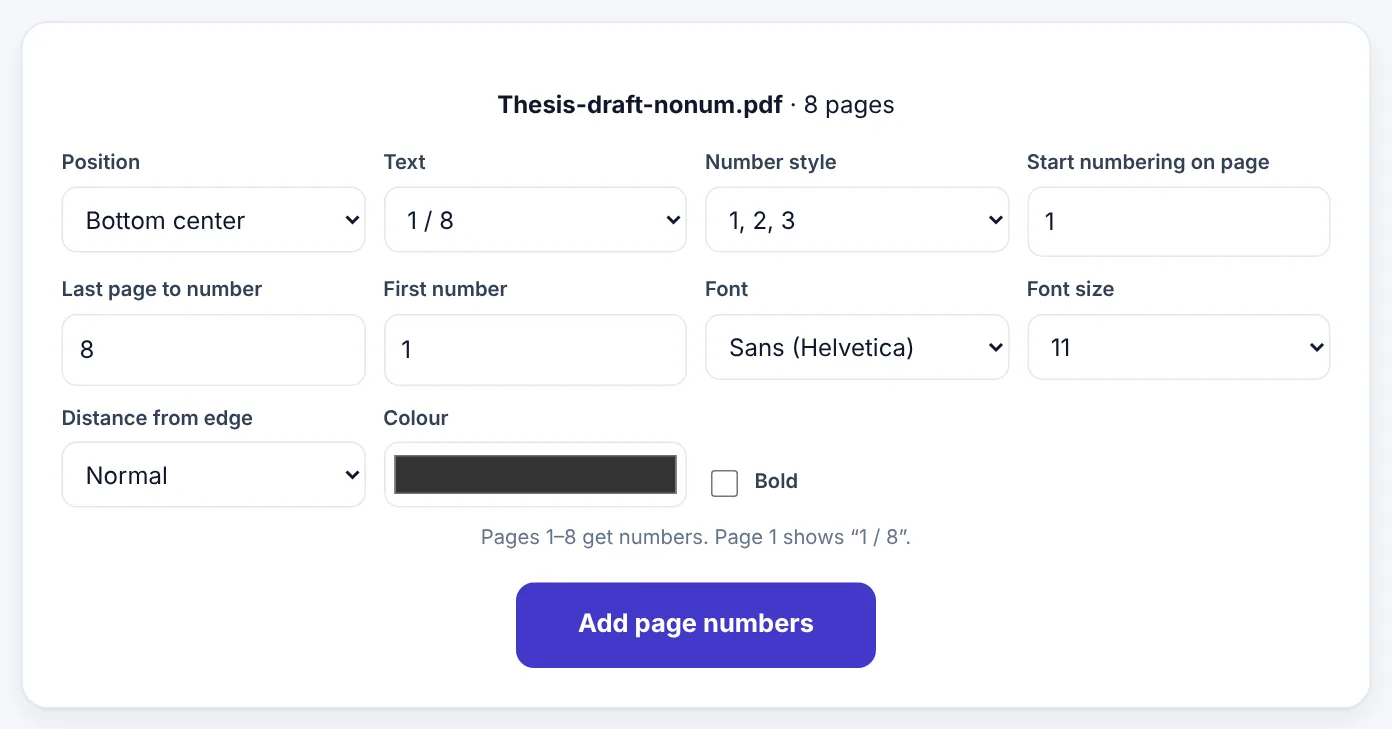
Add Page Numbers works in your browser; the document is numbered on your own device.
- Open Add Page Numbers and select your PDF.
- Choose the Position: top or bottom, left, centre or right – or outside for books, which puts the number on the right of odd pages and the left of even pages.
- Choose the Text style:
-
1-1 / 8-Page 1-Page 1 of 8-- 1 -- or Custom text, such asReport 2026 – page {n}. - Choose the Number style: 1, 2, 3 · i, ii, iii · I, II, III · a, b, c · A, B, C.
- Set Start numbering on page (for example 2 to leave the cover blank) and, if needed, the Last page to number.
- Set the First number if numbering should not start at 1.
- Choose the Font, Font size, Distance from edge, Colour and, if you like, Bold.
- Press Add page numbers and download.
Choosing a style that fits the document
Bottom centre with a plain number (1) is the classic choice for books, theses and reports. It is clean and never looks out of place.
Bottom right works well for documents that will be printed single-sided and flipped through, like a stapled report: the reader's thumb finds the number easily.
"Page 1 of 8" is useful for documents that are faxed, emailed or printed and might lose pages, such as contracts, forms and invoices. The reader can see at once if something is missing.
"- 1 -" is a traditional style that looks good in formal documents and booklets.
Top right is common in some academic styles (APA, for example, places the page number in the top right corner) and in legal documents.
Tip: Check the guidelines first. Universities, journals and courts often specify exactly where page numbers go, what size they are and when numbering starts. Matching them avoids a resubmission.
Skipping the cover page and front matter
Many documents should not show a number on the first page:
- A report or thesis cover. Set Start numbering on page to 2. The cover gets no number, and counting starts at 1 on the page after it. The total in styles like
Page 1 of 7leaves the cover out too. - Counting the cover without showing it. If your guidelines want the page after the cover to show "2", start on page 2 and set the First number to 2.
- A long front section. Theses often have a title page, abstract, acknowledgements and contents before chapter 1. Set Start numbering on page to the first page of chapter 1 and the main text starts at 1. For Roman numerals on the front matter, see the worked example below.
When you need more than a number: headers and footers
Sometimes a page number alone is not enough. You may need the document title, a date, a confidentiality notice or the file name on every page. Header & Footer adds text to the top and bottom of each page, in left, centre and right positions.
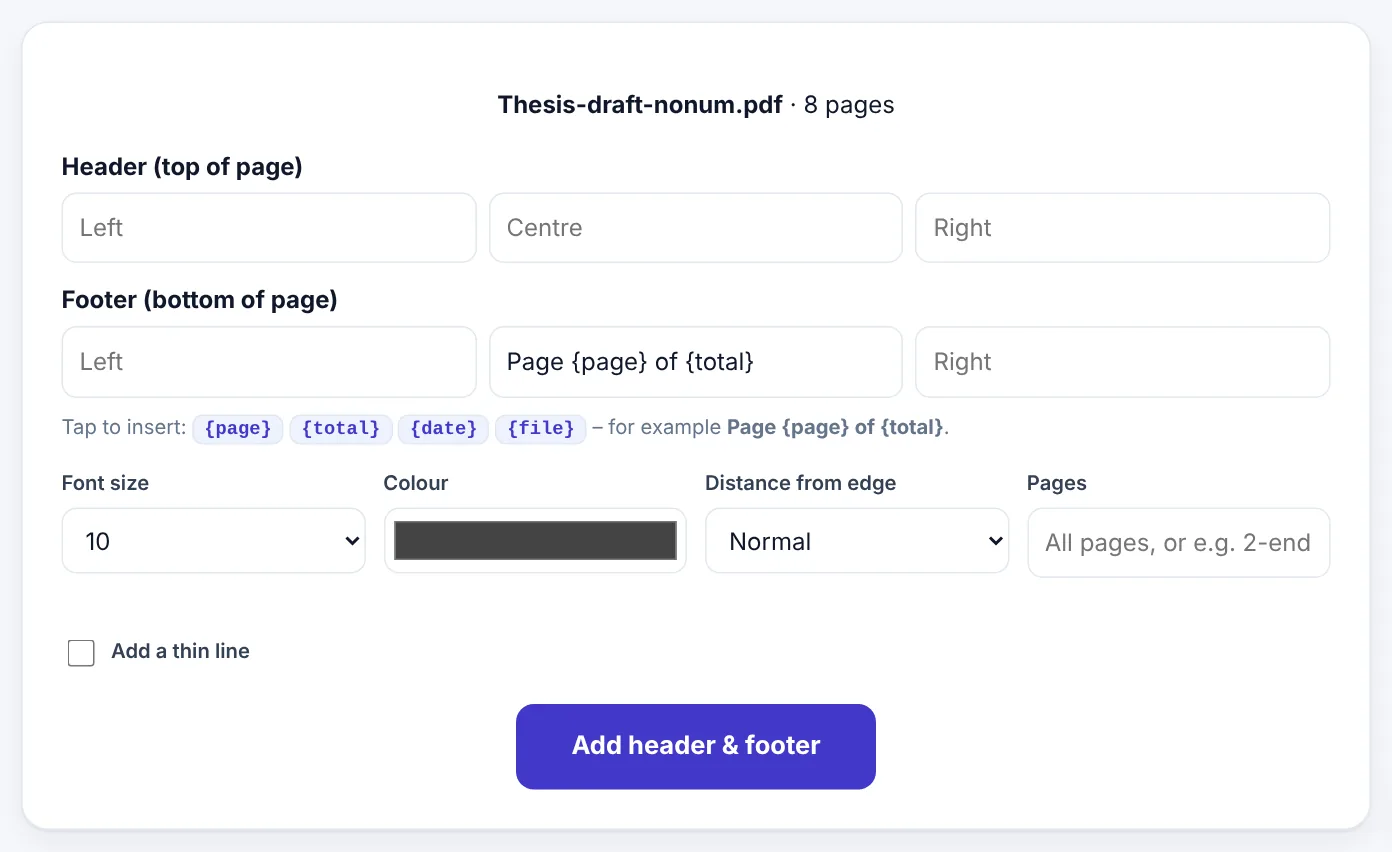
You can type ordinary text, and insert special codes that are filled in automatically:
| Code | Becomes |
|---|---|
{page} |
The page number |
{total} |
The total number of pages |
{date} |
Today's date |
{file} |
The file name |
Some useful combinations:
- Header left:
Project Proposal – Community Library· Header right:{date} - Footer centre:
Page {page} of {total} - Footer left:
Confidential – for internal use only· Footer right:{page} - Footer centre:
{file}, handy for drafts, so a printed page always shows which version it came from.
You can also choose the font size, colour and distance from the edge, limit it to certain pages (for example, 2-end to skip the cover) and add a thin line to separate the header or footer from the content.
Try Add Page NumbersFree, no sign-up, and your file never leaves your device.Open tool →

Avoiding clashes with existing content
Page numbers are added on top of the page. If your document already has something in that spot, such as an old footer or a page number from the original, the two will overlap.
- Look at the document first and choose an empty corner.
- Use "Distance from edge" in Header & Footer to move text closer to or further from the edge.
- For scans, the margins usually have space. Bottom centre is safest.
- If old numbers are wrong, cover them with Edit PDF using the white-out tool, then add new numbers.
Page numbers for printing booklets and double-sided documents
For documents printed double-sided and bound on the left, outside corners are traditional: right-hand pages (odd numbers) have the number on the right, left-hand pages (even numbers) on the left. That makes numbers easy to see when flipping through a bound book.
If you need this, the simplest option is bottom centre, which works for both odd and even pages. For outside corners, use Extract PDF Pages to separate odd and even pages, number each set in the right corner, and use Organize PDF to interleave them again. For most documents, bottom centre is easier and looks just as professional.
Legal and court bundles
Courts and tribunals often require "paginated bundles": every page of every document numbered consecutively, usually at the bottom centre or right, and sometimes with a prefix such as a tab number. A practical workflow:
- Put all documents in the required order and merge them with Merge PDF.
- Add page numbers to the whole bundle, starting at 1.
- Create an index page listing each document and its page range.
- Merge the index at the front.
- Check the court's rules on whether the index itself is numbered.
Checking the result
Before sending:
- Scroll through the whole document.
- Check that numbers do not overlap text, signatures or stamps.
- Check the first and last pages: is the cover skipped? Does the last page show the right total?
- Print one page if it will be printed, to check that the number is not too close to the edge for your printer.
Worked example: numbering a thesis
Many universities have rules like these: no number on the title page; front matter numbered in Roman numerals; chapters numbered from 1 at the bottom centre. Here is how to meet them with PDF tools:
- Number the front matter first. In Add Page Numbers, set Start numbering on page to 2 (skipping the title page), Last page to number to 8 (the end of the contents), Number style to i, ii, iii, and position to bottom centre. Download.
- Number the main text. Open the downloaded file in Add Page Numbers again. Set Start numbering on page to 9, leave Last page to number at the end, choose Number style 1, 2, 3 and First number 1, with the same position and size.
- Check that the numbers line up and the first chapter starts at 1.
If your university only requires Arabic numerals throughout, it is simpler: start numbering on page 2 and number the rest.
Font size and colour: small choices, big difference
- Size: page numbers are usually the same size as body text or a little smaller. 9–11 points suits most documents. Larger numbers look clumsy; smaller ones are hard to find when flipping through a printed copy.
- Colour: dark grey looks softer and more professional than pure black on most documents. For coloured designs, a muted version of the main colour works well.
- Consistency: use the same size, colour and position on every page. If you add a header or footer as well, keep their styles matching.
Checking page numbers on a phone
Many reviewers will open your PDF on a phone. Numbers placed too close to the edge can be hidden behind rounded screen corners or app controls. A small margin from the edge, which the tools add automatically, keeps them visible. After adding numbers, open the file on your phone and scroll through a few pages to check.
Page numbers and tables of contents
A table of contents is only as useful as the page numbers it points to. If you add or change page numbers after the contents page was written:
- Check that the contents match. If chapter 3 now starts on page 27 rather than 25, update the contents page. If the contents were made in Word, update them there and export again.
- Remember the cover. If you skipped the cover when numbering, the contents should use the numbers printed on pages, not the PDF viewer's page count.
- For digital readers, bookmarks and links in the PDF help people jump to sections; the printed number helps people who print or cite the document.
Numbering several documents in one bundle
If you have to send a set of documents where each should be numbered separately (for example, five appendices each starting at 1), number each file on its own first, then merge them. If the whole bundle should be numbered continuously, merge first, then number once. Decide which the reader needs before you start, as changing it afterwards means repeating the work.
Frequently asked questions
Can I start numbering from a number other than 1?
Yes. Set the First number. This is useful when a document is part 2 of a larger set, for example, starting at 45.
Can I number only some pages?
Yes. Set Start numbering on page and Last page to number. Pages outside that range keep no number.
Can I use Roman numerals (i, ii, iii) for front matter?
Yes. Choose i, ii, iii (or I, II, III) in Number style, and use Start numbering on page and Last page to number to apply it only to the front matter.
Will page numbers be searchable?
Yes, they are added as real text.
Does it work with scanned PDFs?
Yes. The numbers are added on top of each page image.
Can I remove page numbers later?
Keep your original file. Page numbers become part of the page, so it is easiest to start again from the original if you need different numbering.
Can I change the font of the page numbers?
The tools use a clean, standard font that suits almost every document. If you need the numbers in a specific font, add them in the original Word file before exporting, or use Add Text to PDF for a few special pages.
Will page numbers survive compression or merging?
Yes. Once added, they are part of the page content and stay through Compress PDF, Merge PDF and other tools.
Do page numbers work on landscape pages?
Yes. Each page is numbered according to its own orientation, so a landscape table in the middle of a portrait report gets its number in the matching position for that page.
In short
Pick a position that is empty on every page, choose a style that suits the document (Page 1 of 8 for contracts, a plain 1 for reports), skip the cover if needed, and use Header & Footer when you also want titles, dates or notices on every page. A minute of work makes any document easier to read, reference and print.
Tools used in this guide
 Header & Footer
 Merge PDF
 Organize PDF
Keep reading
 PDF GuidesHow to Change the Background Color of a PDF (Free, Online)
Change a white PDF to cream, mint, light blue or any colour in under a minute – on your phone or computer, without Adobe Acrobat and without uploading the file.
4 min read PDF GuidesWhat Does "Flatten a PDF" Mean, and When Should You Do It?
Flattening turns form fields, comments, stamps and signatures into a fixed part of the page. Learn when to flatten, the two ways to do it, and the mistakes to avoid before sending a filled form.
9 min read PDF GuidesHow to Crop a PDF and Remove White Margins
Trim wide white margins, scanner borders and unwanted edges from PDF pages, crop all pages or just one, and understand what cropping really hides. Includes reading on phones and printing tips.
9 min read