How to Rotate PDF Pages Permanently (and Fix Sideways Scans)
In this guide
- Viewing rotation vs saving rotation
- How to rotate PDF pages
- Common situations and how to fix them
- Rotating, reordering and deleting in one go
- Avoiding sideways pages in the first place
- Rotation and other tools
- Why does my PDF look different in different apps?
- Rotating on a phone
- A worked example: a mixed scan from the office copier
- How rotation is stored in a PDF
- Rotation and printing
- Rotation on different devices
- Portrait and landscape: choosing the right orientation
- Rotation for different kinds of documents
- Troubleshooting
- Rotation checklist before sending a document
- Rotating before merging or converting
- Frequently asked questions
- In short
You open a scanned document and page three is sideways. A colleague's report has a landscape table that appears tipped on its side. A whole contract was scanned upside down because someone fed the pages into the scanner the wrong way round. You turn the page in your PDF viewer, close the file, open it again, and it is sideways again.
That is because most viewers only rotate the view, not the file. To fix a PDF for everyone who opens it, the rotation has to be saved in the document itself. This guide shows you how to rotate pages permanently, page by page or all at once, and how to avoid sideways pages in the first place.
Viewing rotation vs saving rotation
When you press "rotate" in Adobe Acrobat Reader, a browser's PDF viewer or a phone app, the program usually turns the page on your screen only. The file is unchanged. Send it to someone else and they see the original sideways page.
A permanent rotation changes an instruction inside the PDF that tells every viewer how to display that page. Once saved, the page appears the right way up in every app, on every device, and when printed.
How to rotate PDF pages
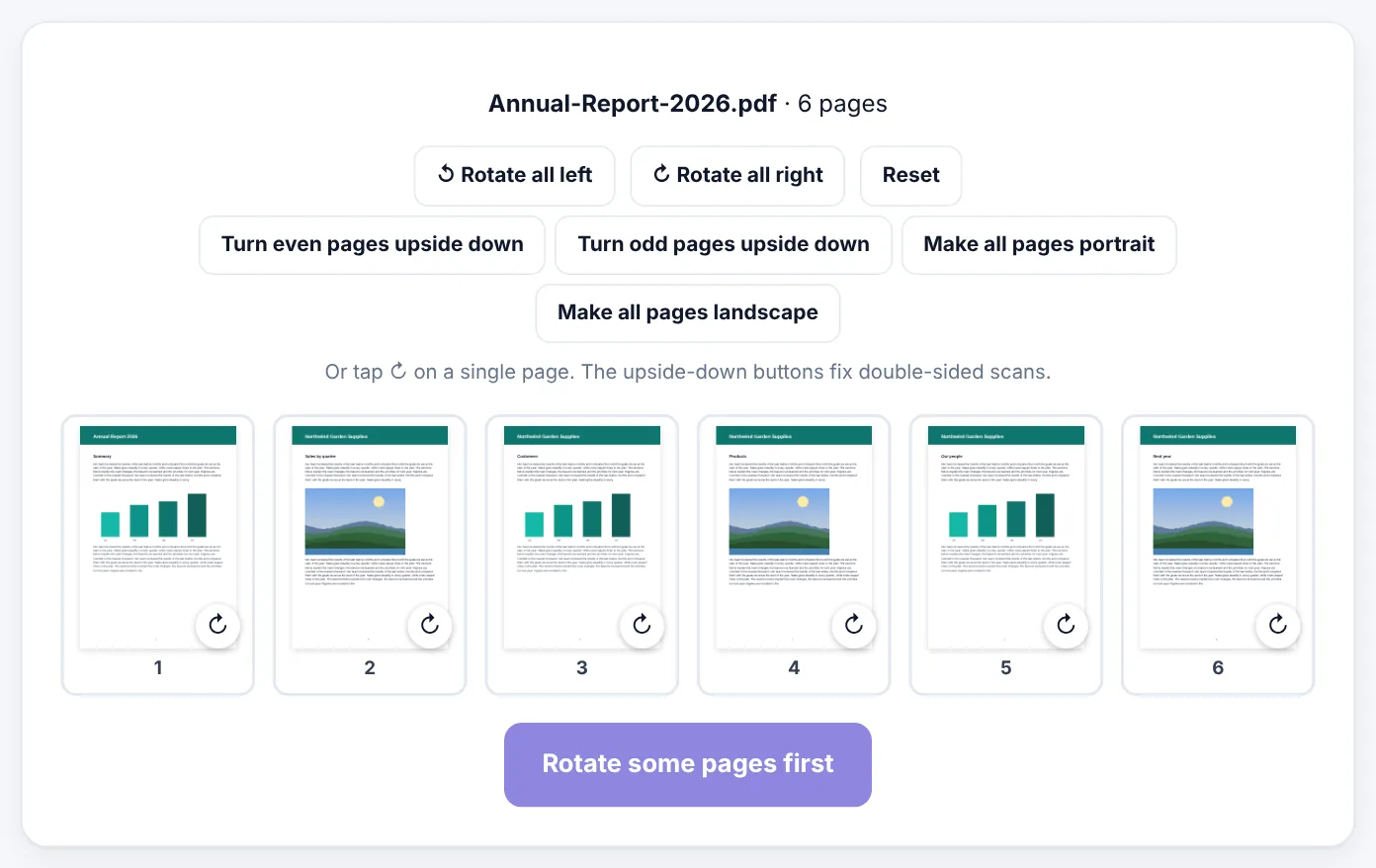
Rotate PDF shows every page as a thumbnail so you can see at once which ones are wrong. It works in your browser; your file is not uploaded.
- Open Rotate PDF and select your file.
- To turn every page, press Rotate all left or Rotate all right.
- To turn individual pages, tap the ↻ button on each page that needs it. Each tap turns it 90° clockwise; tap twice for upside-down pages.
- Changed your mind? Press Reset to start over.
- Press the rotate button and download the corrected PDF.
Rotation is lossless. The content of the page is not re-drawn or compressed; only the page's orientation instruction changes, so text stays sharp and searchable and the file size does not change.
Common situations and how to fix them
A whole scan is sideways
This happens when pages are scanned in landscape orientation or photographed with the phone held sideways. Press Rotate all right (or left) once, check the thumbnails and save.
A whole scan is upside down
Press Rotate all right twice. All pages turn 180°.
Every second page upside down
Double-sided scans often come out with every back page upside down. Press Turn even pages upside down (or Turn odd pages upside down if the fronts are wrong), check the thumbnails, then apply. To make a whole document the same way round, Make all pages portrait or Make all pages landscape turns only the pages that need it.
Mixed pages: some right, some wrong
Common with double-sided scanning and with documents assembled from different sources. Tap ↻ only on the pages that need fixing. The thumbnails update as you go, so you can check each page before saving.
A landscape table inside a portrait report
Some reports include a wide table or chart on a landscape page. Whether to rotate it depends on how it will be read:
- On screen, readers usually prefer it rotated so the text reads normally.
- In print, it is traditional to keep the landscape page sideways so it is read by turning the printed document.
Choose what suits your readers.
Try Rotate PDFFree, no sign-up, and your file never leaves your device.Open tool →

Rotating, reordering and deleting in one go
If your document needs more than rotation, for example some pages are sideways, two are in the wrong order and one is a blank page from the scanner, use Organize PDF. It lets you rotate, move and remove pages in one place, and save once.
Avoiding sideways pages in the first place
A few habits prevent most rotation problems:
- When scanning with a phone, hold it in portrait for portrait pages. Phones decide orientation from how you hold them, and laying the phone flat over a table can confuse the orientation sensor. Tilt it slightly towards you as you take each photo, or lock rotation.
- Use Scan to PDF, which finds the page edges and straightens each page. Check the order and orientation in its list before making the PDF.
- When using a scanner, feed pages consistently, with the top edge first and the same side facing down.
- When exporting from Word or Excel, set landscape orientation only for the sections or sheets that need it.
Rotation and other tools
Rotation is often one step in a longer job:
- Rotate, then merge: fix each document's pages before combining with Merge PDF.
- Rotate, then OCR: text recognition works much better on pages that are the right way up. Rotate first, then use OCR PDF.
- Rotate, then compress: if the file is large, compress after rotating; rotation itself does not change the size.
- Rotate, then sign: make sure the signature page is upright before using Sign PDF.
Why does my PDF look different in different apps?
Occasionally a page looks correct in one viewer and sideways in another. This usually means the page has an unusual combination of rotation settings, or the content itself was drawn sideways and then rotated. Saving the file through Rotate PDF writes a clean, standard rotation that all viewers respect. If a page still looks wrong in one app, rotate it in Rotate PDF until it looks right in the viewer most of your readers use, and check in a second app.
Rotating on a phone
The thumbnails are designed for touch: tap ↻ on each page that needs it. Pages are shown small, so zoom into your phone's screen if you need to read them. When you are done, the corrected PDF goes to your Downloads (Android) or the Files app (iPhone), ready to share.
A worked example: a mixed scan from the office copier
Rabia scans 18 pages of supplier invoices on the office copier. Some invoices were landscape, some portrait, and a few were fed in upside down. The PDF is a mess of directions.
- She opens the PDF in Rotate PDF. The thumbnails make the problem obvious: pages 3, 4 and 11 are sideways, and pages 7 and 15 are upside down.
- She taps ↻ once on pages 3, 4 and 11, and twice on pages 7 and 15.
- She checks the thumbnails again, all upright now, and saves.
- She runs OCR on the corrected file with OCR PDF, so the invoices become searchable by supplier name and invoice number. OCR works far better now that the pages are upright.
How rotation is stored in a PDF
Every PDF page has a rotation setting, a number that is 0, 90, 180 or 270 degrees. Viewers read this number and turn the page before showing it. Rotate PDF changes this number, which is why rotation is instant and lossless: the text, pictures and drawings on the page are not touched at all.
This also explains a common confusion. A scanned page that looks sideways might have been scanned sideways (the image itself is on its side) or might have a rotation setting that turns it. Either way, adjusting the rotation setting fixes what the reader sees.
Rotation and printing
Printers usually follow the page's rotation automatically, but there are a few things to know:
- Auto-rotate in many print dialogs turns landscape pages to fit portrait paper. That is usually what you want.
- Mixed portrait and landscape pages print correctly when each page has the right rotation. Fix them before printing rather than relying on the printer.
- Booklets and double-sided printing need consistent orientation. Rotate everything upright first.
Rotation on different devices
The thumbnails in Rotate PDF show pages as they will appear after saving, so you can work on a laptop, tablet or phone with the same result. On a phone, rotate with a light tap on ↻; each tap is one quarter turn clockwise. On a computer, the same buttons work with a mouse click. Once saved, the corrected PDF shows the same way in Adobe Acrobat Reader, browser viewers, Mac Preview and mobile PDF apps.
Portrait and landscape: choosing the right orientation
Rotation fixes pages that are wrong, but it helps to know which way a page should face in the first place:
- Portrait (taller than wide) suits letters, reports, CVs, forms, contracts and most reading. It is the default for almost every office document.
- Landscape (wider than tall) suits wide tables, spreadsheets, timelines, charts, slides, certificates and photo pages.
A useful rule: rotate a page so that its text reads normally when the document is held in the usual way. For a report with one wide table, many people prefer that page landscape, rotated so the top of the table faces the left edge of the portrait pages. That way readers turn the document clockwise to read the table, which is the common convention in printed reports and books.
Slides exported from PowerPoint or Google Slides are almost always landscape. If they appear as portrait pages with sideways content, rotate all pages once and they will display correctly in every viewer.
Rotation for different kinds of documents
| Document | Usual fix |
|---|---|
| Phone scan of a receipt, taken sideways | Rotate that page 90° until the text is upright |
| Double-sided scan with every second page upside down | Press Turn even pages upside down (or odd) |
| A contract with a sideways signature page | Rotate only the signature page |
| Presentation handouts shown as portrait | Rotate all pages to landscape |
| A certificate scanned in portrait | Rotate to landscape if the certificate is designed that way |
| A book scan with alternating left and right pages | Usually no rotation needed; check pages that came out tilted and rescan if necessary |
Small tilts of a few degrees cannot be fixed by rotation, which works in quarter turns. For tilted photos of paper, Scan to PDF finds the page edges and straightens the page when it creates the PDF.
Troubleshooting
The page still looks sideways after rotating. Make sure you are opening the downloaded file, not the original. Some viewers also remember a previous view rotation; close and reopen the file.
The rotate button says "Rotate some pages first". No page has been changed yet. Tap ↻ on a page or use Rotate all left/right.
One page looks right in Chrome but wrong in another app. Rotate that page once more in Rotate PDF until it looks right in the app most people use, then check in a second viewer. Unusual files sometimes combine a rotated page with sideways content.
The thumbnails load slowly. Very long or image-heavy documents take a moment to render previews. Wait for all thumbnails before rotating.
The file is password protected. Unlock it with Unlock PDF using the password you know, then rotate.
Rotation checklist before sending a document
- [ ] Every page reads the right way up.
- [ ] Landscape tables are oriented the way your readers expect.
- [ ] Signature pages are upright.
- [ ] Pages are in the right order (fix with Organize PDF).
- [ ] The file name is clear and the size suits where it is going.
Rotating before merging or converting
If you are about to merge several PDFs, convert a PDF to Word, or run OCR on a scan, rotate the pages first. Text recognition works best on upright pages, Word conversion places text more accurately when pages are the right way up, and a merged document with every page upright is far easier for others to read. A thirty-second rotation at the start saves fixing the same problem in several files later.
Frequently asked questions
Does rotating reduce quality?
No. Rotation only changes how the page is displayed. Nothing is re-drawn or compressed.
Can I rotate by 45 degrees or a small amount?
Rotation in PDFs works in steps of 90°. Slightly tilted scans are a different problem: straighten them when scanning with Scan to PDF, which corrects crooked pages photographed at an angle.
Will the text still be searchable?
Yes. Text in rotated pages remains real, selectable and searchable text.
Can I rotate a password-protected PDF?
Open it with Unlock PDF first, using the password you know.
Is there a page limit?
No fixed limit. Very long documents simply show more thumbnails.
In short
Rotating in your viewer only changes your screen; rotating with Rotate PDF fixes the file for everyone. Rotate all pages for a consistently sideways scan, tap individual pages for mixed documents, use Organize PDF when you also need to reorder or delete, and rotate before OCR, merging or signing.
Tools used in this guide
 Organize PDF
 Scan to PDF
 Merge PDF
Keep reading
 PDF GuidesHow to Change the Background Color of a PDF (Free, Online)
Change a white PDF to cream, mint, light blue or any colour in under a minute – on your phone or computer, without Adobe Acrobat and without uploading the file.
4 min read Online Forms"Online Application Document Checklist: Photos, Scans, Signatures and File Sizes"
A practical checklist for job, university, exam, visa and government portals - preparing photos, signatures and scanned documents in the right format and size, naming files, and avoiding last-minute upload errors.
9 min read PDF GuidesWhat Does "Flatten a PDF" Mean, and When Should You Do It?
Flattening turns form fields, comments, stamps and signatures into a fixed part of the page. Learn when to flatten, the two ways to do it, and the mistakes to avoid before sending a filled form.
9 min read