How to Convert Excel to PDF Without Breaking the Columns
In this guide
- Why spreadsheets print badly
- How to convert Excel to PDF
- Getting a readable result
- Formulas and number formats
- CSV files
- Real-life uses
- Converting a PDF table back to Excel
- Excel to PDF on a phone
- Troubleshooting
- Preparing a spreadsheet for sharing: a checklist
- Example: sending a monthly sales report
- Spreadsheet PDFs and accessibility
- Spreadsheet terms, quickly explained
- Why not just take a screenshot?
- Frequently asked questions
- In short
Spreadsheets are wonderful to work in and awkward to share. Send an .xlsx file and the recipient may not have Excel, may see different fonts, or may accidentally change a number. Print it, or save it as PDF, and you often get the classic problems: the last two columns spill onto separate pages, the table shrinks to unreadable text, or page 3 shows numbers with no column headings, so nobody knows what they mean.
A PDF is the right format for sharing a finished table, such as a price list, a report, an invoice summary or a timetable. This guide shows you how to convert Excel and CSV files into PDFs that are actually easy to read.
Why spreadsheets print badly
A spreadsheet has no natural "page". It is a grid that can be hundreds of columns wide and thousands of rows long. Paper is not. When converting, something has to decide:
- How wide the table should be on the page, and whether to scale it down.
- Where to break pages, and whether the header row repeats.
- Which orientation (portrait or landscape) suits the shape of the table.
- Which sheets and which cells to include, since files often contain hidden helper columns or notes far away from the main table.
Excel's own print settings can handle all of this, but they are hidden in several dialogs, and many people do not have Excel on their phone or work computer.
How to convert Excel to PDF
Excel to PDF converts .xlsx and .csv files in your browser. Your spreadsheet is not uploaded.
- Open Excel to PDF and select your file.
- The tool shows how many rows and columns it found. If the file has several sheets, choose which to include.
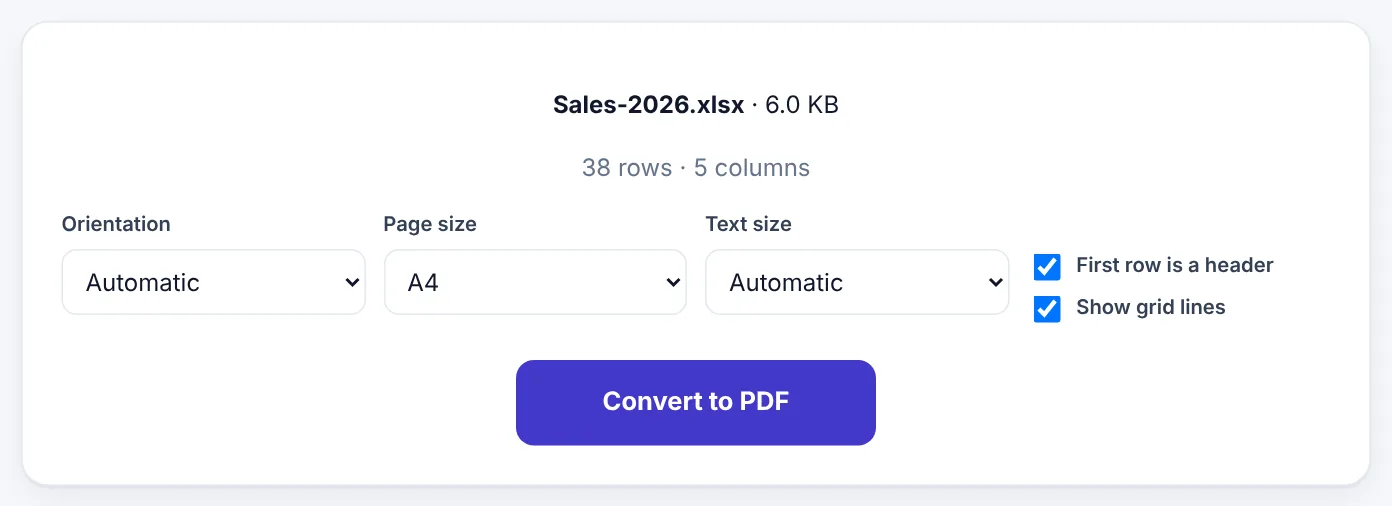
- Choose the Orientation: Automatic picks portrait or landscape based on how wide your table is.
- Choose the Page size: A4, US Letter or Legal.
- Choose the Text size: Automatic fits the table sensibly, or pick Small, Medium or Large.
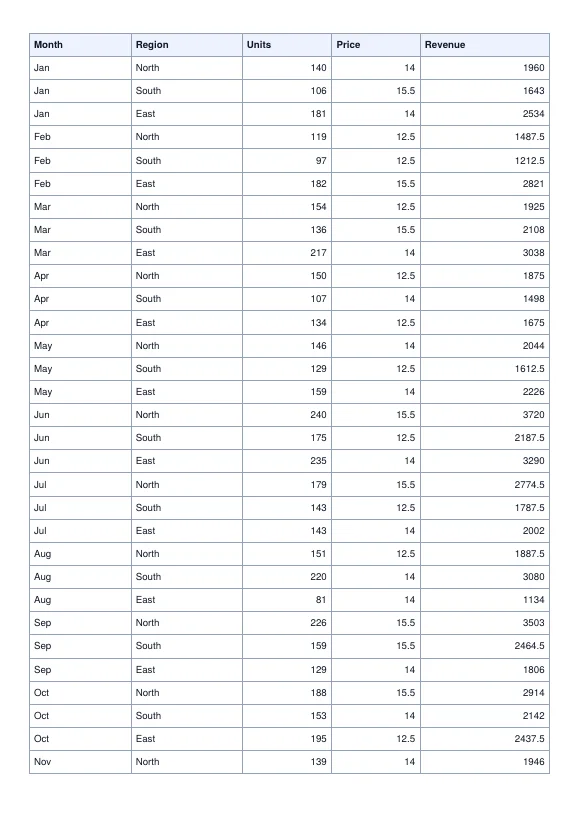
- Keep First row is a header ticked if your top row contains column names. It will be repeated at the top of every page.
- Keep Show grid lines ticked for a classic table look, or untick for a cleaner style.
- Press Convert to PDF and download.
Getting a readable result
Let orientation follow the table
Narrow tables with many rows (a list of names and phone numbers) look best in portrait. Wide tables with many columns (monthly figures for twelve months) need landscape. Automatic makes this choice for you based on the number and width of columns.
Repeat the header row
On a multi-page table, the header row is what tells the reader that the third column is "Price" and the fifth is "Revenue". Repeating it on every page is the single most helpful thing you can do for readability.
Keep text at a readable size
Shrinking a 20-column table onto one page produces text too small to read. If text becomes tiny:
- Switch to landscape for more width.
- Use a larger page size, such as Legal, if the PDF will only be read on screen.
- Remove columns the reader does not need before converting (see below).
- Split a very wide table into two: one PDF with the first set of columns and another with the rest.
Clean up before converting
The tool converts what is in the file. A quick tidy-up in your spreadsheet app helps a lot:
- Delete helper columns, notes and scratch calculations next to the main table.
- Remove empty rows and columns in the middle of the data.
- Make sure the header is in the first row.
- Hide or delete sheets you do not want to share.
Formulas and number formats
Excel to PDF shows the values as they appear in your spreadsheet: currency symbols, percentages, dates and decimal places follow the number formats saved in the file.
When a file is saved by Excel, Google Sheets or LibreOffice, the result of each formula is stored with it, and that is what appears in the PDF. Some files created by other apps or scripts store the formula without its result. In that case, Excel to PDF works out common formulas itself: basic arithmetic, percentages, and functions such as SUM, AVERAGE, MIN, MAX, COUNT, ROUND, ABS, PRODUCT and IF. Very complex formulas that cannot be worked out are left blank rather than shown with a wrong number, so open and re-save such files in a spreadsheet app if a value is missing.
CSV files
CSV (comma-separated values) files are plain text tables exported by banks, online shops, accounting software and many other systems. Excel to PDF reads them directly, and detects whether values are separated by commas, semicolons or tabs.
If you need to edit or format a CSV properly first, CSV to Excel turns it into a real .xlsx file. Going the other way, XLSX to CSV exports a sheet as CSV.
Try Excel to PDFFree, no sign-up, and your file never leaves your device.Open tool →

Real-life uses
Price lists and menus. Keep the master price list in a spreadsheet and send customers a clean PDF that they cannot accidentally edit.
Monthly reports. Convert the summary sheet of a report and attach it to an email; managers can read it on their phones without opening Excel.
Invoices summaries and statements. Share a table of invoices or payments with a client or accountant as a PDF.
Timetables and rosters. Print-ready staff rosters, class timetables and exam schedules, with headers repeated on every page.
Inventory lists. Share stock lists with suppliers or branches in a format that looks the same everywhere.
Converting a PDF table back to Excel
Sometimes you receive the opposite: a PDF with a table you need to work with. PDF to Excel extracts tables from PDF pages into an .xlsx file, and Image to Excel can read tables from photos and screenshots. See our guide on extracting tables from PDFs.
Excel to PDF on a phone
Phones are where spreadsheets are hardest to read and share. To convert on a phone:
- Save the
.xlsxor.csvfile from your email or WhatsApp to your phone. - Open Excel to PDF in your browser and select it.
- Keep Automatic settings for most files.
- Download the PDF and share it.
The PDF is far easier to read on another phone than a spreadsheet, because it opens instantly in any PDF viewer and does not need a spreadsheet app.
Troubleshooting
Some columns appear empty. The cells may contain formulas without stored results that are too complex to work out. Open the file in Excel or Google Sheets, save it once, and convert again.
The table is split across too many pages. Use landscape, a smaller text size, or remove unneeded columns.
Dates look like numbers (for example 45219). The cells were not formatted as dates in the spreadsheet. Format the column as a date in your spreadsheet app and save.
The file is very large. Spreadsheet PDFs are usually small. If yours includes many pages, Compress PDF can still help a little, but long tables are mostly text and already compact.
Preparing a spreadsheet for sharing: a checklist
Before converting, spend two minutes making the spreadsheet reader-friendly:
- [ ] Header row first: column names in row 1, short and clear ("Revenue", not "Rev_Q_tot_v2").
- [ ] No blank rows or columns in the middle of the table.
- [ ] Consistent number formats: all amounts with the same decimals and currency.
- [ ] Dates formatted as dates, in a style readers understand (21 Oct 2026 is clearer internationally than 10/21/26).
- [ ] Totals clearly labelled, for example "Total" in the first column of the last row.
- [ ] Helper and draft columns removed or moved to a separate sheet you will not include.
- [ ] Sensitive columns removed, such as cost prices, staff IDs or personal phone numbers, if the reader does not need them.
- [ ] Sheet names meaningful, in case you convert several sheets.
Example: sending a monthly sales report
Sana manages sales for three regions. At the end of every month she sends the owner a one-page summary:
- In her workbook, the Summary sheet has twelve rows (months) and five columns (Month, Region totals and Grand total). Formulas pull figures from the detailed sheets.
- She opens Excel to PDF on her laptop, selects the workbook, and ticks only the Summary sheet.
- Automatic orientation chooses portrait; First row is a header stays on.
- She downloads the PDF, checks that totals match, and emails it.
The owner opens it on his phone in a second, sees the totals clearly, and cannot accidentally overwrite a formula. The detailed workbook stays with Sana.
Spreadsheet PDFs and accessibility
A table in a PDF made this way contains real text, so it can be searched, copied and read aloud by screen readers. A few habits make it easier for everyone to use:
- Use real words in headers, not abbreviations only you understand.
- Avoid relying on colour alone to show meaning (for example, red for "late"). Add a status column with words.
- Keep each cell to a single value; avoid long paragraphs inside cells.
- If the table is long, add a title row or note at the top in the spreadsheet explaining what the table shows.
Spreadsheet terms, quickly explained
- Workbook: the whole Excel file.
- Sheet (worksheet): one tab inside the workbook.
- Header row: the first row with column names.
- Cell: one box in the grid, such as C7.
- Formula: a calculation such as
=C2*D2; the cell shows its result. - Number format: how a value is displayed, such as currency, percentage or date.
- Orientation: portrait (tall) or landscape (wide) pages.
- Grid lines: the thin lines between cells, optional in the PDF.
Why not just take a screenshot?
People often screenshot a spreadsheet and send the picture. It is quick, but it has real downsides: the numbers cannot be searched or copied, small text becomes blurry when someone zooms in on a phone, only the part visible on your screen is captured, and a long table needs several screenshots in the right order. A PDF made from the spreadsheet keeps every row, stays sharp at any zoom, and lets the reader search for a name or copy a figure into their own notes.
Frequently asked questions
Can I convert only one sheet?
Yes. When a file has several sheets, choose which ones to include.
Will charts and images in my spreadsheet be included?
Excel to PDF focuses on the data in your cells and lays it out as a clean table. Charts and pictures are not included. To include a chart, save it as an image from your spreadsheet app and add it to the PDF with Add Image to PDF or put it in a separate document.
Is my data uploaded?
No. The spreadsheet is read and converted in your browser.
Does it work with old .xls files?
The tool reads modern .xlsx and .csv files. Open an old .xls file in Excel, Google Sheets or LibreOffice and save it as .xlsx first.
Can I keep cell colours and fonts?
The PDF uses a clean, consistent table style designed for readability: header row, grid lines and aligned numbers. For an exact copy of your Excel formatting, use Excel's own Save as PDF feature on a computer.
Can I convert a Google Sheets file?
Yes. In Google Sheets, choose File → Download → Microsoft Excel (.xlsx) or CSV, then convert that file. Google Sheets can also download a PDF directly, with its own page settings.
What is the maximum number of rows?
There is no fixed limit, but very long tables make long PDFs. For thousands of rows, consider sharing the spreadsheet itself, or a filtered summary as PDF.
In short
A good spreadsheet PDF fits the page width, keeps text readable, repeats the header on every page and contains only the data the reader needs. Tidy the sheet, let Automatic choose orientation and text size, keep the header row ticked, and share a PDF that anyone can open and nobody can accidentally change.
Tools used in this guide
 CSV to Excel
 PDF to Excel
 Compress PDF
Keep reading
 Online FormsHow to Compress a PDF to 50 KB, 100 KB, 200 KB or 500 KB
Online forms say "maximum 100 KB" or "PDF under 500 KB". Here is how to get your PDF under any limit – from 50 KB to 1 MB – while keeping it readable, on a phone or computer.
4 min read PDF GuidesHow to Change the Background Color of a PDF (Free, Online)
Change a white PDF to cream, mint, light blue or any colour in under a minute – on your phone or computer, without Adobe Acrobat and without uploading the file.
4 min read Online Forms"Online Application Document Checklist: Photos, Scans, Signatures and File Sizes"
A practical checklist for job, university, exam, visa and government portals - preparing photos, signatures and scanned documents in the right format and size, naming files, and avoiding last-minute upload errors.
9 min read