"PDF to Excel: How to Extract Tables From a PDF Into a Spreadsheet"

In this guide
- Why copy and paste does not work
- How to convert PDF to Excel
- What "real numbers" means
- Bank statements: a step-by-step example
- Scanned PDFs and photos of tables
- Cleaning up the spreadsheet
- Which PDFs convert well?
- When you need the opposite
- Example: comparing supplier price lists
- Formulas that help after conversion
- Accuracy: always reconcile
- One sheet per page or everything on one sheet?
- Privacy matters with financial PDFs
- Copying a single table instead
- Frequently asked questions
- In short
Somewhere in a PDF there is a table you need: a bank statement you want to categorise, a supplier's price list you want to compare, a report with figures you need to chart, or a list of names and phone numbers you want to sort. Retyping it is slow and error-prone. Copying and pasting usually produces a jumble of text in a single column.
Converting the PDF to Excel puts each value in its own cell, so you can sort, filter, add up and chart the data straight away. This guide explains how table extraction works, how to get the best result from different kinds of documents, and how to tidy the spreadsheet afterwards.
Why copy and paste does not work
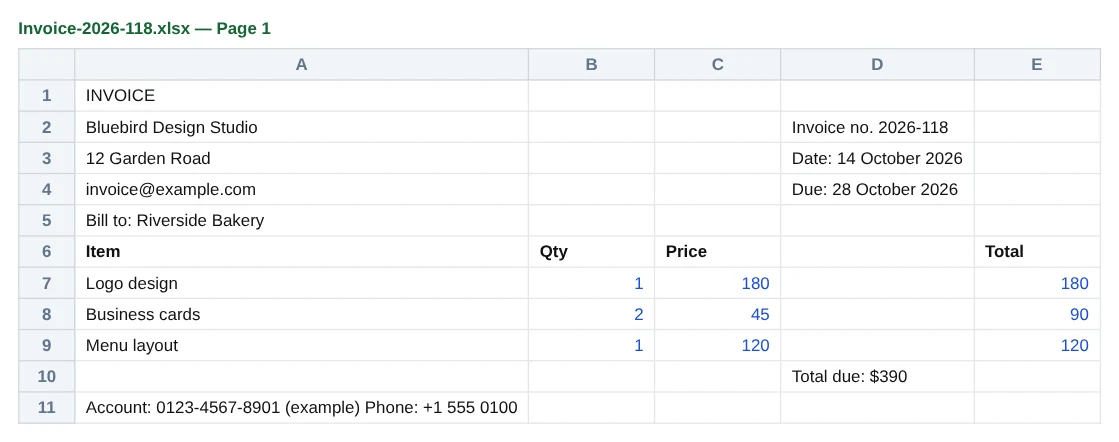
In a PDF, a table is usually not stored as a table. It is a collection of separate pieces of text placed at exact positions on the page, sometimes with lines drawn around them. There is often no record that "180" belongs to the "Price" column of the "Logo design" row.
When you copy and paste, you get the text in reading order, often with columns run together or split unpredictably. A converter has to reconstruct the grid: work out which pieces of text sit in the same row (similar vertical position) and which sit in the same column (similar horizontal position).
How to convert PDF to Excel
PDF to Excel does that reconstruction in your browser. Your document is not uploaded, which matters for financial statements.
- Open PDF to Excel and select your PDF.
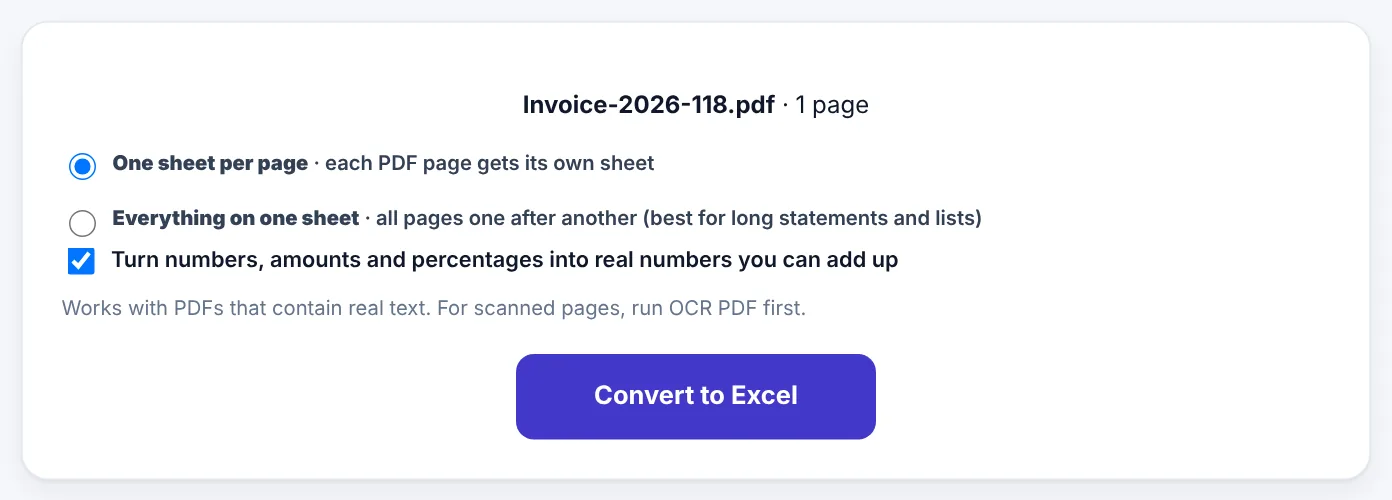
- Choose how to organise the result: - One sheet per page: each PDF page becomes its own sheet. Good for reports where each page has a different table. - Everything on one sheet: all pages one after another. Best for long statements and lists that continue across pages.
- Keep Turn numbers, amounts and percentages into real numbers switched on, so you can add them up and use them in formulas.
- Press Convert to Excel and download the
.xlsxfile. - Open it in Excel, Google Sheets, LibreOffice Calc or WPS.
What "real numbers" means
In a PDF, "$1,250.00", "(320.50)" and "12%" are just text. If they stay as text in Excel, SUM returns zero and sorting puts "1,250" before "320".
With the number option on, PDF to Excel recognises common money and number formats and stores them as numbers:
| In the PDF | In Excel |
|---|---|
1,250.00 |
1250 |
$1,250.00 or Rs. 1,250 |
1250 |
(320.50) or -320.50 |
-320.5 |
1.250,00 (European style) |
1250 |
12% |
0.12 (shown as 12% when formatted as a percentage) |
450.00 DR |
-450 |
Currency symbols are removed so the values can be added up. Apply a currency format to the column in Excel to show them again.
Bank statements: a step-by-step example
Bank statements are the most common reason people convert PDFs to Excel, for budgeting, tax returns or business accounts.
- Download the statement as a PDF from online banking, not a photo or scan. Digital statements give near-perfect results.
- Unlock it if it is password-protected, with Unlock PDF and the password you know.
- Convert with "Everything on one sheet", so all transactions form one continuous list.
- Delete repeated headers. Each page of a statement repeats the column headings and often the bank's name and page footer. In Excel, use a filter on the first column and remove those rows.
- Check the amounts by adding up a column and comparing with the totals printed on the statement.
- Add your own columns, such as Category, and use filters or a pivot table to see where your money goes.
Tip: If debit and credit amounts are in separate columns, create a new column with a simple formula (credit minus debit) to get one signed amount per row. It makes totals and charts much easier.
Scanned PDFs and photos of tables
A scanned PDF has no text inside, only pictures. PDF to Excel needs real text, so for scans:
- Make the PDF searchable with OCR PDF first.
- Then convert the OCR'd PDF with PDF to Excel.
For a photo or screenshot of a table, Image to Excel reads the table from the image and builds the spreadsheet in one step.
Results from scans depend on image quality. Clear, straight, high-contrast scans work best. Always check numbers carefully, because OCR can confuse similar characters like 0 and 8, or 1 and 7.
Try PDF to ExcelFree, no sign-up, and your file never leaves your device.Open tool →

Cleaning up the spreadsheet
Even a good conversion usually needs a few minutes of tidying. These Excel techniques handle most of it:
- Remove empty columns: select the column, right-click, Delete.
- Remove repeated headers and footers: turn on Filter (Data → Filter), filter the first column for the heading text, select those rows and delete them.
- Split a column: if two values ended up in one cell, use Data → Text to Columns.
- Join text that wrapped onto two rows: usually handled automatically, but if not, combine with a formula such as
=A2&" "&A3. - Fix dates: if dates appear as text, use Data → Text to Columns on the date column and choose the date format, or use the DATEVALUE function.
- Format numbers: select amount columns and apply Number or Currency format with two decimals.
Which PDFs convert well?
| Document | Typical result | Tips |
|---|---|---|
| Bank and card statements (downloaded) | Very good | Use "Everything on one sheet" |
| Invoices and receipts | Good | Header details land above the item table |
| Price lists and catalogues | Good to very good | Remove product images from the sheet if needed |
| Reports with several small tables | Good | Use "One sheet per page" |
| Tables with merged cells or multi-line rows | Fair | Expect to adjust a few cells |
| Scanned documents | Depends on scan quality | OCR first; check numbers carefully |
| Text-heavy documents with no tables | Not useful | Use PDF to Word or PDF to Text instead |
When you need the opposite
To turn a spreadsheet into a neat PDF for sharing, see Excel to PDF and our guide on converting Excel to PDF without breaking columns.
Example: comparing supplier price lists
A small restaurant owner receives price lists from three vegetable suppliers, each a two-page PDF with different layouts. She wants to compare prices item by item.
- Convert each price list with PDF to Excel, using Everything on one sheet.
- Clean each sheet: delete headers, logos' text and terms-and-conditions rows, leaving two columns: Item and Price per kg.
- Copy all three into one workbook, one column per supplier, matching items by name (a VLOOKUP or XLOOKUP formula helps if the lists are long).
- Add a "Cheapest" column with MIN, and highlight it with conditional formatting.
What would have taken an afternoon of retyping takes twenty minutes, and the numbers are exactly as printed, with no typing mistakes.
Formulas that help after conversion
Once your data is in Excel, a handful of formulas cover most needs:
| Task | Formula example |
|---|---|
| Add up a column | =SUM(C2:C200) |
| Total by category | =SUMIF(D2:D200,"Groceries",C2:C200) |
| Count transactions | =COUNTA(A2:A200) |
| Average amount | =AVERAGE(C2:C200) |
| Turn text into a number | =VALUE(C2) |
| Turn text into a date | =DATEVALUE(A2) |
| Combine debit/credit columns | =E2-D2 (credit minus debit) |
| Find a price from another list | =XLOOKUP(A2,Prices!A:A,Prices!B:B) |
For summaries by month and category, a pivot table (Insert → PivotTable in Excel, or Data → Pivot table in Google Sheets) is the fastest tool of all.
Accuracy: always reconcile
Converters are very accurate on digital PDFs, but it is good practice to reconcile:
- Statements: check that the sum of transactions matches the difference between the opening and closing balance.
- Invoices: check that line totals add up to the invoice total.
- Reports: spot-check a few figures against the PDF.
A two-minute check catches the rare misplaced number before it ends up in a tax return or a business decision.
One sheet per page or everything on one sheet?
This one choice decides how much tidying you will do later, so it is worth a moment's thought:
| Your PDF | Best choice | Why |
|---|---|---|
| A bank or card statement spanning many pages | Everything on one sheet | One continuous list is easy to filter, sort and total |
| A long price list or product catalogue | Everything on one sheet | Items stay in one column you can search |
| A report with a different table on each page | One sheet per page | Each table keeps its own columns |
| A set of invoices, one per page | One sheet per page | Each invoice stays separate |
| A single-page document | Either | The result is the same |
If you are not sure, convert twice and keep whichever is easier to work with; it takes seconds.
Privacy matters with financial PDFs
Bank statements, salary slips, tax documents and invoices carry exactly the details fraudsters look for: account numbers, balances, addresses and transaction patterns. Uploading them to a random online converter means trusting an unknown company with all of that.
PDF to Excel reads and converts your document inside your own browser. Nothing is sent to a server, so the statement is exactly as private after conversion as it was before. When you share the resulting spreadsheet with an accountant or adviser, remove columns they do not need, and consider protecting the workbook with a password in Excel.
Copying a single table instead
If you only need one small table from a long document, there is a quicker route: take that page out with Extract PDF Pages and convert just that page. The resulting sheet is short and focused, and you do not need to scroll past dozens of rows from other pages. For a table you can see on screen but that sits inside a picture, such as a screenshot in a report, use Image to Excel on a screenshot of that area.
Frequently asked questions
Is converting bank statements safe?
With PDF to Excel, the statement is processed in your browser and never uploaded. That is the most important thing to check with any converter for financial documents.
Why are some numbers still text?
Unusual formats (for example, numbers with letters attached) are left as text to avoid mistakes. Use Excel's VALUE function or Text to Columns to convert them.
Can I convert only some pages?
Take the pages you need out first with Extract PDF Pages, then convert that smaller file.
Will it work with Urdu or Arabic tables?
Text in those languages is extracted when the PDF contains real text. Check the column order, since right-to-left tables may need columns rearranged.
Does it keep colours and borders?
The goal is clean data: values in the right cells, ready to work with. Colours, borders and fonts from the PDF are not copied. Header rows are made bold.
Can I convert a PDF to Google Sheets?
Convert to .xlsx first, then upload the file to Google Drive and open it with Google Sheets. All values and numbers come across.
What if the PDF has two tables side by side?
Both tables end up on the same rows, in neighbouring columns. Cut and paste one of them to a new sheet in Excel to separate them.
Does it work for PDFs in other languages?
Yes, for PDFs with real text. Numbers are recognised in the common Western formats used in most statements and invoices.
Do amounts like "Rs. 1,250.00" or "1.250,00" become real numbers?
Yes. Currency symbols such as Rs. are removed and both the English style (1,250.00) and the European style (1.250,00) are recognised, so the cells can be added up in Excel.
In short
A PDF table is a picture of a grid; PDF to Excel rebuilds the grid so you can work with the data. Use digital PDFs whenever possible, run OCR first on scans, choose one sheet for long statements, keep numbers as real numbers, and spend a few minutes tidying headers and dates before you start your analysis.
Tools used in this guide
 Image to Excel
 OCR PDF
 Excel to PDF
Keep reading
 PDF GuidesHow to Change the Background Color of a PDF (Free, Online)
Change a white PDF to cream, mint, light blue or any colour in under a minute – on your phone or computer, without Adobe Acrobat and without uploading the file.
4 min read PDF GuidesWhat Does "Flatten a PDF" Mean, and When Should You Do It?
Flattening turns form fields, comments, stamps and signatures into a fixed part of the page. Learn when to flatten, the two ways to do it, and the mistakes to avoid before sending a filled form.
9 min read PDF GuidesHow to Crop a PDF and Remove White Margins
Trim wide white margins, scanner borders and unwanted edges from PDF pages, crop all pages or just one, and understand what cropping really hides. Includes reading on phones and printing tips.
9 min read