"What Is OCR? How to Turn Scanned Documents and Photos Into Text"
In this guide
- OCR in one paragraph
- How to tell whether a document needs OCR
- Two ways to use OCR on SmartPDFConvert
- What affects OCR accuracy
- OCR for Urdu, Hindi and Arabic
- What you can do once a document has text
- Always proofread what matters
- OCR and privacy
- Practical tips for big OCR jobs
- A real example: making an old scanned report searchable
- OCR vs typing it yourself
- Accessibility: why OCR matters beyond convenience
- Scanning settings that make OCR easier
- Frequently asked questions
- In short
You have a scanned contract and need to quote one clause. A photo of a printed notice and want to forward the text. A 60-page scanned report where you are looking for one name. You press Ctrl+F, type the word and get: No results found.
That is because a scan is a picture. To your computer, the page is just coloured dots that happen to look like letters. Turning those dots back into real, searchable, copyable text is the job of OCR. This guide explains what OCR is, how to use it well, and what to expect from it.
OCR in one paragraph
OCR stands for optical character recognition. Software looks at an image, finds the areas that contain text, works out the lines and words, and recognises each character. The output is real text: something you can select, copy, search, edit, translate or have read aloud.
Modern OCR engines, such as the open-source Tesseract engine used by SmartPDFConvert, use neural networks trained on huge amounts of printed text. They recognise whole lines in context rather than guessing one letter at a time, which makes them far more accurate than the OCR of twenty years ago.
How to tell whether a document needs OCR
Open the PDF and try to select a single word by dragging over it.
- The word highlights: the PDF already contains real text. It does not need OCR.
- A box appears around the whole page, or nothing happens: the page is an image. It needs OCR.
Another clue: if you search for a word you can clearly see and the viewer finds nothing, the page is an image.
Two ways to use OCR on SmartPDFConvert
OCR PDF: make the whole PDF searchable
OCR PDF reads every page of a scanned PDF and adds an invisible text layer on top of the image. The page looks exactly the same as before, but now you can search it, select text and copy it. It is the best choice for documents you want to keep and use as PDFs: contracts, archives, scanned books, reports.
- Open OCR PDF and select your scanned PDF.
- Tick the language(s) of the text: English, Urdu, Hindi or Arabic. Tick every language that appears, but no more.
- Optional: enter Pages to process, for example
1-3, if you do not need the whole document. - Choose Accuracy: Best (slower) or Fast.
- Keep Skip pages that already have text switched on, so pages with real text are left alone.
- Press Make PDF searchable and download the new PDF.
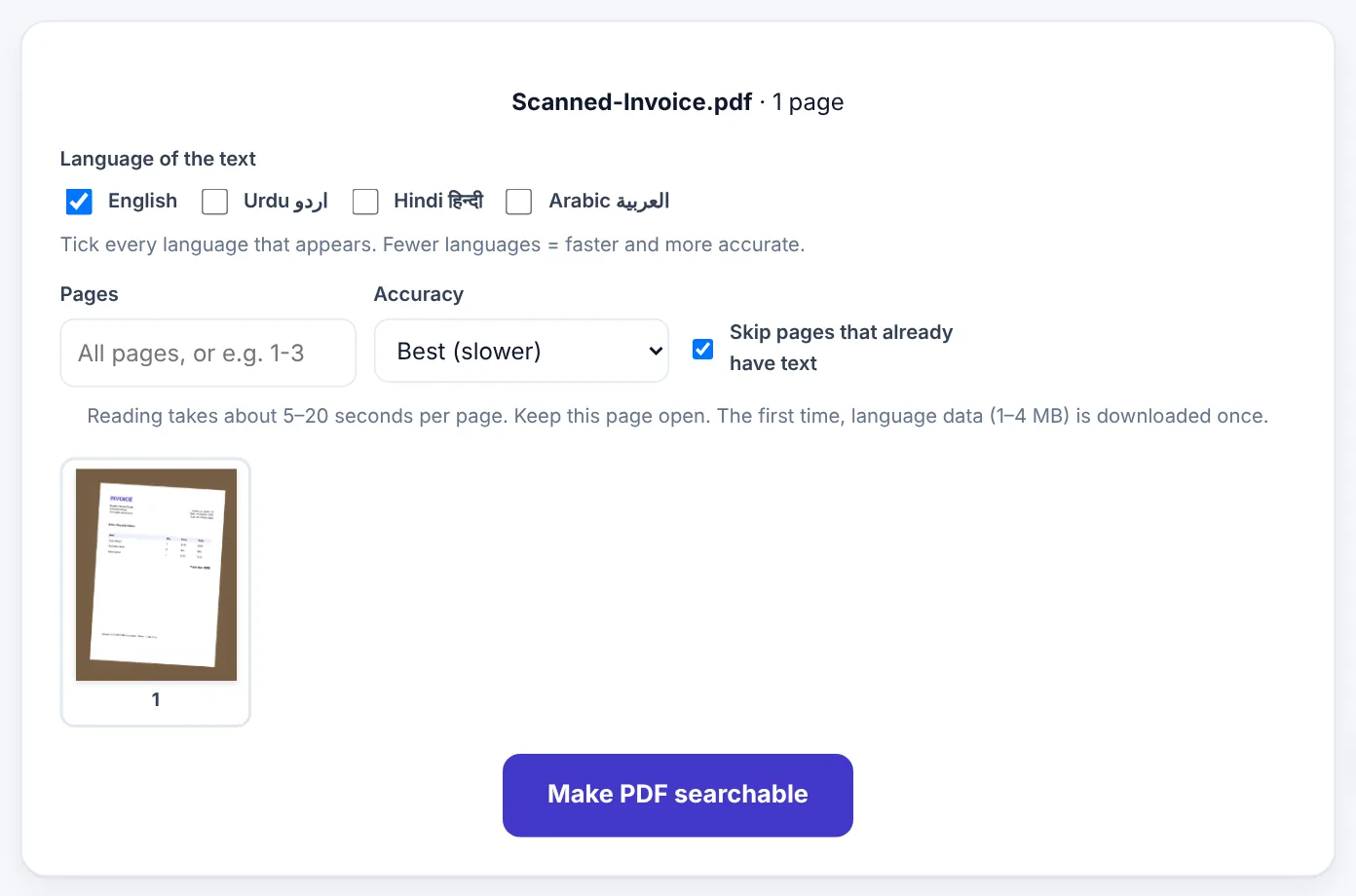
Reading takes about 5–20 seconds per page, depending on your device and the amount of text. The first time you use a language, its data (1–4 MB) is downloaded once and then kept by your browser.
Image to Text: get the words out of a photo
Image to Text is for when you just want the text, quickly. Select one or more photos, screenshots or scans, and it shows the recognised text in a box you can check, correct, copy or download as a .txt file.
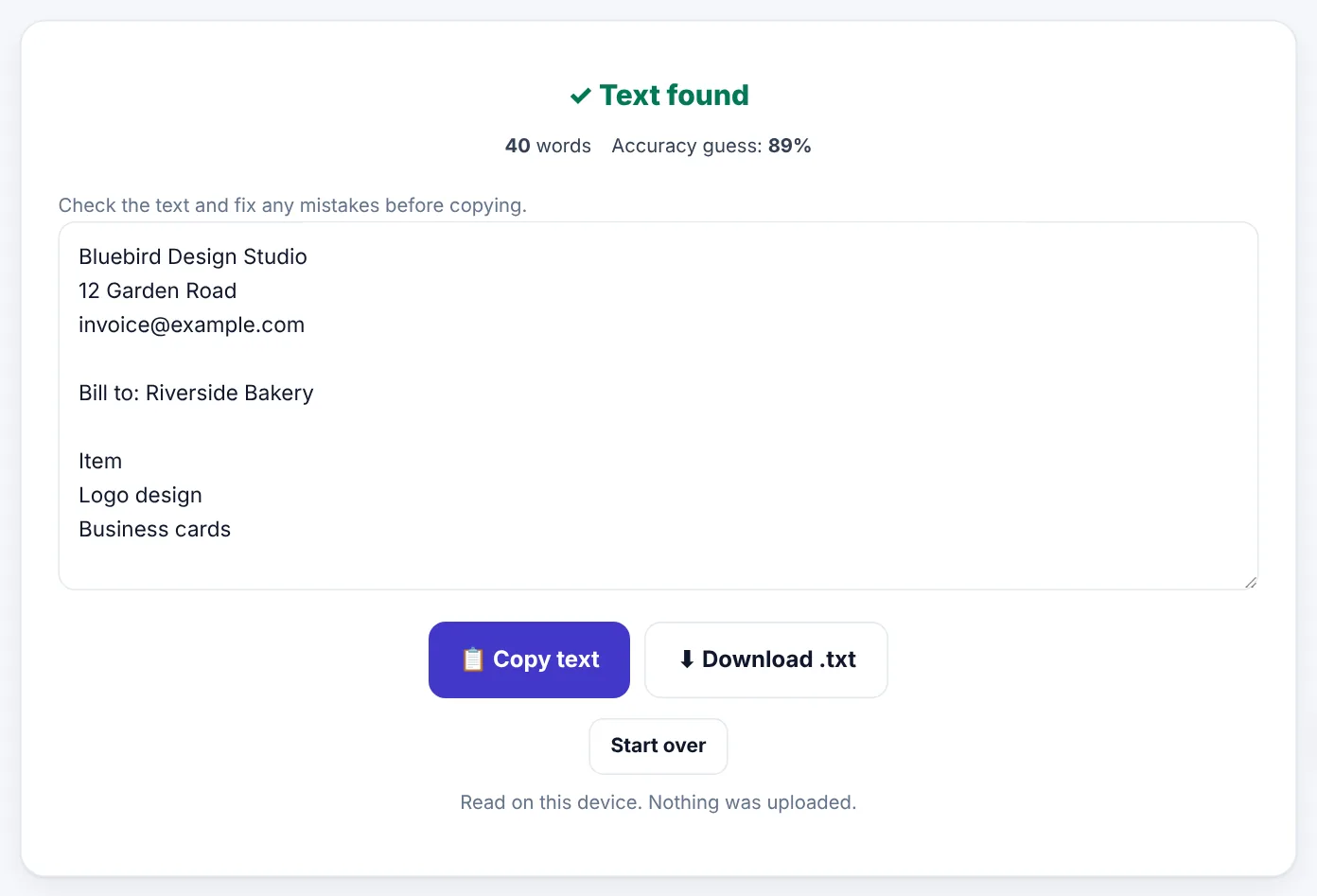
It also gives an accuracy guess, a rough measure of how confident the engine is. A low number is a signal to check the text more carefully.
Quick answer: Want to keep a searchable PDF? Use OCR PDF. Want the text itself to paste somewhere? Use Image to Text.
What affects OCR accuracy
OCR is very accurate on clean, printed text, often 98–99% of characters or better. It gets worse as the image gets harder to read. These are the factors that matter most:
Resolution
Small text needs enough pixels. For scanning, 300 DPI is the sweet spot. Phone photos are usually fine if the page fills the frame. A tiny, distant photo of a page will not OCR well, however good the software is.
Contrast and lighting
Dark text on white paper is ideal. Shadows, glare, yellowed paper, faint printing and coloured backgrounds all reduce accuracy. Scan to PDF with the Document look whitens the paper and sharpens the text before you OCR.
Straightness
Slightly tilted pages are handled automatically, but strongly skewed photos, where the page looks like a trapezoid, cause errors near the edges. Hold the phone flat above the page.
Fonts and layout
Clear printed fonts work best. Decorative fonts, very small print, text over pictures and complex multi-column layouts are harder. Handwriting is a different challenge altogether; general OCR engines are designed for print and handle handwriting poorly.
Choosing the right language
The engine uses language knowledge to choose between similar-looking characters. Telling it the right language improves accuracy a lot. Ticking languages that are not on the page makes it slower and can introduce errors.
OCR for Urdu, Hindi and Arabic
Many OCR tools only handle Latin script well. SmartPDFConvert's OCR includes Urdu, Hindi and Arabic alongside English, which matters for documents from Pakistan, India and the Middle East.
These scripts have their own challenges:
- Urdu is usually printed in the Nastaliq style, where letters join and slope diagonally. It is one of the hardest scripts for OCR. Clean, high-resolution scans of printed Urdu work best; expect to proofread.
- Arabic is printed in Naskh-style fonts, which OCR handles better than Nastaliq.
- Hindi uses Devanagari, with letters hanging from a top line. Clear prints OCR well.
For bilingual documents, such as an English form filled in with Urdu names, tick both languages.
What you can do once a document has text
Making a scan readable by computers opens up a lot:
- Search inside long scanned documents.
- Copy quotes, addresses and numbers instead of retyping them.
- Edit the content in Word: run OCR PDF first, then PDF to Word. For a quick single page, Image to Word does both steps.
- Extract tables of numbers with Image to Excel or PDF to Excel.
- Translate scanned pages with Translate PDF.
- Listen to a scanned book with PDF to Audio.
- Make documents accessible to people who use screen readers.
Try OCR PDFFree, no sign-up, and your file never leaves your device.Open tool →

Always proofread what matters
OCR is very good, but it is not perfect, and its mistakes can be sneaky because they look plausible. Classic confusions include:
0(zero) andO(letter O)1,l(lowercase L) andI(capital i)rnandm5andS,8andB- Decimal points and commas in numbers
For anything where details matter, such as amounts, account numbers, dates, names or legal wording, compare the OCR text with the original image. Image to Text keeps the text in an editable box precisely so you can fix mistakes before copying.
OCR and privacy
The documents people OCR are often sensitive: contracts, medical records, ID cards, bank letters. Many online OCR services upload every page to their servers.
SmartPDFConvert's OCR runs in your browser. The OCR engine and language data are downloaded to your device, and your pages are read there. Your documents are not uploaded, so they stay as private as they were before.
Practical tips for big OCR jobs
- Do a test page first. Run OCR on one or two pages to check the language and quality before processing 200.
- Use the Pages box to process a book in chunks, such as
1-50, then51-100. Then join the parts with Merge PDF. - Choose Fast for clean, modern prints and Best for older, faint or complex pages.
- Keep the page open while it works. On phones, keep the screen on.
- Compress afterwards if needed. OCR adds a little text data; Compress PDF keeps the text layer when you use the Recommended level.
A real example: making an old scanned report searchable
Imagine a 40-page scanned annual report from a few years ago. It is a picture-only PDF, 22 MB, and you need to find every mention of "solar".
- Test first. In OCR PDF, enter
1-2in Pages and run it. Search the result for a word you can see on page 1. Found it? The settings are right. - Run the whole document with English ticked and Best accuracy. On a laptop this takes a few minutes.
- Search. Open the new PDF and search for "solar". Every mention is highlighted, across all 40 pages.
- Shrink it. Run it through Compress PDF on Recommended. The text layer stays, and the file becomes small enough to email.
- Reuse it. Copy the key paragraphs into your new report, or convert the relevant pages with PDF to Word.
What used to mean scrolling through 40 pages becomes a three-second search.
OCR vs typing it yourself
For a short note of a few lines, typing it might be just as fast. But OCR wins quickly as the amount of text grows:
| Amount of text | Typing (average typist) | OCR + proofreading |
|---|---|---|
| One paragraph (100 words) | 2–3 minutes | Under a minute |
| One page (400 words) | 10 minutes | 2 minutes |
| Ten pages (4,000 words) | Over an hour | About 10–15 minutes |
| A 200-page book | Days | An hour or two |
OCR also makes fewer "tired" mistakes than a person typing for an hour, though it makes different ones, which is why proofreading matters.
Accessibility: why OCR matters beyond convenience
For people who are blind or have low vision, a scanned PDF without text is a closed door. Screen readers can only read real text. Adding a text layer with OCR makes a document usable by assistive technology, and lets anyone enlarge text, change contrast or have it read aloud with PDF to Audio.
If you publish scanned documents on a website, such as notices, forms or reports, running OCR first is a simple way to make them accessible to more people, and search engines can read them too.
Scanning settings that make OCR easier
If you are scanning paper specifically to OCR it, a few scanner settings help a lot:
- Resolution: 300 DPI. Lower loses detail in small print; higher makes huge files without improving accuracy much. For very small print such as footnotes, 400 DPI can help.
- Colour mode: grayscale for most text documents. It keeps the shading the OCR engine uses to find letter edges, without the size of colour. Use colour only for documents with coloured text or stamps that matter.
- File type: PDF for multi-page documents, or JPG/PNG for single pages you will use with Image to Text.
- Clean the glass. Dust and smudges on a flatbed scanner become specks that OCR may read as dots, commas or accents.
- Flatten the paper. Curved pages near a book's spine distort lines. Press the book flat gently, or scan the two pages separately.
With phone photos, the same principles apply: steady hands, good light, the page filling the frame, and the phone parallel to the paper.
Frequently asked questions
Does OCR change how my scan looks?
No. OCR PDF adds an invisible text layer. The images of your pages stay exactly the same.
Can OCR read handwriting?
Neat, printed-style handwriting sometimes works, but general OCR engines are built for printed text. Cursive handwriting usually gives poor results.
Why does my OCR text have strange characters?
Usually the wrong language was ticked, the image is low resolution, or there are stamps, lines or pictures overlapping the text. Try a clearer scan and the correct language.
Can I OCR a photo taken with my phone?
Yes. Use Image to Text for the text, or turn the photos into a PDF with Scan to PDF and then use OCR PDF.
Is there a page limit?
No fixed limit. Very long documents simply take longer, and your device's speed and memory set the practical limit.
In short
A scan is a picture of words; OCR turns it back into words. Use OCR PDF to make whole documents searchable and Image to Text to grab the text from a photo. Give the engine a sharp, well-lit, straight page and the right language, proofread anything important, and a stack of scanned paper becomes a library you can search in seconds.
Tools used in this guide
 Image to Text (OCR)
 PDF to Word
 Image to Word
Keep reading
 Ebooks & Writing"EPUB vs PDF: Which E-book Format Should You Use?"
The real differences between EPUB and PDF for e-books, study material and self-published books, which one readers prefer on phones and e-readers, and how to convert between them.
10 min read PDF GuidesHow to Compare Two PDF Files and Find Every Change
Spot what changed between two versions of a contract, report or quote. Learn the difference between visual and text comparison, how to read the results and when to double-check.
9 min read PDF GuidesHow to Translate a PDF and Keep the Original Layout
Translate PDFs into Urdu, Arabic, English, Spanish and 100+ other languages while keeping pictures, headings and page layout. When to trust machine translation and how to check it.
9 min read