How to Translate a PDF and Keep the Original Layout
In this guide
- Three ways to get a translated PDF
- How to translate a PDF
- Privacy: what is sent where
- How good is machine translation?
- Getting better translations
- Polishing a translation in Word
- Translating other kinds of documents
- Real examples
- Translating into Urdu, Arabic and other right-to-left languages
- A checklist for checking a machine translation
- Cost and time compared with professional translation
- Common translation mistakes to look out for
- Planning a translation project
- Translating forms and documents with fields
- Frequently asked questions
- In short
A supplier sends a product manual in Chinese. A university abroad publishes admission rules only in German. Your grandmother receives a hospital letter in English and wants to read it in Urdu. A client needs your company brochure in Arabic by Friday.
Translating the text is the easy part. The hard part has always been keeping the document: the headings, pictures, tables, colours and page layout that make it readable. Copying text into a translation website and pasting it back into a new document loses all of that. This guide explains how to translate a PDF so it still looks like the original, which output to choose, and when machine translation is good enough.
Three ways to get a translated PDF
| You want… | Choose | Result |
|---|---|---|
| A document that looks like the original | PDF – same layout | Every page keeps its look, with translated text in the same places |
| To edit or polish the translation | Word (DOCX) | Editable translated text with headings and paragraphs |
| Just the words, for reading or reuse | Text (TXT) | Plain translated text |
Translate PDF offers all three.
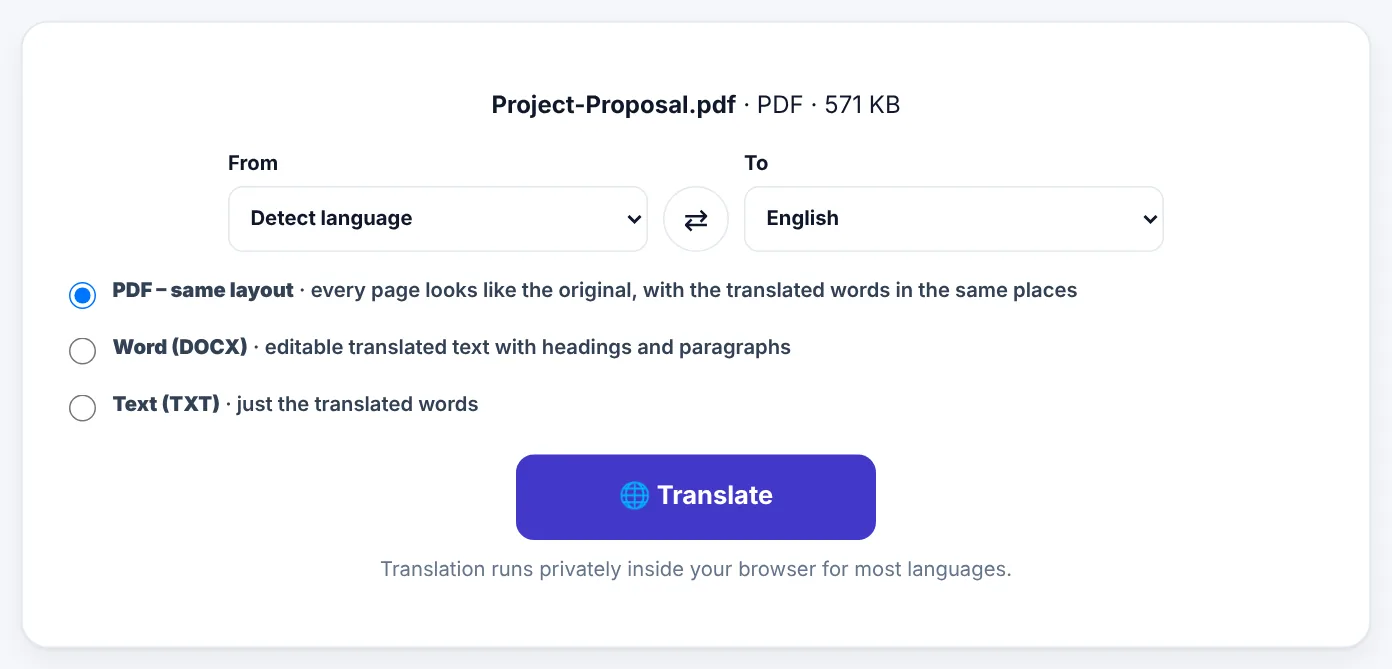
How to translate a PDF
- Open Translate PDF and select your file.
- Choose the From language, or leave it on Detect language.
- Choose the To language. More than 100 languages are available, including Urdu, Arabic, Hindi, English, Spanish, French, German, Turkish, Chinese and Japanese.
- Choose the output: PDF – same layout, Word (DOCX) or Text (TXT).
- Press Translate and download.
How "same layout" works
With PDF – same layout, each paragraph on the page is replaced by its translation in the same place, in a similar size and colour. Pictures, shapes, lines and backgrounds stay exactly as they were. Because translations are often longer or shorter than the original (German and Urdu are often longer than English, Chinese much shorter), the text size is adjusted so each translation fits its space.
Right-to-left languages such as Urdu and Arabic are written right to left with correctly joined letters.
Privacy: what is sent where
Your PDF itself is opened and rebuilt on your own device; the file is not uploaded. In Google Chrome on a computer, translation can also run entirely on your device for supported languages. On other browsers and on phones, only the words that need translating are sent securely to our translation service, without your name or file, and the finished document is made on your device.
For highly confidential documents, use Chrome on a computer, or consider whether the document should be translated by a professional under a confidentiality agreement.
How good is machine translation?
Modern machine translation is remarkably good for many language pairs, especially between major languages such as English, Spanish, French, German, Arabic and Chinese. It is excellent for:
- Understanding a document in a language you do not read.
- Getting the gist of letters, notices, manuals and websites saved as PDF.
- First drafts that a fluent speaker will then review.
- Internal documents where perfect style is not essential.
It is not yet a replacement for a professional translator when:
- Legal meaning matters: contracts, court documents, terms and conditions.
- Health is involved: medical reports, prescriptions, consent forms.
- Official use requires certification: visa and immigration documents, birth and marriage certificates, degree transcripts. These usually need a certified human translation.
- It will be published: books, marketing material, websites, where tone and accuracy reflect on you.
Important: For any document that has legal, medical or official consequences, use machine translation to understand it, then have a qualified translator produce the version you rely on.
Getting better translations
Machine translation works best on clear source text. A few things help:
- Use the original digital PDF, not a scan or a photo, whenever possible.
- Run scanned PDFs through OCR first. A scan is a picture with no text; translation needs real text. Use OCR PDF with the right language, then translate the OCR'd PDF.
- Set the source language if Detect language gets confused by a mixed-language document.
- Translate only the pages you need by extracting them first with Extract PDF Pages. It is faster and easier to check.
- Keep names and brand terms consistent. Translators sometimes translate names that should stay as they are. Check them in the result.
Polishing a translation in Word
If the translation will be shared widely, choose Word (DOCX) and polish it:
- Translate to Word.
- Ask a fluent speaker, or check yourself if you know the language, to correct terms and awkward phrases.
- Adjust formatting where the translation is much longer than the original.
- Export to PDF from Word, or use Word to PDF.
This gives you the speed of machine translation with the quality of human review.
Try PDF TranslatorFree, no sign-up, and your file never leaves your device.Open tool →

Translating other kinds of documents
The same approach works for many formats, keeping their formatting:
- Word documents: Translate Word
- Excel spreadsheets: Translate Excel
- PowerPoint presentations: Translate PowerPoint
- Web pages saved as HTML: Translate HTML
- Research papers: Translate Research Paper
- Books and long documents: Translate Book
- Any of these in one place: Translate Document
There are also quick pages for popular pairs, such as English to Urdu, Arabic to English and English to Spanish.
Real examples
A product manual from China. A shop owner translates a 24-page Chinese manual into English with PDF – same layout. Diagrams and part numbers stay in place, and the English instructions sit next to them, so the manual is usable in minutes.
A school notice for parents. A teacher translates a one-page English notice into Urdu for parents who read Urdu more comfortably. She asks a colleague to check the wording before printing.
A research paper in German. A student translates a German paper to English with Word (DOCX) so she can highlight and annotate it while studying, and keeps the original for exact quotations.
Translating into Urdu, Arabic and other right-to-left languages
Right-to-left languages bring extra challenges to translated documents, and it helps to know what to expect:
- Direction: Urdu, Arabic, Persian and Hebrew are written from right to left. In the translated PDF, each translated paragraph is laid out right to left in its place, with letters joined correctly.
- Mixed content: numbers, product codes, email addresses and English brand names stay left to right inside right-to-left sentences. This is normal and how native readers expect them.
- Fonts: Urdu is traditionally printed in the Nastaliq style, while many digital documents use Naskh-style fonts, which are clearer at small sizes. Both are readable; Naskh is common in translated documents.
- Length: Urdu text is often longer than the English original, so the text size in same-layout PDFs may be reduced to fit. For printed material, choose Word output and adjust the layout.
- Page order: a translated PDF keeps the original page order and layout. A document designed natively for right-to-left reading would often mirror the layout, with images and columns swapped, which machine translation does not do.
Translating from Urdu or Arabic to English works the same way. Make sure the PDF contains real text; many Urdu PDFs, especially older ones, are images of text and need OCR PDF with the Urdu or Arabic language selected first.
A checklist for checking a machine translation
Even if you do not speak the target language well, you can catch many problems:
- [ ] Numbers, dates and amounts are the same as in the original.
- [ ] Names of people, companies and products are unchanged (or correctly transliterated).
- [ ] Headings make sense as headings and are not translated literally into something odd.
- [ ] Units and currencies are correct and not converted unexpectedly.
- [ ] No paragraphs are missing, especially in tables, captions and footnotes.
- [ ] Text fits its space and is not too small to read.
- [ ] A fluent reader has checked anything that will be published or relied on.
Cost and time compared with professional translation
| Machine translation | Professional translator | |
|---|---|---|
| Time | Seconds to minutes | Days, depending on length |
| Cost | Free here | Charged per word or page |
| Quality for understanding | Very good for major languages | Excellent |
| Quality for publishing | Needs review | Ready to publish |
| Certified translations | Not possible | Available from certified translators |
| Layout | Kept automatically | Depends on the service |
The smartest approach for many jobs is a combination: machine-translate to understand and to create a draft, then pay for professional review only where accuracy really matters.
Common translation mistakes to look out for
Machine translation makes a predictable set of mistakes. Knowing them makes checking much faster:
- False friends. Words that look similar in two languages but mean different things, such as Spanish actual (current) and English actual, can slip through.
- Literal idioms. "It's raining cats and dogs" may be translated word for word into something meaningless. Idioms in marketing copy and letters need human attention.
- Formal and informal "you". Languages such as Urdu (aap and tum), French (vous and tu) and German (Sie and du) have formal and informal forms. Business documents should use the formal form; check that the translation has chosen it.
- Gender. Some languages mark gender on verbs and adjectives. A translation may guess the gender of a person mentioned only by job title, sometimes wrongly.
- Abbreviations. Short forms such as Pvt. Ltd., Dept. or approx. may be left untranslated, expanded strangely or translated as ordinary words.
- Numbers and dates. Most of the time numbers are copied correctly, but formats differ: 03/04/2026 is 3 April in Pakistan and the UK, and March 4 in the USA. Write dates in words in important documents.
- Terms that must stay the same. Product names, legal terms defined in a contract, and technical part names should be identical every time. Machine translation sometimes varies them.
Planning a translation project
For anything longer than a few pages, a little planning keeps the work under control:
- Decide what the translation is for. Understanding, internal use and publication need different levels of checking.
- Collect the key terms. List names, product terms and phrases that must be translated a specific way, or not at all.
- Translate a sample first. Translate two or three pages and check them before translating the whole document.
- Choose the output. PDF – same layout for reading, Word for editing.
- Review in passes. First check numbers and names, then meaning, then style.
- Keep both versions. Store the original and the translation together, with clear file names such as
Manual-EN.pdfandManual-UR.pdf.
Translating forms and documents with fields
Fillable forms, application packs and documents with boxes and lines translate best as PDF – same layout, because the boxes stay exactly where they were. Short labels such as "Name", "Date of birth" or "Signature" are usually translated well. If you will fill in the form, keep in mind that the official version is normally the original; use the translation to understand each field, then fill the original in the language the organisation expects.
Frequently asked questions
Is translating PDFs free?
Yes, with no sign-up and no watermark. A fair daily limit applies on phones and non-Chrome browsers; in Google Chrome on a computer you can translate as much as you like.
Will images with text be translated?
Text that is part of a picture, such as a chart label inside an image, is not translated, because it is not real text. Real text on the page is translated.
Can I translate a scanned PDF?
Yes, after running it through OCR PDF so the text can be read.
Why is the text smaller in the translated PDF?
When a translation is longer than the original, the text size is reduced so it fits the same space and the layout stays intact. If you need larger text, choose Word output and adjust the layout.
Which languages are supported?
More than 100, including English, Urdu, Arabic, Hindi, Bengali, Spanish, French, German, Italian, Portuguese, Turkish, Russian, Chinese, Japanese and Korean.
In short
Choose PDF – same layout to read a translated document that looks like the original, Word to edit and polish, and Text for just the words. Run scans through OCR first, translate only the pages you need, and remember that for legal, medical and official documents machine translation is for understanding, while a qualified translator produces the version you rely on.
Tools used in this guide
 Document Translator
 OCR PDF
 PDF to Word
Keep reading
 PDF GuidesHow to Change the Background Color of a PDF (Free, Online)
Change a white PDF to cream, mint, light blue or any colour in under a minute – on your phone or computer, without Adobe Acrobat and without uploading the file.
4 min read PDF GuidesWhat Does "Flatten a PDF" Mean, and When Should You Do It?
Flattening turns form fields, comments, stamps and signatures into a fixed part of the page. Learn when to flatten, the two ways to do it, and the mistakes to avoid before sending a filled form.
9 min read PDF GuidesHow to Crop a PDF and Remove White Margins
Trim wide white margins, scanner borders and unwanted edges from PDF pages, crop all pages or just one, and understand what cropping really hides. Includes reading on phones and printing tips.
9 min read