How to Edit a PDF for Free Without Acrobat
In this guide
- Two kinds of "editing a PDF"
- How to edit a PDF with SmartPDFConvert
- Fixing existing text: how "Edit text" works
- Adding text
- Adding pictures and stamps
- White-out: hiding small mistakes
- Highlights, boxes and drawings
- When to convert to Word instead
- Editing scanned PDFs
- Making your edits look natural
- Worked example: updating a price list without the original file
- Worked example: marking up a report for a colleague
- Keyboard and touch tips
- Editing vs annotating: what the recipient can do
- Edit PDF and other tools work together
- Frequently asked questions
- In short
PDFs have a reputation for being uneditable, and for a long time that was mostly true: you needed an expensive desktop program to change anything. Today you can fix a typo, add a note, insert a logo, highlight a paragraph or white out a mistake directly in your browser, for free.
This guide explains what kinds of PDF edits are easy, what kinds are better done another way, and how to make changes that look like they were always part of the document.
Two kinds of "editing a PDF"
It helps to separate two different jobs:
- Adding things on top of the page: text, pictures, signatures, highlights, shapes, drawings, white-out. This is what most people need, and it works on any PDF, including scans.
- Changing the existing text itself: rewriting sentences, re-flowing paragraphs, changing the layout. PDFs are not designed for this, because they store fixed positions rather than flowing paragraphs.
Edit PDF is built for the first job and handles small changes of the second kind, such as fixing a word, a number or a date in a line. For rewriting whole sections, converting to Word is the better route, as explained below.
How to edit a PDF with SmartPDFConvert
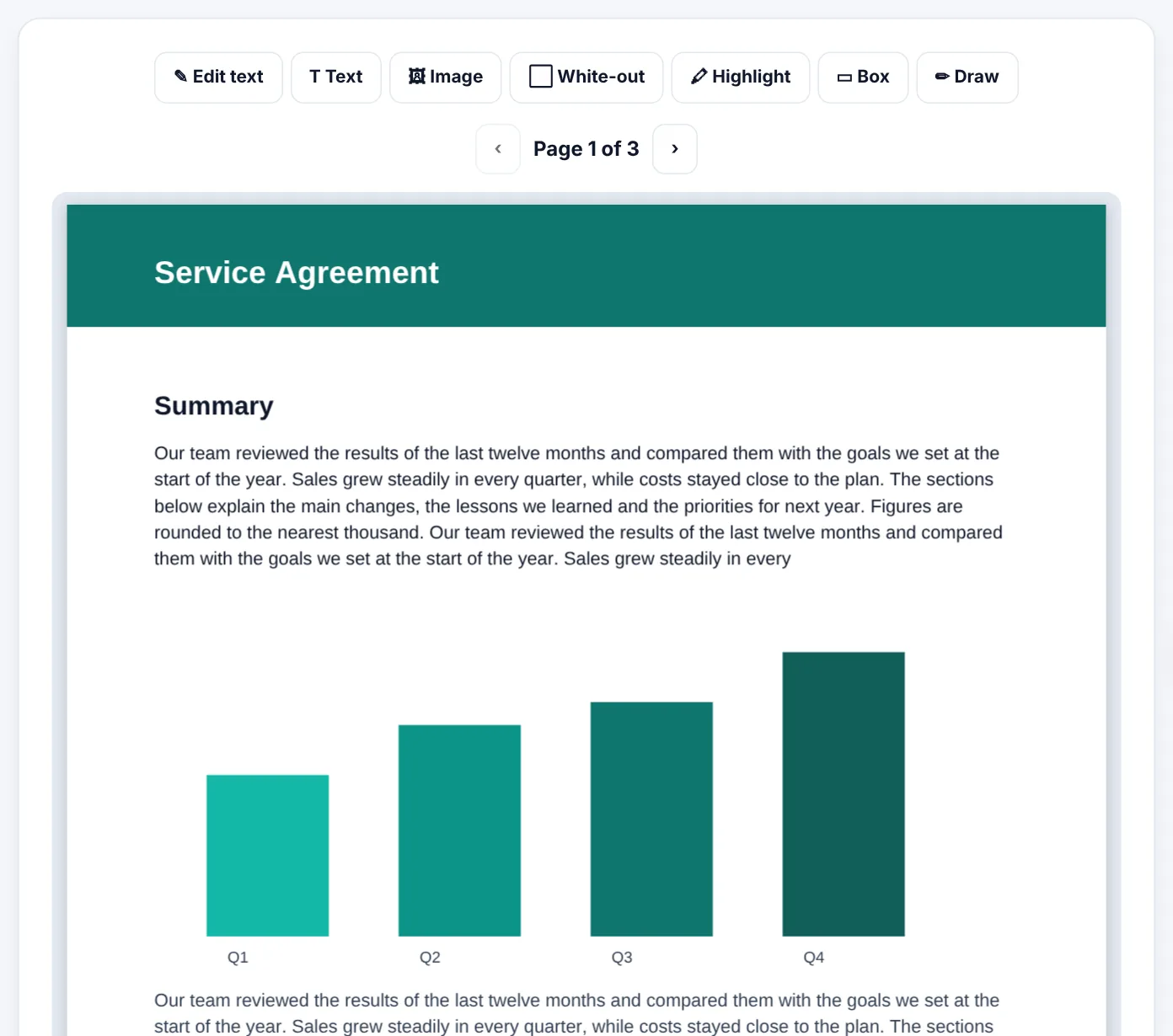
- Open Edit PDF and select your file. The first page appears, with page arrows to move through the document.
- Choose a tool from the toolbar: - ✎ Edit text: click a line of existing text to change it. - T Text: add new text anywhere. - Image: add a picture, logo or stamp. - White-out: cover something with a white (or matching) box. - Highlight: mark text with a see-through colour. - Box: draw a rectangle or frame. - Draw: freehand drawing with a finger, pen or mouse.
- Click or drag on the page to place the item. Drag to move it, resize it with the handle, and remove it with ✕.
- Move to other pages and repeat as needed.
- Save and download the edited PDF.
Everything happens in your browser, so documents with personal or business information stay on your device.
Fixing existing text: how "Edit text" works
When you click a line with Edit text, the tool:
- Reads the line's text, size, colour and boldness from the PDF.
- Covers the original line with a box filled with the colour of the page behind it.
- Places an editable copy of the line on top, in matching size and colour, so you can change it.
The result looks like the text was changed in place. It is ideal for:
- A wrong date, amount or phone number.
- A misspelled name.
- Updating a year in a footer.
- Small wording fixes in a single line.
Two things to keep in mind:
- The original text is covered, not deleted. Someone who copies the text from that area, or uses a PDF editor to move the cover, could still find the old words. That is fine for typos and updates, but for removing sensitive information use Redact PDF, which deletes it permanently.
- The font may differ slightly if the PDF uses an unusual font. A matching size and weight usually makes the difference hard to notice. Keep edits short so they blend in.
Tip: For a changed number or date, edit the whole line rather than a single character. The replacement text then has consistent spacing.
Adding text
Use T Text to add new text anywhere: filling in a form that has no fillable fields, adding a note, writing a name on a certificate or labelling a diagram. Choose the size and colour to match the document. For more control over fonts and Urdu, Hindi or Arabic text, Add Text to PDF offers the same with extra options.
Adding pictures and stamps
The Image tool places a picture on the page: a company logo on a letter, a photo on an application form, a "PAID" or "RECEIVED" stamp, or a scanned signature. Use PNG images with transparent backgrounds so they sit naturally on the page. Add Image to PDF is a dedicated version of the same feature.
White-out: hiding small mistakes
White-out draws a box that covers whatever is underneath, like correction fluid on paper. Use it to hide a stray mark, an old page number, or a field you want to leave blank. As with Edit text, the content underneath still exists in the file, so do not use white-out for confidential information. Redact instead.
Highlights, boxes and drawings
- Highlight marks important passages in a see-through colour, perfect for study notes or pointing out a clause in a contract.
- Box draws a frame around something to draw attention to it.
- Draw lets you circle, underline, add arrows or sketch freely. On a tablet with a stylus, it feels like writing on paper.
These are ideal for reviewing documents: mark up a draft, send it back, and the author can see exactly what you mean.
Try Edit PDFFree, no sign-up, and your file never leaves your device.Open tool →

When to convert to Word instead
If you need to change more than a few lines, editing on top of the PDF becomes slow and the result looks patched. Convert instead:
- Convert with PDF to Word in Editable text mode.
- Make your changes in Word, Google Docs or LibreOffice, where paragraphs re-flow naturally.
- Save as PDF again, or use Word to PDF.
A quick rule of thumb:
| Change | Best approach |
|---|---|
| Fix a typo, date or number | Edit PDF → Edit text |
| Add a note, name or label | Edit PDF → Text |
| Add a logo, photo or stamp | Edit PDF → Image |
| Highlight or mark up for review | Edit PDF → Highlight, Box, Draw |
| Fill in a form | Fill PDF Form, or Edit PDF → Text if it has no fields |
| Sign | Sign PDF |
| Rewrite paragraphs or change layout | PDF to Word, edit, back to PDF |
| Remove sensitive information | Redact PDF |
| Rearrange, delete or rotate pages | Organize PDF |
Editing scanned PDFs
Scanned pages are pictures, so there is no text for Edit text to read. You can still:
- Use White-out to cover a mistake and Text to write the correction on top.
- Add pictures, highlights, boxes and drawings.
- Make the scan searchable with OCR PDF first, then convert to Word if you need to rewrite it.
Making your edits look natural
- Match the font size of the surrounding text. Zoom in to compare.
- Match the colour. Body text is often dark grey rather than pure black.
- Align carefully with the baseline of nearby lines.
- Keep it consistent. If you add text in several places, use the same size and colour each time.
- Check on another device. Open the saved PDF on your phone to make sure it looks right outside the editor.
Worked example: updating a price list without the original file
A café owner has a one-page menu as a PDF, made by a designer two years ago. Three prices have gone up and one dish has been replaced. The designer is no longer available.
- She opens the menu in Edit PDF and chooses Edit text.
- She clicks the first price line. A box appears over it with the same text in a matching size and colour. She changes "450" to "490".
- She repeats for the other two prices.
- For the replaced dish, she clicks the dish name line and types the new name, then clicks the description line below it and rewrites it, keeping it to the same length so it fits.
- She zooms in to check the new text lines up with the rest.
- She saves the PDF, opens it on her phone to check, and sends it to the printer and to her social media.
Ten minutes, no designer and no software subscription.
Worked example: marking up a report for a colleague
A manager receives a draft report and wants to send feedback:
- Highlight the sentences that need checking.
- Draw a circle around a chart with the wrong figure.
- Add text notes in the margin: "Use Q3 numbers here", "Shorten this section".
- Box around a paragraph to move elsewhere.
She saves and sends the marked-up PDF back. The author sees exactly what to fix, page by page, without a long email describing locations.
Keyboard and touch tips
- On a computer, zoom in with your browser (Ctrl and +) for precise placement, and use the mouse to drag items pixel by pixel.
- On a phone or tablet, place an item roughly first, then zoom the page and drag it into its final position.
- Use a stylus with the Draw tool for natural handwriting and neat circles.
- Work page by page. Finish one page, check it, then move to the next with the arrows.
Editing vs annotating: what the recipient can do
Everything you add with Edit PDF becomes part of the page when you save, so it looks the same in every PDF viewer, on every device, and prints exactly as you see it. That is different from the "comments" some desktop PDF programs add, which can be hidden, moved or deleted by the recipient and may not print by default. If you want your additions to be impossible to miss, and hard to remove, Edit PDF's approach is the right one.
Edit PDF and other tools work together
Editing is often one step in a longer job. Some common combinations:
- Edit, then sign: fix the details in Edit PDF, then sign with Sign PDF.
- Edit, then protect: update a confidential document, then lock it with Protect PDF.
- Organise, then edit: remove and reorder pages with Organize PDF first, then make your changes on the final page order.
- Edit, then compress: adding large photos can make a file heavy; finish with Compress PDF.
- Edit, then number: if you add or remove pages, add numbering last with Add Page Numbers.
Frequently asked questions
Is Edit PDF really free?
Yes. No account, no watermark and no limit on the number of documents.
Can I edit a password-protected PDF?
Open it first with Unlock PDF using the password you know, edit it, then protect it again with Protect PDF if needed.
Does editing change the rest of the document?
No. Pages you do not touch stay exactly as they were, and existing text remains selectable and searchable.
Can I undo a change?
Remove any item you added with its ✕ button before saving. After saving, start again from the original file if needed, so always keep the original.
Can I edit on my phone?
Yes. Edit PDF works with touch: tap to place items, drag to move and pinch-friendly handles to resize. A bigger screen is more comfortable for detailed work.
Can I edit text in Urdu or Arabic PDFs?
You can add Urdu, Arabic and Hindi text with the Text tool. Changing existing right-to-left text in place depends on how the PDF stores it; for longer changes, converting or retyping is more reliable.
Can I change the colour or size of text I add?
Yes. Text you add can be resized and coloured to match the document. Choose a dark grey for body-text-like notes and a bright colour for review comments that should stand out.
Can I delete pages while editing?
Page-level changes such as deleting, reordering and rotating pages are done in Organize PDF or Delete PDF Pages. Do those first, then edit the content.
Will the person I send it to see my edits as separate items?
No. When you save, your additions become part of the page, so the recipient sees one finished document in any PDF viewer.
In short
Most PDF "editing" is adding things on top: text, images, highlights, drawings, white-out. Edit PDF does all of that in your browser and can also fix individual lines of existing text. For bigger rewrites, take a round trip through Word. For anything confidential, redact rather than cover.
Tools used in this guide
 Add Text to PDF
 Add Image to PDF
 PDF to Word
Keep reading
 PDF GuidesWhat Does "Flatten a PDF" Mean, and When Should You Do It?
Flattening turns form fields, comments, stamps and signatures into a fixed part of the page. Learn when to flatten, the two ways to do it, and the mistakes to avoid before sending a filled form.
9 min read PDF GuidesHow to Crop a PDF and Remove White Margins
Trim wide white margins, scanner borders and unwanted edges from PDF pages, crop all pages or just one, and understand what cropping really hides. Includes reading on phones and printing tips.
9 min read PDF GuidesHow to Compare Two PDF Files and Find Every Change
Spot what changed between two versions of a contract, report or quote. Learn the difference between visual and text comparison, how to read the results and when to double-check.
9 min read