"PNG vs JPG vs WebP: Which Image Format Should You Use?"
In this guide
- The short answer
- Lossy vs lossless: the one idea you need
- JPG (JPEG)
- PNG
- WebP
- GIF
- SVG
- HEIC and AVIF
- Comparison table
- Which format for which job?
- How to convert between formats
- Common conversion mistakes
- Quality settings explained
- Pixels, resolution and DPI: what really decides sharpness
- Real file sizes: an example
- Formats and social media
- Frequently asked questions
- In short
You save a screenshot and it is a PNG. Your phone photo is a JPG (or HEIC). A picture downloaded from a website turns out to be WebP, and the app you want to use does not accept it. A designer sends you a logo as SVG and asks if you have "a PNG version too".
Image formats can feel like a maze of three- and four-letter abbreviations. In practice, you only need to understand a handful of them, and one simple question decides which to use: what kind of picture is it, and where is it going? This guide answers that question for every common situation.
The short answer
- Photos → JPG for sharing and uploading, WebP for websites.
- Screenshots, graphics with text, diagrams → PNG.
- Logos and icons → SVG if you can, otherwise PNG with a transparent background.
- Short animations → GIF for compatibility, WebP or video for smaller files.
- Printing → high-quality JPG, PNG or TIFF, at the full resolution you have.
The rest of this guide explains why, so you can make the right choice even in unusual cases.
Lossy vs lossless: the one idea you need
All image formats store pictures in one of two ways.
Lossy compression throws away detail that the eye is unlikely to notice, such as tiny variations in colour across a sky or subtle texture in skin. The file becomes much smaller. The more you compress, the more detail is lost, and eventually you see blocks, blur or halos around edges. JPG is the classic lossy format.
Lossless compression keeps every pixel exactly as it was. Files are bigger, but nothing is lost, no matter how many times you save. PNG is the classic lossless format.
Photos are full of soft, natural detail, so lossy compression works brilliantly on them. Screenshots and graphics are full of sharp edges and flat colours, which lossy compression handles poorly: text gets fuzzy halos and flat areas get speckled. That is why photos and screenshots want different formats.
JPG (JPEG)
What it is: the standard format for photographs since the early 1990s.
Strengths: - Small files for photos. - Opens absolutely everywhere: every phone, computer, website, printer and app. - Adjustable quality, so you can trade size for detail.
Weaknesses: - Lossy: each re-save loses a little more detail. - No transparency; transparent areas become white or another solid colour. - Poor for text and sharp graphics, which get blurry halos.
Use it for: photos you share, email, upload to forms, post on social media or print.
PNG
What it is: a lossless format created in the 1990s as a free replacement for GIF.
Strengths: - Perfect quality; pixel-exact. - Supports transparency, including soft edges. - Ideal for text, screenshots, diagrams, charts and logos.
Weaknesses: - Large files for photos; a photo saved as PNG can be five to ten times bigger than the same photo as a good JPG.
Use it for: screenshots, images with text, graphics with flat colours, logos and anything that needs transparency.
WebP
What it is: a modern format created by Google for faster websites. It can be lossy (like JPG) or lossless (like PNG), and supports transparency and animation.
Strengths: - Typically 25–35% smaller than JPG at similar visual quality. - Transparency with much smaller files than PNG. - Supported by all modern browsers.
Weaknesses: - Some older software, print shops, office programs and online forms still do not accept it.
Use it for: images on websites and online shops, where file size affects loading speed and search rankings.
GIF
What it is: a very old format limited to 256 colours, famous today for short animations.
Use it for: simple animations and memes where compatibility matters most. For photos, GIF looks poor because of the colour limit. For high-quality animation, short videos or animated WebP are much smaller.
SVG
What it is: a vector format. Instead of storing pixels, it stores shapes, lines and curves described with maths.
Strengths: - Infinitely sharp at any size, from a favicon to a billboard. - Tiny files for logos, icons and simple illustrations. - Colours and shapes can be edited.
Weaknesses: - Not suitable for photos. - Not accepted everywhere (for example, many social media platforms and forms).
Use it for: logos, icons and illustrations, especially on websites and for printing at many sizes.
HEIC and AVIF
HEIC is the format iPhones use by default: excellent compression, limited support outside Apple devices. See our guide HEIC vs JPG.
AVIF is a newer open format, even more efficient than WebP and growing on websites, but with patchier support in apps. Convert to JPG with AVIF to JPG when something refuses it.
Comparison table
| Format | Compression | Transparency | Animation | Best for | Works everywhere? |
|---|---|---|---|---|---|
| JPG | Lossy | No | No | Photos | Yes |
| PNG | Lossless | Yes | No | Screenshots, graphics, logos | Yes |
| WebP | Both | Yes | Yes | Website images | Modern browsers; some apps |
| GIF | Lossless, 256 colours | Basic | Yes | Simple animations | Yes |
| SVG | Vector | Yes | Possible | Logos, icons | Browsers, design apps |
| HEIC | Lossy | Yes | Bursts | iPhone storage | Apple; limited elsewhere |
| AVIF | Both | Yes | Yes | Websites | Newer browsers |
Which format for which job?
Uploading a photo to a form or portal
JPG. It is almost always accepted. If there is a size limit, use Resize Image to KB.
Sharing a screenshot of an error or a chat
PNG. Text stays crisp. If the file is large and the screenshot is mostly a photo, JPG is fine.
Putting product photos on an online shop
WebP if your shop platform supports it (most do), otherwise a well-compressed JPG. Use Compress Image to keep pages fast.
A logo for your website
SVG for the site itself, plus a PNG with transparency for places that do not accept SVG, such as social media profile pictures and some email signatures.
Printing photos
High-quality JPG (Best quality) or PNG, at full resolution. Do not shrink the image before printing.
Images in a Word document or presentation
JPG for photos and PNG for screenshots and diagrams. Very large photos make documents heavy; resize them to around 1600–2000 pixels wide first with Resize Image.
A short animation
GIF if it must play everywhere, such as in email. Make one from a clip with Video to GIF.
How to convert between formats
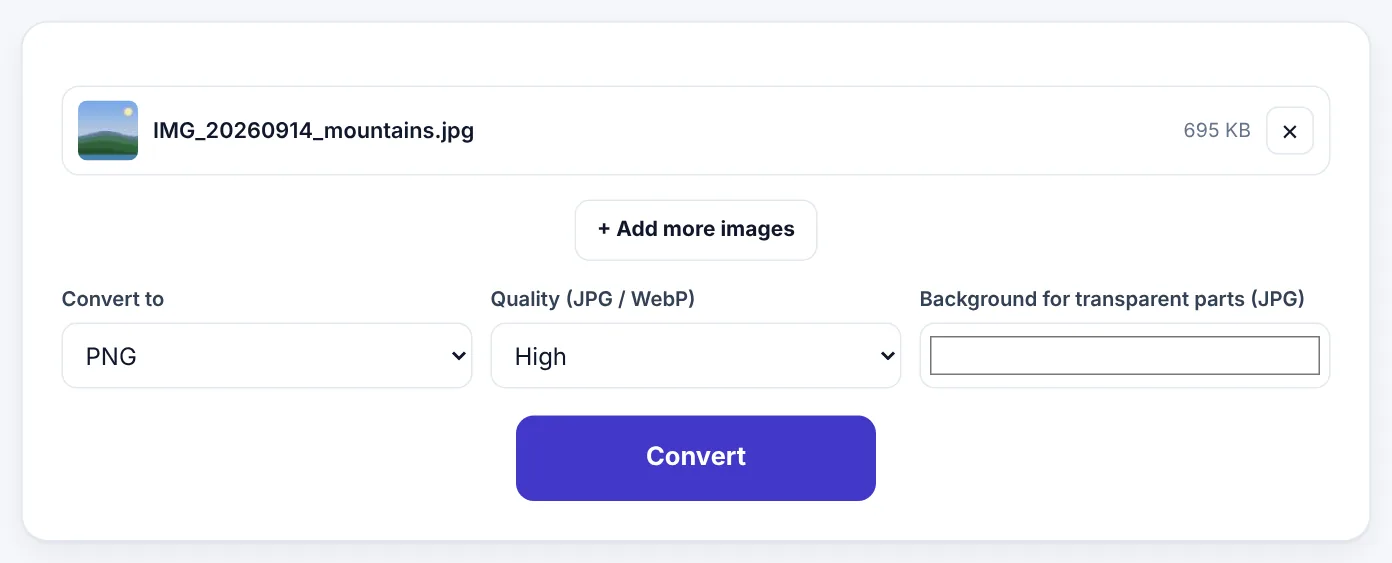
Convert Image converts pictures in your browser, one or many at a time. Your images are not uploaded.
- Open Convert Image and select one or more pictures.
- Choose what to Convert to: JPG, PNG, WebP, GIF, BMP, TIFF, ICO and more.
- For JPG and WebP, choose the Quality.
- For JPG, choose a Background for transparent parts, because JPG cannot be transparent. White is the usual choice.
- Press Convert and download. Several images come together in a ZIP.
There are also one-click tools for the most common conversions: PNG to JPG, JPG to PNG, JPG to WebP, WebP to JPG and PNG to WebP.
Try Convert ImageFree, no sign-up, and your file never leaves your device.Open tool →

Common conversion mistakes
Converting a JPG to PNG to "improve quality"
Converting a JPG to PNG does not bring back lost detail. The PNG will look exactly like the JPG, just in a much bigger file. Only convert to PNG if you need transparency or plan to edit and re-save many times.
Saving the same JPG again and again
Each time a JPG is edited and saved, it is compressed again and loses a little more detail. If you edit a photo several times, keep a master copy in PNG or your phone's original format, and export a JPG only at the end.
Converting a logo with a white background to JPG
The white box will show on any coloured background. Keep logos as PNG or SVG with transparency. If yours already has a white box, remove it with Remove Background.
Using PNG for big photos on a website
A 4 MB PNG photo can slow a page dramatically. Convert photos to WebP or JPG and compress them.
Quality settings explained
When saving as JPG or WebP, you usually choose a quality level:
- Best: visually identical to the original for almost every photo. Use for printing and archiving.
- High: the best balance for sharing and websites. Differences are only visible when zooming in a lot.
- Smaller file: good for thumbnails, previews and strict size limits. Fine detail may soften.
For most people, High is the right default.
Pixels, resolution and DPI: what really decides sharpness
Format is only half of the story. The other half is how many pixels the image has.
- Pixels are the tiny dots that make up a digital image. A phone photo might be 4000 × 3000 pixels; a profile picture might be 400 × 400.
- Resolution usually means the pixel dimensions. More pixels mean more detail, and bigger files.
- DPI (dots per inch) only matters when printing. It describes how many pixels are squeezed into each inch of paper. 300 DPI is the usual target for sharp prints.
A simple way to work out the largest good print: divide the pixel width by 300. A 3000-pixel-wide photo prints sharply at about 10 inches (25 cm) wide. On screens, DPI does not matter at all; only the pixel dimensions do.
That is why a small, low-resolution image cannot be "fixed" by converting it to PNG or saving it at 300 DPI. If the pixels are not there, no format can invent them.
Real file sizes: an example
To make the differences concrete, here is how a typical 3000 × 2000 pixel holiday photo might compare when saved in different formats. Exact numbers vary with the picture, but the pattern is consistent:
| Format and setting | Typical size | Looks like |
|---|---|---|
| PNG (lossless) | 8–12 MB | Identical to the original |
| JPG, Best quality | 1.5–2.5 MB | Identical at normal viewing |
| JPG, High quality | 700 KB–1.2 MB | Identical unless zoomed in a lot |
| WebP, High quality | 450–800 KB | Same as high-quality JPG |
| JPG, Smaller file | 300–500 KB | Slight softening in fine detail |
And for a 1200 × 800 screenshot of a document with text:
| Format | Typical size | Looks like |
|---|---|---|
| PNG | 80–200 KB | Crisp text |
| JPG, High | 120–250 KB | Faint halos around letters |
| WebP lossless | 60–150 KB | Crisp text |
Notice that for screenshots, PNG is not only sharper but often smaller than JPG, because flat colours compress very well losslessly.
Formats and social media
Social platforms re-compress every image you upload, often quite heavily. A few practical tips:
- Upload high-quality JPG or PNG, not an already heavily compressed file. The platform will compress it again, and starting from a better image gives a better result.
- Use PNG for graphics with text, such as quote cards and infographics. They survive re-compression with less blur.
- Check the recommended pixel size for each platform (for example, square posts around 1080 × 1080) and resize before uploading so the platform does not crop or shrink it unexpectedly.
Frequently asked questions
Is PNG better quality than JPG?
PNG keeps every pixel, so it is "perfect", but for photos a high-quality JPG looks the same to the eye at a fraction of the size. For screenshots and graphics, PNG is clearly better.
Why won't a website accept my WebP image?
Some upload forms only accept JPG and PNG. Convert it with WebP to JPG.
Does converting change the image size in pixels?
No. Converting changes the format only. To change dimensions, use Resize Image.
Which format is smallest?
For photos, WebP and AVIF are usually smallest, then JPG. For graphics, SVG (if the image is a vector) and WebP lossless beat PNG.
Can I convert many images at once?
Yes. Select them all in Convert Image; they are converted together and downloaded as a ZIP.
What is the best format for a WhatsApp profile picture or status?
JPG works best. WhatsApp compresses images heavily, so start with a sharp, well-lit square photo. For status images with text, PNG keeps letters clearer before WhatsApp compresses them.
In short
Use JPG for photos you share, PNG for screenshots and anything with sharp text or transparency, WebP for website images, SVG for logos and icons, and GIF only for simple animations. Convert when a format does not fit where the picture is going, and remember that converting never adds back detail that was lost.
Tools used in this guide
 JPG to WebP
 PNG to JPG
 Compress Image
Keep reading
 Image GuidesHow to Make a Favicon (ICO) From a PNG or Logo
Create a sharp favicon.ico for your website from a PNG, JPG or SVG logo - which sizes to include, how to design a logo that works at 16 pixels, and how to add it to WordPress or any site.
9 min read Privacy & SecurityHow to Remove Hidden Metadata From PDFs and Photos Before Sharing
PDFs and phone photos carry hidden details - author names, software, dates, comment names, even GPS location. See what they reveal and how to remove them before you share or upload.
9 min read Image GuidesHow to Make a GIF From a Video (Small, Sharp and Smooth)
Turn a phone video or screen recording into a looping GIF. How to pick the moment, choose frame rate and width, keep the file small enough to share, and when a short MP4 is better.
9 min read