How to Merge PDF Files Into One (on Phone or Computer)
In this guide
- What merging actually does
- How to merge PDFs with SmartPDFConvert
- Getting the order right
- When you need to rearrange pages, not just files
- Mixing different page sizes and orientations
- Merging photos and PDFs together
- Staying under upload limits
- Common problems and fixes
- Merging on a phone: practical tips
- How merging is different from "printing to one PDF"
- Privacy: who sees your documents?
- A quick checklist before you send a merged PDF
- Three real situations, start to finish
- Merging vs zipping: which is better for sending files?
- Naming and organising your merged files
- Frequently asked questions
- The bottom line
Online applications love a single file. A scholarship portal wants "all documents in one PDF". An employer asks for your CV, cover letter and certificates "as one attachment". Your accountant wants every month's bank statement in one file, not twelve.
Merging PDFs is one of the simplest document jobs, but a few small decisions make the difference between a tidy file that looks professional and a jumble the reader has to scroll back and forth through. This guide covers the how and the little details people usually only learn after a rejection email.
What merging actually does
When you merge PDFs, the pages of each file are placed one after another into a new document. Nothing is retyped or converted. Text stays selectable, pictures keep their quality, and each page looks exactly as it did in its original file.
That also means the result is roughly as big as all the original files added together. Merging five 2 MB files gives you a file of about 10 MB. Keep that in mind if there is an upload limit (more on that below).
How to merge PDFs with SmartPDFConvert
Merge PDF works in your browser on phones, tablets and computers. Your files are combined by your own device and are not uploaded to a server.
- Open Merge PDF and press Select PDF files. You can pick several files at once. On a phone, tap and hold to select more than one, or add them one by one.
- The files appear in a list with a small picture of the first page, the number of pages and the size.
- Use the ↑ and ↓ buttons to put them in the right order, or press Sort A–Z to order them by name. The file at the top comes first.
- Need only part of a file? Type its pages in the box under its name, such as
1-3, 5. Leave the box empty to use every page. - Forgot one? Press + Add more PDFs. Added the wrong one? Remove it with ✕.
- Keep Add a bookmark for each file ticked so readers can jump to each document, and tick Double-sided printing if the file will be printed on both sides of the paper.
- Give the file a name, press Merge and download your combined file.
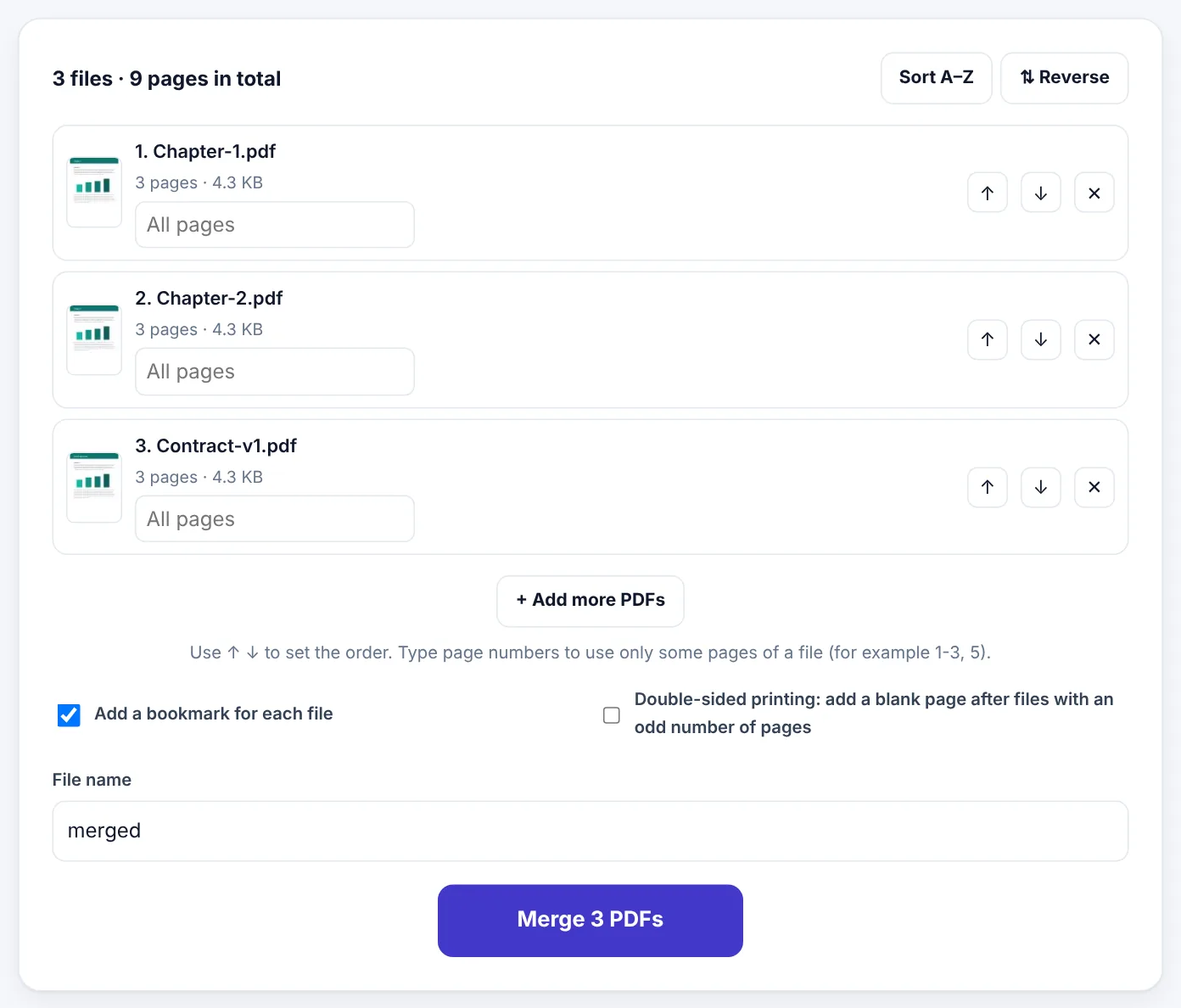
For a handful of normal documents, the merge takes a second or two.
Getting the order right
The order is the one thing that is hard to fix later, so it is worth a moment's thought before pressing the button.
For job applications, a common order is:
- Cover letter
- CV or resume
- Highest qualification first (degree, then diplomas), then older certificates
- Experience letters, newest first
- ID documents, if requested
For university or scholarship applications, follow the order in the instructions. If none is given, use the order of the checklist on the application form. Reviewers often tick items off a list, and you make their job easier by following it.
For bills and statements, go by date: oldest first is easiest to read.
Tip: Rename your files with numbers before you start:
01-cover-letter.pdf,02-cv.pdf,03-degree.pdf. When you select them, they usually appear in the right order straight away, and you will thank yourself next time too.
When you need to rearrange pages, not just files
Sometimes the problem is inside a file. Your degree certificate was scanned as two pages, but the back page came first. Or you want the third page of one document to appear between two others. (If you only want to leave some pages out, the page box under each file in Merge PDF is enough.)
In that case, merge the files first, then open the result in Organize PDF. It shows every page as a thumbnail, so you can drag pages into any order, rotate a sideways scan and delete a page you do not need, all in one place.

Mixing different page sizes and orientations
Merging works with any mix of PDFs, but the pages keep their own sizes. If you combine an A4 letter with a US Letter certificate and a landscape spreadsheet, the merged file will contain all three shapes.
That is perfectly valid, and most readers will not mind. But if you want a neat, uniform document:
- Use Resize PDF to put every page on A4 (or Letter) before or after merging.
- Use Rotate PDF for pages that were scanned sideways, so nobody has to turn their head.
For printed documents, uniform page size matters more. A print shop or office printer may scale odd-sized pages differently from the rest.
Merging photos and PDFs together
Merge PDF combines PDF files. If some of your documents are photos (for example a picture of your ID card taken with your phone), turn those photos into PDF first:
- Use JPG to PDF or Scan to PDF to make a PDF from the photos.
- Then merge that PDF with the rest.
Scan to PDF is the better choice for photos of paper, because its Document look straightens out the contrast and makes pages look like proper scans instead of photos of a table.
Staying under upload limits
Merged files grow quickly, especially when they contain scans. Before you upload, check the limit and the size of your file.
If the merged PDF is too big:
- Run it through Compress PDF. The Recommended level usually shrinks scans and photos a lot while keeping text sharp.
- Still too big? Try Extreme for scanned documents.
- Still too big? The portal may simply not expect everything in one file. Check whether it allows separate uploads for different documents.
It is often smarter to compress the large files before merging, especially big scans, and leave small text documents as they are. You get the best quality for the text pages and still a small total.
Try Merge PDFFree, no sign-up, and your file never leaves your device.Open tool →

Common problems and fixes
"This file is password protected"
A protected PDF cannot be merged until it is opened with its password. If it is your document and you know the password, remove it with Unlock PDF, then merge. If you want the final file protected, add a password at the end with Protect PDF.
A page is blank or missing in the merged file
This usually happens when an original file was damaged. Open the original on its own; if it looks wrong there too, try Repair PDF on it first and merge the repaired copy.
Answers in a filled-in form look odd after merging
Fillable form fields are interactive parts that sit on top of the page, and they do not always survive being moved into a new document intact. If one of your files is a form you have already filled in, run it through Flatten PDF before merging. Flattening prints the answers onto the page as normal content, so they look exactly the same in the merged file and can no longer be changed by accident.
The file is huge and slow to open on a phone
Compress it. A phone can open a 40 MB PDF, but it will be slow, and many messaging apps and email services will compress or reject it anyway.
Merging on a phone: practical tips
People increasingly do this on their phones, and it works well. A few things make it smoother:
- Find your files first. On Android, documents you download usually go to the Downloads folder. On iPhone, look in the Files app, under On My iPhone or Downloads.
- WhatsApp attachments: save the PDF to your phone first (open it in WhatsApp, then use Share or Save to Files), then select it in the browser.
- Keep the screen on. For very large files, keep the page open until the download appears.
- Check the result before sending it: open the downloaded file and scroll through all pages.
How merging is different from "printing to one PDF"
Some people combine documents by opening each one and "printing" them to a PDF printer, then joining the prints. It works, but it has downsides: text can turn into pictures, links stop working, file size often grows and the quality of scans can drop. A real merge simply joins the existing pages without changing them, which is faster and keeps everything as it was.
Privacy: who sees your documents?
Documents that need merging are often exactly the ones you would not want floating around: CNIC or ID cards, passports, degree certificates, salary slips, tax forms. With many online services, every one of those files is uploaded to a company server.
Merge PDF combines your files inside the browser on your own device. Nothing is uploaded, nothing is stored, and closing the tab clears everything. That also makes it safe to use on a shared or office computer.
A quick checklist before you send a merged PDF
- [ ] All required documents are included.
- [ ] They are in the order the reader expects.
- [ ] No page is upside-down or sideways.
- [ ] The file size is under the limit, with a little room to spare.
- [ ] The file name is clear, for example
Ayesha-Khan-Application.pdfrather thanmerged (3).pdf. - [ ] You opened it once and scrolled through every page.
That last point catches more mistakes than any tool can.
Three real situations, start to finish
A job application with five documents
Hamza is applying for an engineering position. The online form has one upload button labelled "Supporting documents (single PDF, max 5 MB)". He has a cover letter and CV exported from Word, a degree certificate and transcript scanned at a shop, and a photo of his experience letter.
He turns the experience letter photo into a PDF with Scan to PDF using the Document look. Then he opens Merge PDF, selects all five files and arranges them: cover letter, CV, degree, transcript, experience letter. The merged file is 7.8 MB, because the scans were made at high resolution. One pass through Compress PDF on Recommended brings it to 1.9 MB, with every word still crisp. He names it Hamza-Ali-Engineer-Application.pdf and uploads it.
Monthly bank statements for a visa
A visa application asks for six months of bank statements as one document. The bank's app downloads each month separately. Merge PDF puts April to September in date order in one file. Because these are digital statements with real text, the merged file is small and needs no compression at all.
Lecture notes for a study group
A student has eleven separate PDF handouts from a semester and wants one file to revise from. She merges them in lecture order, then opens the result in Organize PDF to remove three duplicate title pages. One searchable document replaces eleven scattered downloads.
Merging vs zipping: which is better for sending files?
Sometimes people zip files together instead of merging them. Both bundle several documents, but they suit different situations.
| Merged PDF | ZIP file | |
|---|---|---|
| Opens on any phone with one tap | Yes | Not always; needs unpacking |
| Reader sees one continuous document | Yes | No; separate files |
| Accepted by upload forms that want a PDF | Yes | Usually not |
| Keeps documents as separate files | No | Yes |
| Can mix file types (Word, Excel, images) | No, PDF only | Yes |
If the person needs to read the documents, merge them. If they need to store or process the files separately, a ZIP may be better.
Naming and organising your merged files
A merged PDF often becomes the "official" version of a set of documents, so it is worth naming it well. A good file name says who, what and when:
Sara-Ahmed-Scholarship-Documents-2026.pdfInvoices-Q3-2026-Bluebird-Studio.pdfTenancy-Agreement-Signed-All-Pages.pdf
Avoid spaces and special characters if the file is going into an online form; dashes are the safest separator. And keep the original separate files in a folder too, in case you need to update one document later and merge again.
Frequently asked questions
How many PDFs can I merge at once?
There is no fixed limit. You can combine two files or fifty. Very large numbers of big scans depend on how much memory your device has; if it gets slow, merge in two or three groups and then merge the groups.
Will the quality of my documents change?
No. Merging copies the pages as they are. Text stays text and images keep their quality. Only compression, which is a separate step, changes image quality.
Can I merge PDFs and Word files?
Convert Word files to PDF first with Word to PDF, then merge everything. The same goes for Excel (Excel to PDF) and images (JPG to PDF).
Are bookmarks kept?
Merge PDF adds a new bookmark for each file you combine, named after the file, so readers can jump straight to the CV or the degree certificate. Bookmarks inside the original files are not copied. Untick Add a bookmark for each file if you do not want them.
Can I use only some pages of a file?
Yes. Type the pages under the file's name, for example 2-4 or 1, 3, 5, and only those pages are added.
Can I undo a merge?
Your original files are not changed, so you always still have them. If you need part of a merged file back out, use Split PDF or Extract PDF Pages.
The bottom line
Merging is quick: choose your files, set the order, press the button. What makes the result look professional is the preparation around it: a sensible order, upright pages, a size that fits the upload limit and a clear file name. Get those right and the person reviewing your documents will find everything exactly where they expect it.
Tools used in this guide
 Organize PDF
 Compress PDF
Keep reading
 Online Forms"Online Application Document Checklist: Photos, Scans, Signatures and File Sizes"
A practical checklist for job, university, exam, visa and government portals - preparing photos, signatures and scanned documents in the right format and size, naming files, and avoiding last-minute upload errors.
9 min read PDF GuidesWhat Does "Flatten a PDF" Mean, and When Should You Do It?
Flattening turns form fields, comments, stamps and signatures into a fixed part of the page. Learn when to flatten, the two ways to do it, and the mistakes to avoid before sending a filled form.
9 min read PDF GuidesHow to Crop a PDF and Remove White Margins
Trim wide white margins, scanner borders and unwanted edges from PDF pages, crop all pages or just one, and understand what cropping really hides. Includes reading on phones and printing tips.
9 min read