Everything you need for PDFs – in one friendly place
SmartPDFConvert brings together more than 60 everyday tools for documents and pictures: turn files into PDF and back again, put pages in order, shrink big files, sign and fill forms, read text from photos, protect private papers and clean up images. Every tool is built to be quick to understand, even if you have never used a PDF program before.
Popular jobs, and the tool for each
- An online form wants a smaller file – use Compress PDF for documents or Resize Image to KB for photos and signatures.
- You need to edit a PDF you received – convert it with PDF to Word, or write on it directly with Edit PDF.
- You have photos of papers – make one clean document with Scan to PDF or JPG to PDF, then make the text searchable with OCR PDF.
- Someone asks you to sign and return a document – use Sign PDF or Fill PDF Form.
- You are sharing a document with private details – black them out for good with Redact PDF or add a password with Protect PDF.
- A form wants your ID card front and back on one page – use Merge Images; for a photo or signature in exact pixels and KB, use Photo & Signature Resizer.
- Not sure which tool you need? – drop your file into the PDF Converter and it shows you the options.
How it works
- Choose a tool from the list above, or search the menu.
- Select your file – it opens straight in your browser, nothing is uploaded.
- Pick your options, press the button and download the result.
Frequently asked questions
Is SmartPDFConvert really free?
Are my files uploaded to your servers?
Does it work on mobile phones?
Do I need to install an app or create an account?
Which tool should I use to make a file smaller?
Can I use the tools in Urdu?
Is there a limit on file size?
Latest guides from our blog
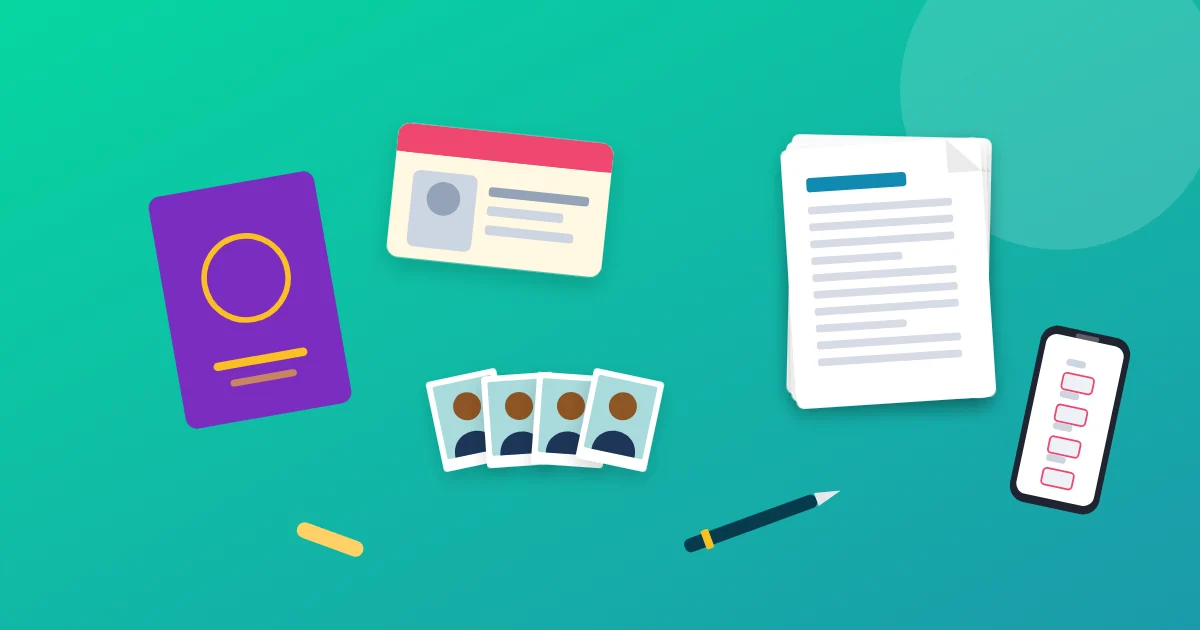 Online Forms"Online Application Document Checklist: Photos, Scans, Signatures and File Sizes"
A practical checklist for job, university, exam, visa and government portals - preparing photos, signatures and scanned documents in the right format and size, naming files, and avoiding last-minute upload errors.
9 min read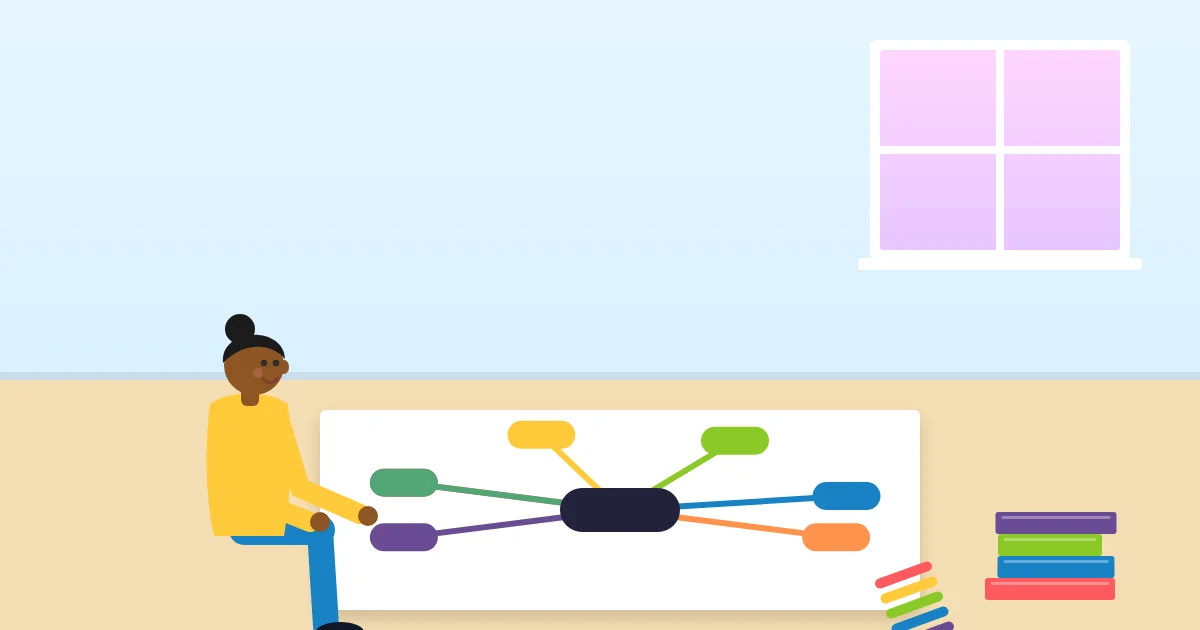 Ebooks & WritingHow to Use Mind Maps for Studying (With Examples)
Why mind maps help you understand and remember, how to build a good one from a chapter or lecture, and how to revise with them. Includes subject examples and a step-by-step study routine.
9 min read Image GuidesHow to Make a Favicon (ICO) From a PNG or Logo
Create a sharp favicon.ico for your website from a PNG, JPG or SVG logo - which sizes to include, how to design a logo that works at 16 pixels, and how to add it to WordPress or any site.
9 min read